
Have you ever found an amazing Pinterest Pin, closed the app, and then spent hours desperately trying to find it again?
It’s frustrating. One accidental tap, browser refresh, or app closure can make a useful recipe, DIY project, outfit idea, or marketing strategy seem completely lost.
The good news?
Pinterest keeps track of much of your activity, making it possible to revisit Pins you’ve viewed, searches you’ve performed, and boards you’ve interacted with.
In this guide, you’ll learn exactly how to view your Pinterest history, where to find recently viewed Pins, how to check your search history, and what to do if you can’t locate a Pin you previously saw.
What Does Pinterest History Include?

Before jumping into the steps, it’s helpful to understand what Pinterest means by “history.”
Pinterest doesn’t have a dedicated “History” page like some web browsers. Instead, your activity is spread across several areas, including:
- Recently viewed Pins
- Search history
- Saved Pins
- Board activity
- Account data downloads
- Browsing recommendations based on previous activity
Depending on how recently you viewed something and whether you’re using the Pinterest app or website, the exact location of your activity may vary.
How Can You View Recently Viewed Pins On Pinterest?
The easiest way to find something you’ve recently looked at is through Pinterest’s viewing history.
Step 1: Open Pinterest And Log Into Your Account

Launch the Pinterest app on your smartphone or visit Pinterest through your web browser. Make sure you’re signed into the same account where you viewed the Pin.
Step 2: Click On Your Profile Picture
Look at the bottom-right corner of the mobile app or the top-right corner of the desktop website. Tap or click your profile image.

Step 3: Select The ‘Profile’ Section
Pinterest will open your profile page where your boards and saved Pins are stored.
This area also helps Pinterest generate personalized recommendations based on your recent activity.
Step 4: Scroll Through Recent Activity
Depending on your account and device, Pinterest may display recently interacted Pins, recommendations, and activity associated with your account.
Browse through these suggestions to locate the Pin you recently viewed.
How Can You View Pinterest Search History?
Pinterest saves many of your recent searches, making it easy to revisit topics you’ve explored.
Step 1: Open The Search Tab

- Click or tap the search icon.
- On mobile, it’s typically located at the bottom navigation bar.
- On desktop, you’ll find the search bar near the top of the page.
Step 2: Click Inside The Search Bar
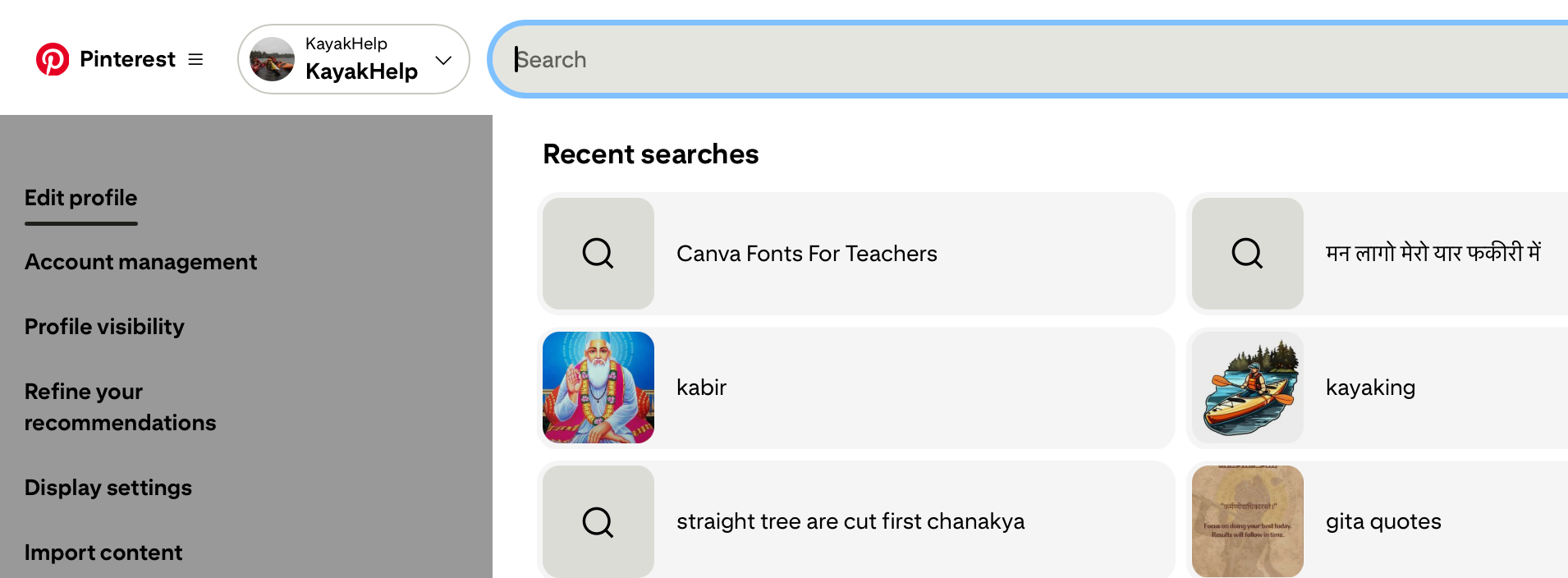
Once you click the search field, Pinterest usually displays recent searches automatically.
Step 3: Review Your Previous Searches

Pinterest typically lists recent keywords you’ve searched. Click any term to revisit related Pins and ideas.
How Can You Delete Pinterest Search History?
Sometimes you may want a fresh start.
Perhaps your recommendations have become cluttered, or you’re researching something you don’t want influencing future suggestions.
Step 1: Open The Search History List
Follow the earlier steps to access your recent searches.
Step 2: Locate The Delete Option
Pinterest generally displays an “X” or delete icon beside previous searches.
Step 3: Remove Individual Searches
Tap the X next to any search term you want removed.
Pinterest will immediately delete that entry from your recent searches.
Step 4: Repeat As Needed
Continue removing searches until your history is cleaned up.
Can You View Pinterest Activity Through Account Data?
Yes.
Pinterest allows users to download account data, which can provide a deeper look into their activity.
Step 1: Open Pinterest Settings
Click your profile picture and select Settings.
Step 2: Navigate To Privacy And Data
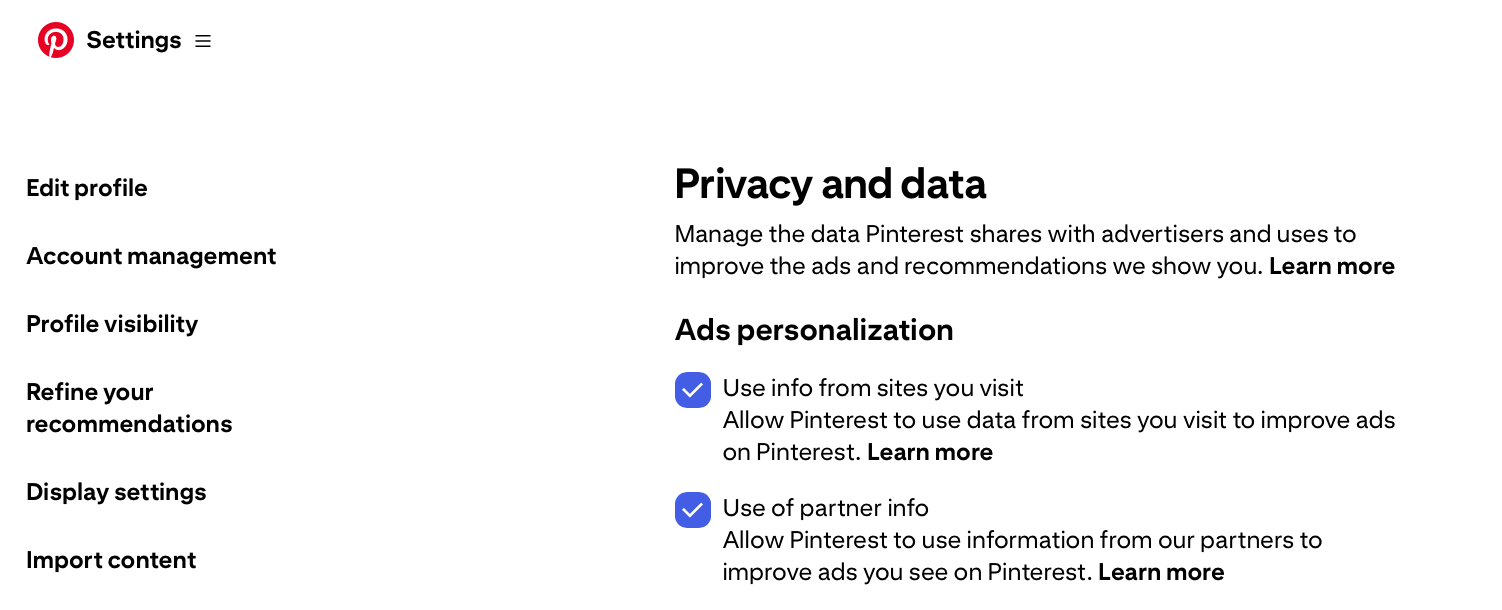
Look for sections related to privacy, account management, or data requests.
Pinterest occasionally changes menu names, but they’re usually grouped together.
Step 3: Request Your Data

Locate the option to request or download your Pinterest data.
Pinterest will prepare a report containing information associated with your account.
Step 4: Wait For Pinterest To Process The Request
Pinterest may take some time to prepare your file.
You’ll usually receive a notification or email once it’s ready.
Why Can’t You Find A Recently Viewed Pin?
Many users assume Pinterest stores ever viewed Pin forever. Unfortunately, that’s not always the case.
Several factors can prevent a Pin from appearing:
- You viewed it while logged out
- The Pin was deleted
- The creator removed the content
- Pinterest refreshed recommendations
- Significant time has passed since viewing it
When this happens, search history often becomes your best recovery tool.
What Should You Do If Pinterest History Isn’t Showing?
If your history appears missing, try these troubleshooting methods.
- Refresh Pinterest – Log out and back into your account.
- Update The App – Older versions of Pinterest may display activity incorrectly.
- Clear Cache – Android users can clear the Pinterest app cache through device settings.
- Switch Devices – Sometimes desktop and mobile versions display different activity information.
- Check Internet Connectivity – Weak connections occasionally prevent Pinterest from loading recent activity.
Can Pinterest Recommendations Help You Recover Lost Pins?
Surprisingly, yes. Pinterest’s recommendation engine remembers a lot about your browsing behavior.
If you’ve recently viewed content about:
- Home renovations
- Wedding planning
- Fitness routines
- Gardening
- Digital marketing
Pinterest may continue showing similar Pins in your home feed.
Spend a few minutes scrolling your personalized feed and you may rediscover the lost Pin naturally.
Think of Pinterest’s recommendation algorithm as a breadcrumb trail. Even when direct history isn’t available, the platform often leaves clues pointing back toward content you’ve engaged with.
How Can You Save Pins To Avoid Losing Them Again?
The easiest solution is prevention. Whenever you discover something valuable:
Create Organized Boards
Separate content into categories such as:
- Recipes
- Travel
- Home Decor
- Marketing Ideas
- Fashion
- Fitness
Use Board Sections
Board sections make organization even easier.
Save Immediately
Don’t rely on memory. If you like a Pin, save it right away.
Name Boards Clearly
Avoid generic board names like “Stuff” or “Ideas.” Specific names make content easier to locate later.
Is Pinterest History Different On Mobile And Desktop?
Yes, slightly. While Pinterest keeps the same core functionality across devices, some menus and options appear in different locations.
Mobile App
Best for:
- Quick browsing
- Recent searches
- Pin discovery
Desktop Website
Best for:
- Account settings
- Data downloads
- Board management
- Advanced organization
If you can’t find an option on one platform, check the other.
How Can You Protect Your Privacy While Using Pinterest?
If privacy matters to you, consider these practices:
- Regularly clear search history
- Use secret boards for private collections
- Review privacy settings periodically
- Remove outdated searches
- Download and review your account data occasionally
These steps help keep your Pinterest experience organized and more secure.
What Are The Best Pinterest Organization Habits?
Power Pinterest users rarely depend on history. Instead, they create systems.
Some proven habits include:
- Saving Pins immediately
- Creating topic-specific boards
- Using board sections
- Archiving old boards
- Reviewing saved content monthly
- Deleting irrelevant searches
A few minutes of organization today can save hours of searching later.
Conclusion
Finding Pinterest history isn’t always as straightforward as checking browser history, but it’s still possible to recover recently viewed content through your profile activity, search history, recommendations, and account data tools.
The best strategy is simple: save valuable Pins immediately and keep your boards organized.
That way, you’ll spend less time hunting for lost ideas and more time turning inspiration into action.