If you’re an avid note-taker, then you know that a stylus is the best way to go about it.
Whether you’re in college or at work, an active pen gives you the freedom to write down your thoughts and ideas with the precision of a ballpoint pen but without all the hassle of lugging around a notebook or trying to remember where you left it.
While there are many note-taking apps available, some of them work better with styluses than others. To help you narrow down your choices, we’ve compiled a list of the best stylus-enabled apps.
We’ll go through what each one has to offer so that you can find exactly what works best for you.
Read on.
Best Note-Taking Apps With Stylus
1. Google Keep

Google Keep is a great app for jotting down anything from grocery lists to your next big idea.
It’s available for both Android and iOS devices, and comes with a desktop version. Plus, you can use both passive and active pens, such as Pixelbook Pen, Adonit Dash 4, or Meko Universal.
Google Keep is completely free, and has all the features you’d expect from a modern note-taking app: you can copy/paste images, add voice memos, and create lists. It also offers some really cool formatting options that allow you to make your notes look more like documents or blog posts.
One of the best things about Google Keep is how easy it is to organize your notes. You can color-code them and set reminders based on specific dates and times.
But what really makes it stand out is its integration with other Google products. For instance, you can link your Keep notes to Google Drive documents or upload them as PDFs.
What’s more, Google Keep also integrates with Gmail, so you can attach notes to specific emails and make sure they’re always available when you need them.
Another awesome feature of Keep is its built-in search function. You can find notes by typing keywords or using a natural language search (i.e. asking questions like, “what’s on my grocery list?”).
This makes it easy to find specific information in large batches of notes without having to scroll through them all manually each time which is especially helpful when using a stylus instead of your fingers.
2. Microsoft OneNote

Microsoft OneNote is perfect for students, teachers, and anyone who needs to take notes on the go.
The app features a neat, clean look that’s easy to navigate, and it has all the functionality you need to take advantage of your stylus, from pressure sensitivity and palm rejection to tilt support and detection.
Whether you’re using Windows, Android, or Apple devices, this app lets you use any type of pen (such as Microsoft Surface Pen or Apple Pencil) to do whatever you need: drawing on images and text boxes, adding shapes, lines, and arrows, organizing your notes – the list goes on.
One of the best features of Microsoft OneNote is its ability to scan handwritten notes and convert them into text. This means that if you’re taking notes as part of a class or study group, you can quickly convert your handwriting into text and continue working on your assignment.
Another good reason to choose this app is that it’s a cloud-based service, which means it doesn’t require you to install anything on your computer. So if you ever lose access to your device or get a new one, you can still access all of your notes.
Additionally, you can use OneNote for other tasks besides taking notes. For example, you can use it as a way to collaborate with others on projects and documents, and even export them into Word documents or PDFs so that others can easily access them.
3. Evernote

Evernote is another excellent note-taking application that allows users to record, capture, and organize notes in various formats.
The app can be used on PC and Mac computers and iOS and Android devices. This means that you can sync your Evernote account across all your devices, which makes it an ideal option for taking notes with a stylus, whether you’re using a Jot Script 2 pen or an Apple Pencil.
Besides, Evernote allows you to easily share your notes with other people. If you’re working with someone on an assignment or project, it’s easy to send them a link that allows them to access your notes without having to download the app themselves.
Evernote also offers a variety of templates for notes, such as meeting notes or journal entries. Plus, you can automatically organize your notes by date or tag, making it easier for you to find what you need when you need it.
4. Simplenote

Simplenote is another great option, not just because it’s free, but because it integrates seamlessly with other tools and works on iOS, Android, and PCs.
Whether you’re using a Staedtler 180 or a Digiroot Universal Stylus, Simplenote’s stylus-friendly features go way beyond legibility. You can use it to create doodles, highlight text to make notes more interesting, draw on photos, and make them interactive.
Furthermore, Simplenote lets you organize your files in different folders and set reminders so that important information doesn’t slip through the cracks. And it’s easy to share documents between devices with the app’s sync feature.
In addition to that, Simplenote doesn’t have any limits on data storage, so if you’re worried about using too much space or running out of room on your phone or tablet, this might be the option for you!
5. INKredible

INKredible is an awesome app that you can use to take notes with any type of stylus.
The first thing you’ll notice when you start using INKredible is its clean, simple interface. The app uses very little space on your screen, so you can see more of what you’re writing or drawing at once.
The app also uses colors in an interesting way: instead of using color as an indicator of how important something is, INKredible uses color to indicate how much work has been done on each note – green means new, yellow means edited, and red means finished.
This makes it easy for you to quickly scan through all your notes and see where you need to focus your attention next.
Additionally, INKredible has great encryption features that keep your notes safe from prying eyes. And its offline support works perfectly, which means you can write down your thoughts whenever there’s no internet connection available.
One more thing:
INKredible is completely free, but you can make in-app purchases if you want to access more advanced features. There’s also a Pro version that includes all of INKredible’s functionality.
6. Apple Notes

If you’re an Apple user, you probably know this one. Apple Notes integrates with iPhones and iPads, and it’s great for taking notes with Apple Pencils and Logitech Crayon styluses.
It has a clean, intuitive interface that lets you focus on writing down your thoughts without getting distracted by busy UI elements or complicated menus.
Now, the first thing you’ll notice about Apple Notes is that it comes with an incredible amount of customization options. You can choose from several different fonts, colors, and backgrounds, or even add images from your camera roll or iCloud account.
You can also change how much space you want between letters and words which is great if you’re writing fast or your handwriting tends to be sloppy.
You can even change the size of the font on your screen, so if one day you want everything bigger than usual (or smaller), you can do that with just one tap.
In addition to its ability to work with styluses, one thing that makes Apple Notes stand out from other apps is its integrations with other apps in the Apple ecosystem.
You can share notes using Mail or Messages, or even through iCloud Drive if you want to send them directly from your computer instead of using another device.
Check Out: Airtable vs Notion
7. Notability

Notability is another great option for Apple fans. It’s only available on the Apple Store, and it’s made for Apple Pencils (first and second generation).
The app’s feature set is pretty comprehensive: it has text-to-speech capabilities, supports handwriting recognition, and has tons of different tools for creating graphics and drawings in your notes.
Notability also supports multiple file formats, including PDFs and Word documents, so if you’re working on a project with someone else who isn’t using Notability, this app can make sure everyone gets the same information in their own way.
It also includes features specifically designed for taking notes with a stylus, such as the ability to choose whether you want to write in cursive or print, and tools that make handwriting more legible, like the ability to change the width of lines on the page and an option for line spacing between words.
You can also highlight text or create bookmarks in your notes so that they’re easily accessible later on!
8. MyScript Notes
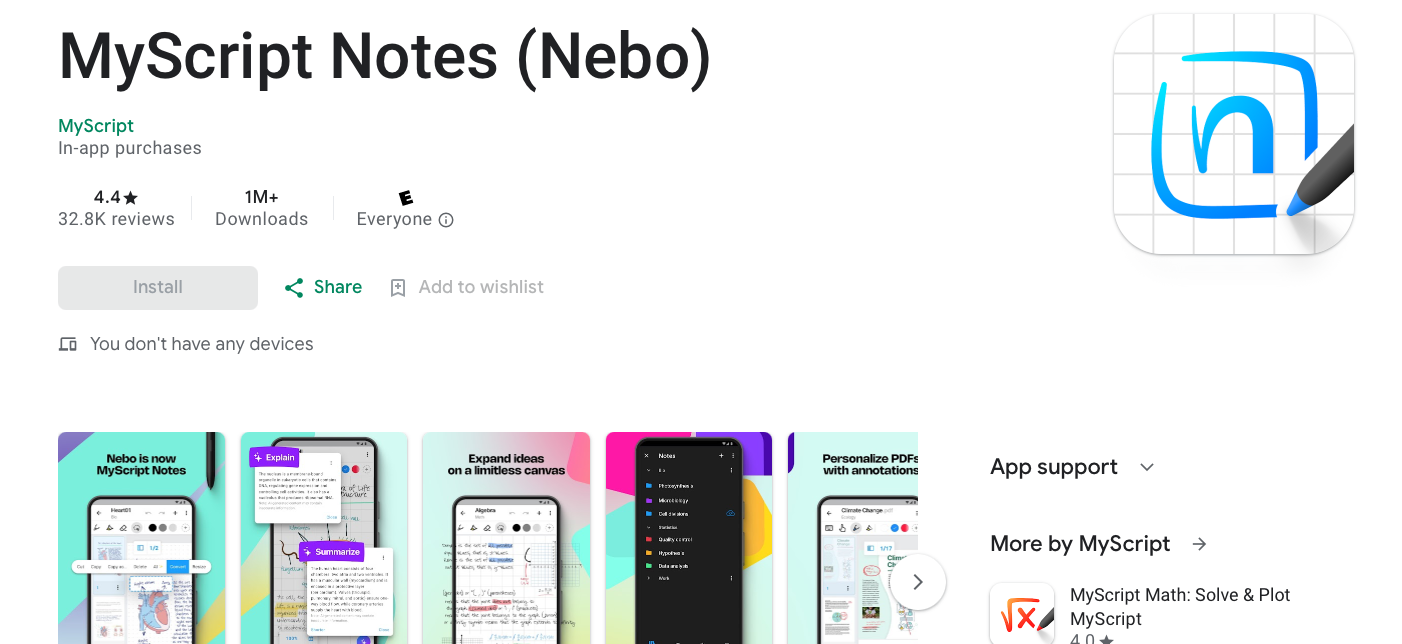
MyScript Notes is a powerful handwriting-first note-taking app.
It was previously known as Nebo before its rebranding. The app stands out for its incredibly accurate handwriting recognition, turning even rough scribbles into clean, editable text almost instantly.
The stylus experience is smooth and natural, with minimal lag and intuitive gestures like scratch-to-erase and lasso selection, making it feel very close to writing on paper.
It supports diagrams, math equations, PDF annotation, and even AI-powered tools like summarization and quiz generation.
Notes are well-organized and searchable, which is a huge plus. It’s an excellent choice for stylus users who prefer a seamless blend of handwriting and digital flexibility.
The app is available on both iOS and Android.
Check Out: Best Apple Pencil Alternatives For iPad
9. Noteshelf 3
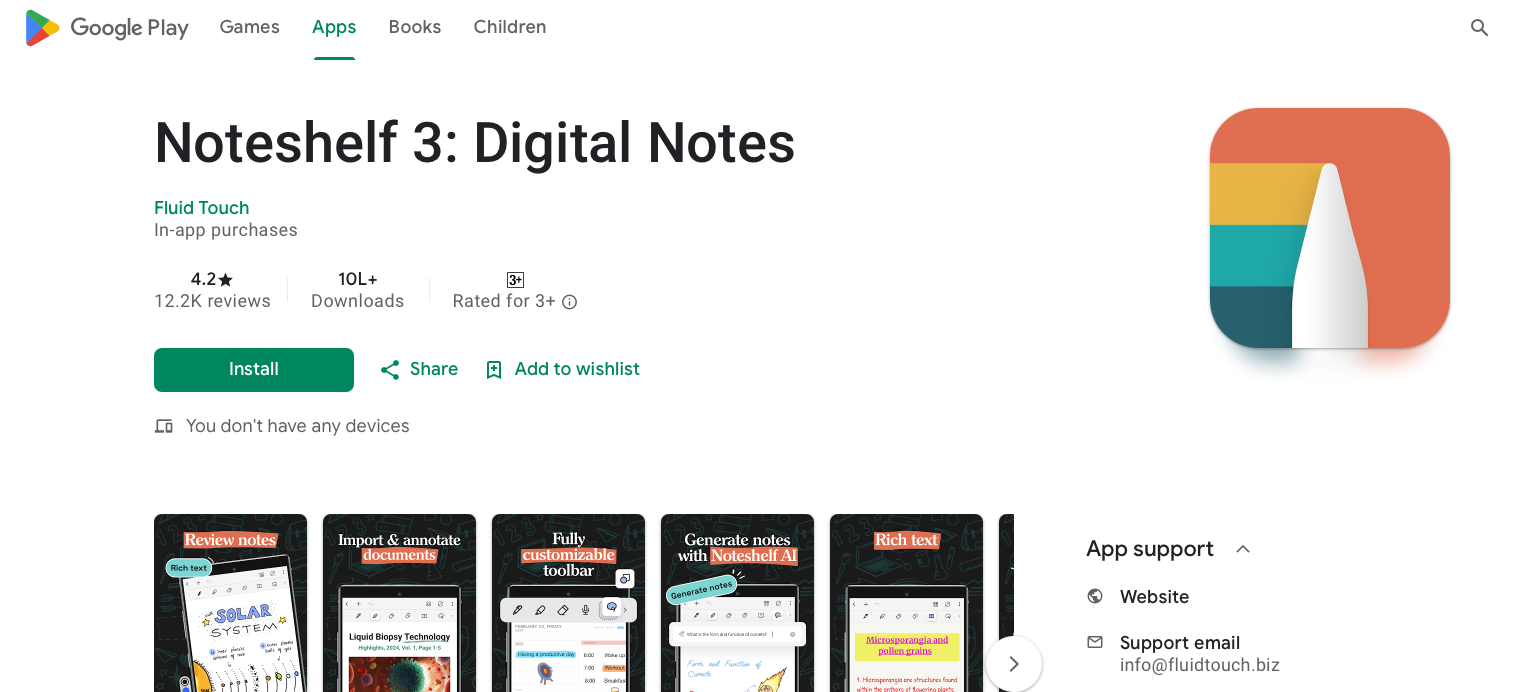
Noteshelf 3 is a feature-rich note-taking app designed for people who enjoy handwriting with a stylus.
It offers a smooth and customizable writing experience with lifelike pens, highlighters, and paper styles that make digital notes feel almost like real notebooks.
You also get over 200 templates, audio recording while writing, and powerful PDF annotation tools.
The app includes handwriting recognition, search, and AI tools that can summarize or explain notes, which adds a smart productivity layer.
Offering palm rejection and natural writing flow, stylus users would simply love it.
Noteshelf 3 is a strong choice for students and professionals who want a flexible, handwriting-focused note-taking experience.
10. Squid

Squid is an app that lets you take notes, draw, and sketch with a stylus on your touchscreen. It’s only available on Android devices and free to try out, but if you want a full-featured experience it’ll cost about $1 a month.
Squid has a simple, clean interface that makes it easy for students to create and edit notes. The app also provides tools for sharing and collaborating with others, which is ideal for group projects.
Like any other good note-taking app, you can use Squid to add text to your notes, as well as images from your camera roll or Dropbox account. It also lets you organize your notes into notebooks with tags that are searchable so that you can find whatever it is you’re looking for later on.
Besides, it has some other great features, like vector-based rendering, which means you can zoom in and out of your notes and drawings without losing quality. This works with both passive pens (like the Apple Pencil) and active styluses (like the Samsung S Pen).
Check Out: Best Free Calendar Apps
11. GoodNotes
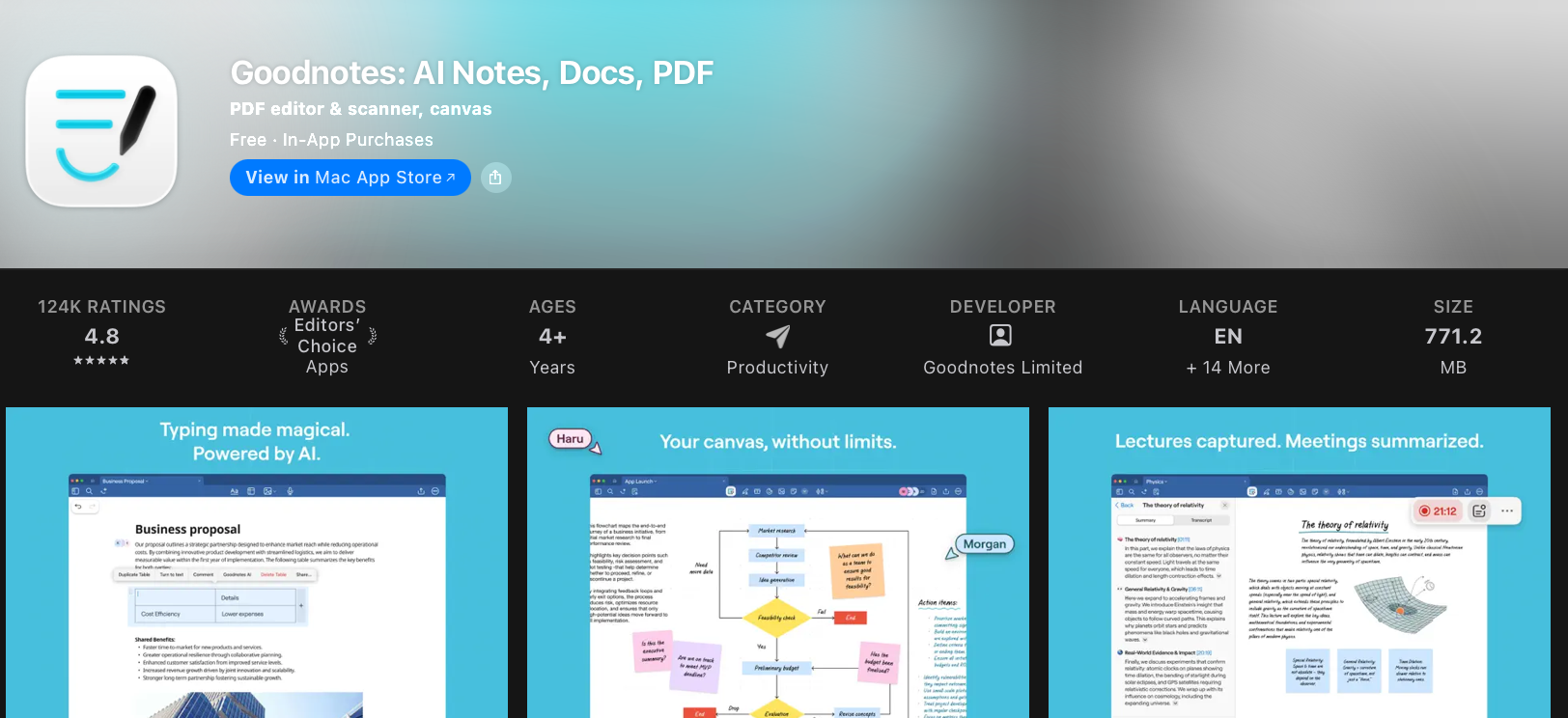
GoodNotes supports a wide range of styluses, including Apple Pencil, Adonit Pixel, Wacom Inkling, Adobe Ink and Slide, and more.
The app has a lot of features that make it easy to use, including the ability to change the opacity of the note-taking area, a grid system that allows you to draw straight lines and shapes with ease, and an auto-save feature that keeps your work safe.
GoodNotes also allows you to create folders to store all of your work, and tags that let you categorize each note into one or more categories.
Plus, its search functionality helps make it easy to find specific information in your documents even if they’re spread out over multiple folders or pages.
It’s now available on both iOS and Android.
Explore: Best DAKBoard Alternatives
Wrap-Up
As you can see, there are many great note-taking apps out there that cater to different needs. The key is finding an app that works for you and your lifestyle.
If you’re looking for an app that’s easy to use and will allow you to create handwritten notes quickly, then check out Google Keep. It supports all kinds of styluses and it’s available across all of your devices.
But if you prefer something more robust, with advanced features like pen pressure sensitivity, palm rejection, and gesture support, OneNote is the best choice.
Enjoyed the post?