If you think Google Calendar is just a simple date-and-time planner, think again.
Beneath its clean interface lies a treasure chest of hidden features and smart settings that can completely change how you organize your days.
Most people use it for the basics, adding meetings, birthdays, or reminders, but Google Calendar is secretly a productivity powerhouse when you know where to look.
Regardless of whether you’re a student juggling deadlines, a freelancer managing clients, or someone just trying to remember when to water your plants, these tricks can make your schedule feel smoother, smarter, and way more intuitive.
Here are some Google Calendar settings tricks you probably didn’t know existed — but once you do, you’ll never go back.
Also Read: Lesser-Known Google Docs Tips & Tricks
1. Enable “Working Hours and Location” to Set Boundaries
Ever get meeting invites at absurd hours or on your supposed day off? Google Calendar can save you from that chaos.
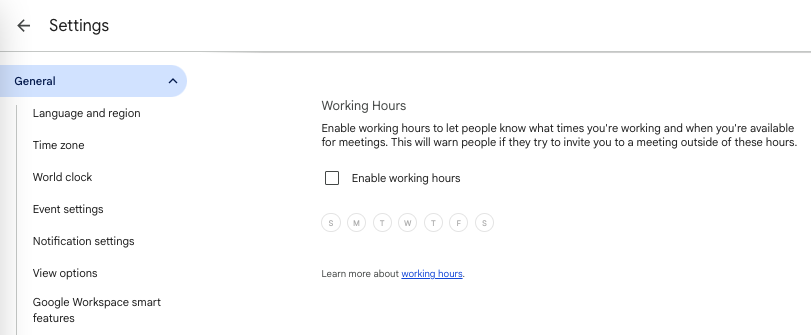
By enabling Working Hours and Location, you can clearly define when and where you’re available.
Head to Settings > Working hours & location, and you’ll see options to mark your daily schedule and your work spot — like home, office, or hybrid.
When someone tries to book you outside these hours, they’ll see a polite warning that you’re unavailable.
It’s like an invisible assistant guarding your time. Plus, it helps coworkers know whether to expect you in person or online.
This tiny tweak makes a big difference in how people respect your time.
Also Read: Must-Know Google Drive Tips & Tricks
2. Use “Speedy Meetings” to Avoid Back-to-Back Burnout
Tired of endless back-to-back meetings with no time to breathe?
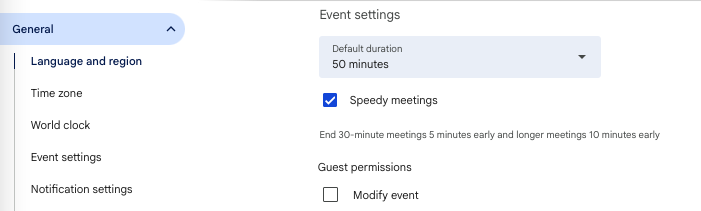
There’s a setting for that. Google Calendar’s Speedy Meetings automatically shortens your events. For example, a 30-minute meeting becomes 25 minutes, and an hour-long one becomes 50.
You can turn this on under Settings > Event settings > Speedy meetings. Those extra five or ten minutes might not sound like much, but they give you precious breathing room to grab water, jot down notes, or simply reset before your next call.
It’s one of those small tweaks that feels like a secret productivity hack once you start using it.
Check Out: Best Free Calendar Apps
3. Color-Code Your Events for Instant Clarity
Your calendar doesn’t have to look like a dull spreadsheet of gray boxes.
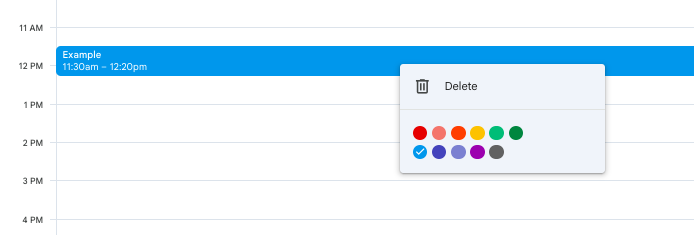
With Google Calendar’s color-coding feature, you can assign different colors to different event types, blue for meetings, green for workouts, yellow for personal time, and so on.
To do this, just right-click an event and choose “Event color.” It’s simple but powerful: one glance at your week, and you’ll instantly see where your time is going.
You can even create multiple calendars (like “Work,” “Family,” “Health”) and color them differently for an at-a-glance overview. Visual organization might not sound groundbreaking, but it’s a real mental clarity booster.
Explore: Best Free Calendar Apps For Android
4. Turn On “World Clock” for Smarter Global Scheduling
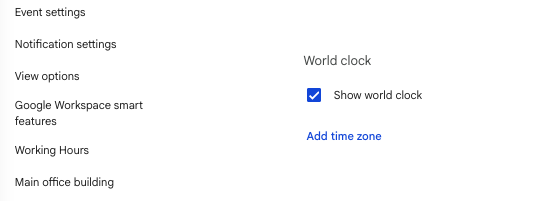
If you work across time zones, you’ve probably experienced the headache of figuring out meeting times that don’t ruin someone’s sleep schedule.
That’s where Google Calendar’s World Clock comes to the rescue. Go to Settings > World clock, enable it, and add time zones you frequently deal with.
A small clock will then appear in your sidebar showing the current time in each zone. This makes scheduling international calls or remote meetings so much easier. No more googling “What time is it in London?” every time.
It’s very handy for global teams and digital nomads alike.
Check Out: Best Free Planner Apps For Android
5. Get Event Insights with “Time Insights”
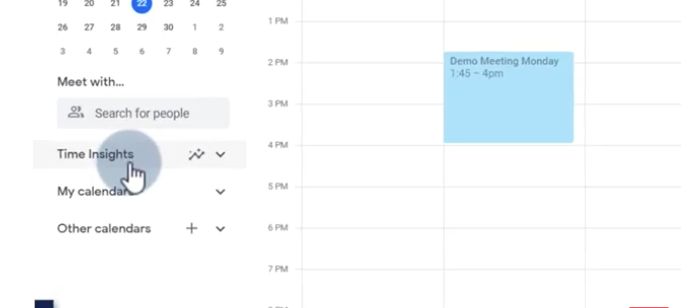
If you’ve ever wondered, “Where does all my time go?”, Time Insights will answer that question, sometimes a little too honestly.
This feature shows you exactly how much time you’re spending in meetings, who you meet with most, and which days are your busiest.
To view it, look for Time Insights in the left sidebar on desktop. It gives a data-driven snapshot of your work-life balance (or imbalance).
Once you see the numbers, you might think twice before accepting yet another “quick sync.”
It’s like having a Fitbit for your schedule, eye-opening, actionable, and quietly motivating.
Explore: Best Cozi Alternatives
6. Auto-Decline Meetings When You’re Busy
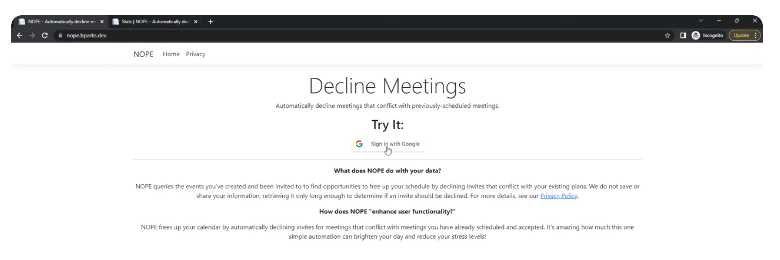
Sometimes you just need to protect your focus time and Google Calendar can do that for you automatically.
With the Out of Office feature, you can block specific hours or entire days, and Calendar will automatically decline incoming meeting invites during that time.
You can even customize the decline message so people know why. To set it up, click on a time slot and choose “Out of office” instead of “Event.”
It’s perfect for vacations, deep work sessions, or even your daily gym hour. You’re not being rude, you’re just making your boundaries crystal clear.
Also Read: Best Calendly Alternatives
7. Integrate Tasks Directly into Your Calendar
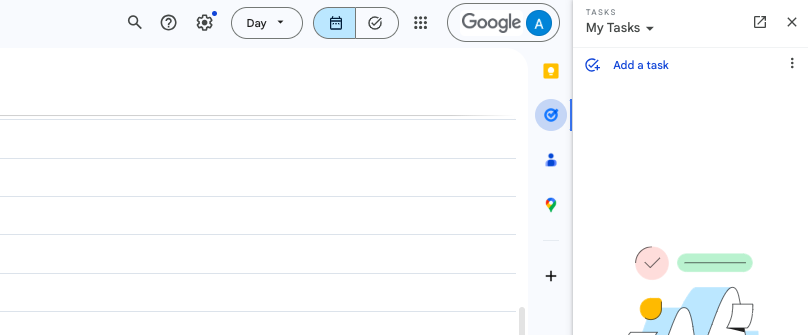
If you use Google Tasks or Keep, this one’s a game-changer.
You can display your to-do list directly inside Google Calendar and schedule tasks alongside meetings and events.
Just click “Tasks” in the side panel, and every task with a due date will show up on your calendar.
You can drag them around like regular events and even get reminders. It bridges the gap between planning and doing, turning your calendar into a true command center for your day.
For anyone juggling multiple priorities, this feature can keep chaos at bay with minimal effort.
Check Out: TimeTree vs Google Calendar
8. Hide Early Mornings and Late Nights with “View Options”
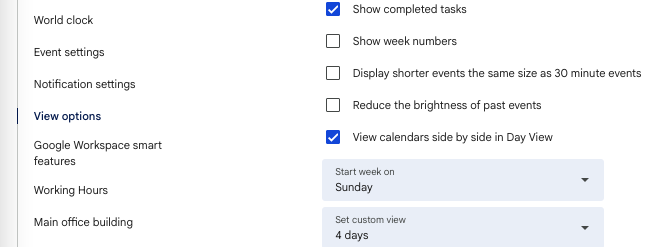
Not everyone needs to see 24 hours of the day on their calendar, especially if you’re not taking calls at 3 AM. Google Calendar lets you hide early and late hours for a cleaner, more focused view.
Under Settings > View options, you can choose to show only the hours that actually matter to you.
This small visual tweak makes your calendar less overwhelming, letting you zero in on your most productive window.
No more endless scrolling or blank spaces where nothing happens, just pure, functional clarity.
Check Out: Best Planner Apps For iPad
9. Enable “Event Attachments” to Keep Everything in One Place
Say goodbye to digging through emails for meeting files.
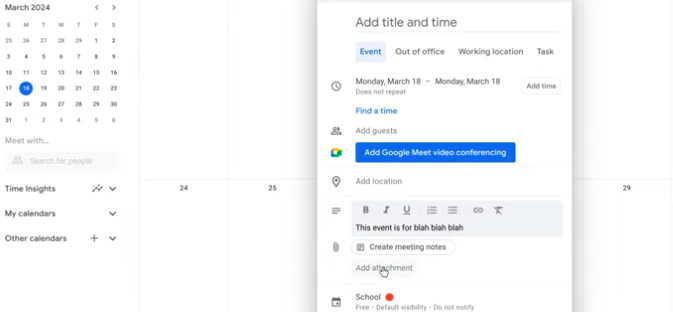
Google Calendar allows you to attach documents, slides, or sheets directly to an event, so everything you need is right there.
When you create or edit an event, just click the paperclip icon and add your file from Google Drive. It’s especially useful for team meetings or project check-ins, everyone joins the call already prepared.
No last-minute “Can you send me the doc?” messages. It’s one of those features that quietly boosts professionalism and saves tons of wasted time.
10. Set Custom Notifications That Actually Work for You
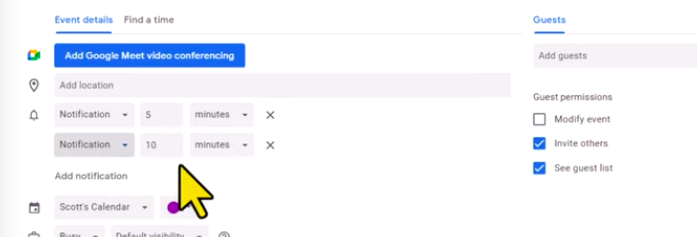
Default notifications don’t work for everyone, maybe you need a reminder 10 minutes before, or maybe a full day in advance.
Google Calendar gives you full control to customize this. You can set multiple reminders (email, pop-up, or notification) at different times for each event.
Go to Settings > Event notifications, or adjust it per event as needed. For big deadlines, you might want one reminder a week before and another an hour before.
Tailoring this to your own rhythm ensures you’re never caught off guard, and never miss a meeting again.
Explore: Mango Display vs DAKboard
Conclusion
Google Calendar is far more than a digital planner, it’s a quiet powerhouse that, when tweaked right, can make your entire routine more intentional and less chaotic.
These settings aren’t flashy or complex, but they can dramatically shift how you manage your time and energy.
Once you personalize it, your calendar becomes more than just a tool, it becomes your personal assistant, your time coach, and your accountability partner rolled into one.
So dive into those settings, try these tricks, and let your calendar start working for you instead of the other way around.
Enjoyed the post?