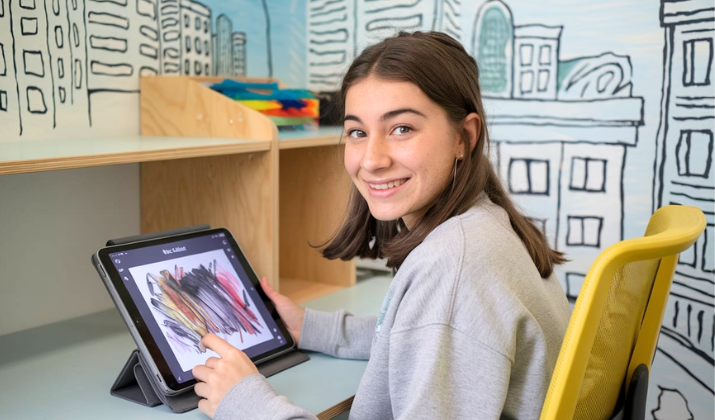
There are drawing apps built for art, and then there are drawing apps built for thought.
Charcoal sits firmly in the second bucket. It doesn’t want to be a digital studio, it wants to be a quiet notebook where lines appear instantly and ideas don’t get lost while you hunt for controls.
If you’ve ever wanted less UI and more brain-to-canvas speed, this is the app that tested that hypothesis.
This review goes through every corner of what Charcoal does, how it feels, who it helps, and where it definitely won’t, so you know if it deserves a place on your device.
What is Charcoal and who is it for?

Charcoal is a minimalist sketching app designed for quick visual ideation.
The target user is not someone painting a 4-hour masterpiece with 40 layers, but someone capturing concepts, compositions, rough drawings, mind-maps, or loose thumbnails in seconds.
Its strength is workflow reduction. It strips away complexity so that opening the app is the process.
Students use Charcoal to sketch lecture diagrams on iPad, UX designers use it to map low-fidelity screen flows, and product teams use it for whiteboard-style brainstorming.
Casual artists on the other hand, enjoy it for a daily digital sketchbook.
In short, it appeals most to those who think visually but don’t want to commit early to detail.
Explore: Adobe Fresco Review
How does the interface feel in real use?

The interface is deliberately sparse.
The tool panel is thin, touch targets are large enough to switch quickly without zooming in on buttons, menus don’t hide themselves in gestures, and the canvas dominates the screen.
On iPad, the lack of clutter enhances focus, especially when you’re in multi-window mode sketching multiple variations side-by-side.
The absence of layers simplifies file management but also removes a safety net.
This means every stroke is more final than in typical drawing software. Navigation feels frictionless, tapping a sketch opens it instantly with no load drama.
Also Read: Penbook App Review
What tools and features does Charcoal offer?

Charcoal has a short but functional toolset.
- The drawing experience mimics traditional media with chalky, textured charcoal-style brushes that deliver that grainy, smudged-pencil feel.
- There are preset brushes for softer, darker, or grain-heavy strokes, a reliable eraser that doesn’t ask questions, basic smudge/blur controls, and a simple color picker or fixed palettes for tonal work.
- There are no layers, masks, rulers, perspective grids, or typed text tools, and that’s intentional.
- Export is simple. Sketches can be saved and shared instantly for use in other apps or messaging threads.
- It supports iOS features that make modern sketching feel sane, dark mode, split view, side-by-side windows, and iPad-friendly responsiveness.
- Files save quickly and stay lightweight, which means the app never feels heavy. Though there’s no vector support or infinite resolution scaling, you’re working in pixels, and you’re working raw.
Charcoal gives you pure starting canvas, nothing pre-baked. That means it’s concept-first, not reference-first.
Also Read: Best Free Drawing Apps For iPhone
How does it fare on performance, compatibility, and platform availability?

On iOS and iPadOS, Charcoal performs smoothly.
It has virtually no noticeable startup latency, and the app size remains tiny, keeping device storage clean.
It doesn’t ask for high RAM or GPU intensity, because there’s nothing complex to render. Even on older iPads, the strokes feel immediate, lag-free, and consistent.
The low feature count helps maintain stability; crashes are rare, and drawings don’t cause the app to hiccup.
On Android, the major pain point is app-name confusion. There are several similarly named apps that show up in search results, many of which have nothing to do with drawing and are more like wallpaper or gallery packs.
This makes cross-platform recommendations tricky. Charcoal is clearly best-represented on iOS, while Android alternatives with the same or similar names do not deliver the same drawing experience.
It integrates well into iPad workflows, but it does not integrate well into ecosystems that require Pro-level file standards like PSD, AI, SVG, or layered PNGs.
So yes, it runs fast. But no, it doesn’t play deep with other creative apps unless you export and finish the work elsewhere.
Who does the app serve best to?

The people who champion Charcoal are those who want speed and clarity. They repeatedly highlight how the app helps them sketch ideas quickly without interrupting the flow.
The app is a great choice for Users who feel that the minimal constraint is useful because it forces clean thinking and reduces over-engineering early concepts.
iPad users have an edge with multi-window support. Charcoal clearly fits better on tablets than phones for comparison sketching or iterative ideation.
Explore: Best Digital Art Apps For Android
How does Charcoal compare to other sketching apps?

Charcoal isn’t a competitor to Procreate, Photoshop, or Clip Studio.
It competes more with whiteboard-style or idea-pad sketch apps like Concepts (in rough sketch mode), Paper App, or even Apple Notes’ drawing canvas.
Compared to those, Charcoal’s advantage is its focus on brush texture and distraction-free sketching.
Concepts is more flexible in structure, Paper is prettier, Notes is more universal, but Charcoal is faster for immediate sketching and exporting a “raw thought” drawing.
To give you an idea:
-
If other apps ask “what color, what brush, what layer?” Charcoal asks “what idea?”
-
If other apps enable complexity, Charcoal prevents it.
-
If others scale into finished art, Charcoal dumps you out early and expects you to finish elsewhere.
Check Out: Best Digital Art Apps For Windows
What are the clear pros and obvious cons?

Charcoal scores on the following parameters.
- Immediate sketching experience
- Distraction-free canvas, textured brushes that feel natural
- Ultra-lightweight files
- iPad optimization
- Dark mode
- Fast export
- Near-zero lag
The app is perfect for rough concepts, thumbnails, work diagrams, and quick captures.
Besides these plus points, Charcoal also has certain vulnerabilities.
Explore: Best Digital Art Apps For Surface Go

- No layers
- Limited zoom/transform
- No image import
- No text tool
- No vector or studio-level export formats
- Little to no brush customization
- Not suitable for finished art production
- Name confusion on Android storefronts
- Limited ecosystem depth.
Are there privacy, cost, or update issues to care about?

There are no invasive permissions or heavy data asks. The app doesn’t need much to function.
Its lightweight nature means it doesn’t operate like a social drawing network, cloud-dependent gallery, or AI auto-generation suite.
Costs depend on your app-store region, but this isn’t a subscription monster like modern design apps.
Updates are functional and stability-focused, but don’t significantly expand the toolset over time by design.
Explore: Best Alternatives To SketchUp
So what’s the verdict? – Is Charcoal worth all the noise?
Yes. If your goal is fast sketching, concept capture, or a clean digital drawing notebook.
Charcoal is a great tool for ideation, students, professionals, and casual sketchers who value clarity over control.
However, if you want a long-form art creation app, this won’t grow with you.
For what it was built for, it still nails the job today, fast strokes, quiet UI, crisp thinking.
As mentioned earlier, Charcoal doesn’t replace studios, and it never tried to, but as an “ideas first, details later” tool, it still earns a download.
Enjoyed the post?