
Picking a web browser on Windows 11 feels more personal than it used to be.
You spend hours inside browser tabs for work, study, gaming, streaming, and everything in between. Windows 11 ships with its own default browser, but you have way more choice now. The trick is to match a browser to how you actually use your PC.
This guide breaks down the best browsers for Windows 11 based on what matters day to day: compatibility, extensions, privacy, RAM usage, battery life, AI features, sync, and Windows 11 integration. No hype about one browser being fastest for everyone.
Best Browsers for Windows 11
1. Microsoft Edge
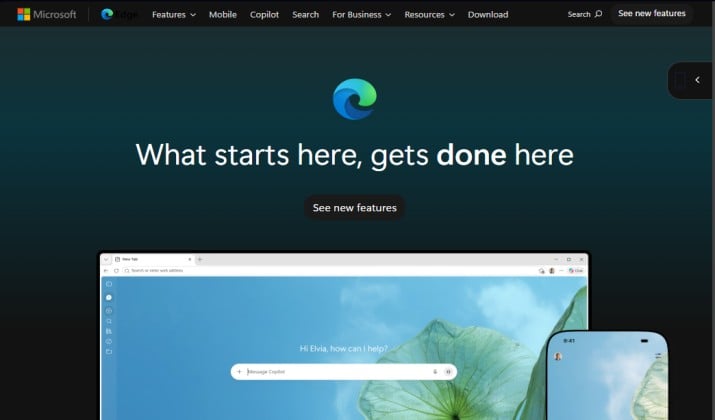
If you want the browser that feels most at home on Windows 11, start here.
Microsoft Edge is the Windows 11 default browser. It is built on Chromium, so it uses the Blink browser engine and runs every Chrome extension. You also get real OS-level perks.
What makes it stand out:
- Windows 11 integration that actually helps. Edge respects Windows 11 visual style, snap layouts, and system search. Sign in with your Microsoft account and you get cross-device sync for passwords, history, and bookmarks.
- Sleeping tabs and memory saver put inactive browser tabs to sleep after you stop using them. On laptops, that translates to lower RAM usage and better battery life.
- Productivity tools baked in. Vertical tabs keep dozens of tabs manageable. Tab groups, split screen, workspaces, sidebar apps, and a solid PDF reader make multitasking easier.
- Security stack. Microsoft Defender SmartScreen gives you phishing protection and malware protection. Tracking protection blocks third-party cookies and fingerprinting attempts. You also get encrypted DNS with DNS over HTTPS, password manager, passkeys, and two-factor authentication support.
Edge includes an AI assistant in the sidebar with AI search and AI chatbot help for summarizing pages.
If you care about best browser for battery life Windows 11 or best browser for productivity Windows 11, Edge deserves the top spot.
Pricing: Free
Also read: Best Browsers for Wondows 7
2. Google Chrome
Chrome still sets the standard for web compatibility. If a site breaks somewhere, it almost never breaks in Chrome.
Chrome also uses Chromium and Blink. That gives you the fastest page load speed on most sites, quick startup time, and the biggest library of browser extension options.
For best browser for extensions Windows 11, nothing beats the Chrome Web Store.
You get:
- Best-in-class web compatibility and developer tools. DevTools here is what most web teams test against.
- Hardware acceleration that keeps video and games smooth.
- Google account sync for bookmark sync, history sync, password manager, passkeys, and payment info.
- Privacy settings including incognito mode, privacy dashboard, safe browsing with HTTPS protection, and third-party cookies controls.
The trade off is RAM usage. Chrome can use more memory than Edge or Firefox if you keep 30 tabs open without memory saver turned on. Turn on memory saver and energy saver in settings to help.
If you live inside Google Docs, Classroom, YouTube, or you need every Chrome extension for work, Chrome makes sense.
Pricing: Free
3. Mozilla Firefox
Firefox is the leading non-Chromium alternative and it matters more than ever.
It runs on Gecko, not Blink or WebKit. That independent browser engine pushes the web to stay open.
Firefox also avoids the same telemetry and diagnostic data patterns you see in Chromium browsers.
Why people switch:
- Strong privacy by default. Enhanced tracking protection blocks third-party cookies, cryptominers, and fingerprinting protection without breaking sites. Private browsing is actually private.
- Lightweight feel. Many users report lower RAM usage than Chrome on low-end Windows 11 PC builds.
- Customization. Firefox add-on library is smaller than Chrome’s but very capable. You get vertical tabs through add-ons, tab group features, reader mode, PDF reader, and screenshot tools.
- Cross-device sync works without a Big Tech account if you want it to. Firefox sync covers bookmarks, passwords, and history.
If you want best alternative to Chrome for Windows 11 that is not just another Chromium skin, this is it.
It also ranks as a strong pick for best browser for students because reader mode and PDF tools help with research.
Pricing: Free and open source.
Read this too: Best Browsers for Windows XP
4. Brave
Brave takes Chromium and strips out a lot of the tracking.
You get Blink compatibility plus built-in ad blocking and privacy features that work from install. That makes it a contender for most secure browser for Windows 11 and best browser for ad blocking.
Highlights:
- Blocks ads, trackers, third-party cookies, and fingerprinting by default. No extension needed.
- Brave Shields shows you what it blocks in a privacy dashboard.
- Brave Search, AI assistant called Leo for AI search and summarization, and optional VPN and Tor network private window.
- Supports Chrome extension installs, so you keep your favorite extensions.
- Memory saver and battery saver features plus rewards system you can turn off.
If you want best privacy browser with Chrome-like speed, Brave hits the balance.
Pricing: Free
5. Opera
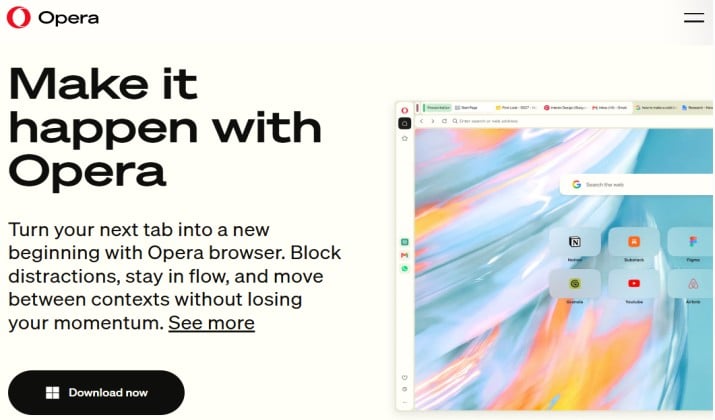
Opera is a Chromium browser that focuses on convenience.
It includes a sidebar with messengers, music players, and an AI chatbot called Aria. You also get free proxy, not a full VPN, plus ad blocker, tracker blocker, and battery saver.
Key perks:
- Workspaces let you separate work and personal browser tab sets.
- Split screen, tab groups, video pop-out, and built-in AI assistant.
- Flow feature syncs files and links between desktop and phone.
- Opera extensions plus Edge add-on and Chrome extension compatibility.
This is best for work if you juggle multiple projects.
Pricing: Free
Explore: Best Anonymous Browsers
6. Opera GX
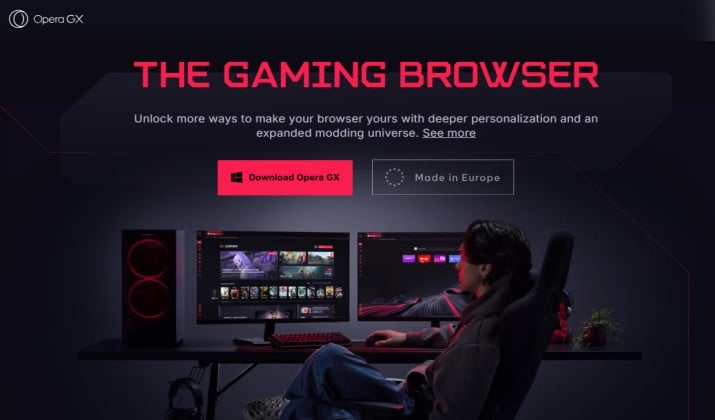
Opera GX is Opera built specifically for gaming.
If you search for the best browser for gaming, this one comes up aming the top options. It adds resource limiters that Chrome and Edge do not offer.
You can set hard limits for RAM usage, CPU usage, and network usage right in the browser. That keeps your game smooth when a stream or Discord runs in the background.
You also get Twitch and Discord in the sidebar, GX Corner for game deals, and RGB integration with Windows 11.
It still supports Chrome extensions and Opera add-ons, plus ad blocker and tracking protection.
Pricing: Free
7. Vivaldi
Vivaldi is for people who love control. It is built on Chromium and Blink but the interface is completely yours.
Think custom everything: vertical tabs, tab groups, tab stacking, split screen view of two tabs side by side, workspaces, sidebar panels for any site, notes, translation, reader mode, and mail and calendar built in.
Privacy angle: No tracking by default, encrypted DNS support, ad blocker and tracker blocker, private browsing with no telemetry tied to your identity.
It is not the lightest browser, but if you want best browser for productivity Windows 11 and best browser for developers Windows 11 with endless customization, Vivaldi is hard to beat.
Pricing: Free
8. DuckDuckGo
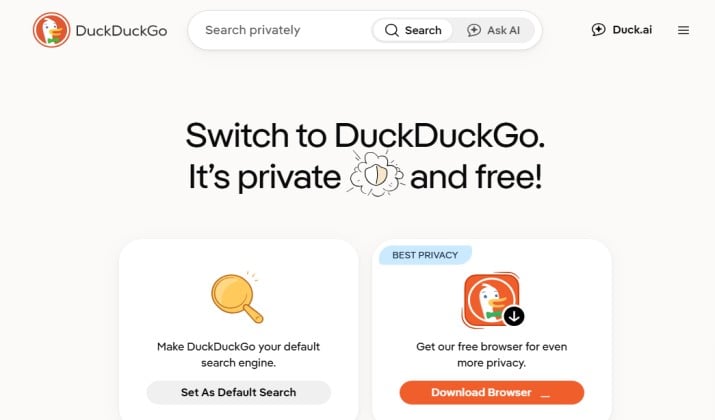
DuckDuckGo now offers a Windows browser, not just mobile.
It uses Windows WebView2 under the hood and focuses on privacy settings that just work. No account needed. Fire button closes all tabs and clears data in one tap.
You get:
- Automatic tracker blocking, third-party cookies blocking, and fingerprinting protection.
- HTTPS upgrading, encrypted DNS, and private DuckDuckGo search by default.
- Built-in player that blocks YouTube tracking and email protection.
- Simple password manager with passkeys support.
It does not support Chrome extension installs yet, so you lose some extensibility. For best lightweight browser with maximum privacy out of the box, it is excellent.
Pricing: Free
9. Tor Browser
Tor Browser is the strongest privacy tool in this list.
It routes your traffic through the Tor network with multiple encrypted hops and isolates each site so trackers cannot link your activity. It uses Gecko like Firefox but with extra hardening.
You get NoScript, HTTPS-Only, anti-fingerprinting, and private browsing that never saves history.
It is slower than Brave or Firefox by design, because privacy has a cost in page load speed. It is not meant to be your daily driver for Netflix.
It is the pick for safest browser when you need anonymity.
Pricing: Free and open source.
10. LibreWolf
If you like Firefox but want even stronger privacy out of the box, LibreWolf is the one to install.
LibreWolf is a privacy-hardened fork of Firefox. It uses the same Gecko browser engine, so you keep excellent web compatibility and full support for Firefox add-on installs, but it removes telemetry, diagnostic data, and sponsored content entirely.
What you get:
- Aggressive privacy by default. Third-party cookies blocked, fingerprinting protection on, tracking protection with strict mode, and encrypted DNS with DNS over HTTPS enabled.
- No account required. No sync to a cloud account unless you set it up yourself. Private browsing is the default mindset.
- Cleaner experience. No AI chatbot, no sidebar shopping, no extra fluff. Just fast page load speed, reader mode, solid PDF reader, and hardware acceleration.
- Security extras. HTTPS-only mode, regular Firefox security patches, and hardened privacy settings that you would otherwise have to set manually in Firefox.
It is not as convenient as Edge or Chrome for cross-device sync because bookmark sync and history sync need your own sync server. It also does not have a built-in AI assistant.
If you want the best browser for privacy and speed without Chromium, pair LibreWolf as your private browser and keep Edge or Firefox for work.
Pricing: Free and open source.
How Do You Change the Default Browser in Windows 11?
Microsoft made this easier in recent updates. Here is how you do it:
- Open Settings, go to Apps, then Default apps.
- Search for the browser you installed.
- Click Set default. Windows 11 now assigns it for http, https, .html and more in one step.
- If a link still opens in Edge, check Edge settings and turn off the prompt to confirm.
This process works whether you switch to Chrome, Firefox, Brave, or Arc.
Quick Windows 11 Browser Comparison
Still undecided? Use this cheat sheet for the top browsers for Windows 11.
- OS integration and battery: Microsoft Edge. Sleeping tabs, energy saver, and Microsoft account sync make it the best browser for battery life Windows 11 on laptops.
- Extensions and compatibility: Google Chrome. No other internet browser matches its web compatibility and Chrome extension catalog.
- Privacy without Chromium: Mozilla Firefox. Independent engine, strong tracking protection, and light resource use.
- Privacy with Chromium: Brave Browser. Built-in blocking and best browser for ad blocking .
- Gaming: Opera GX has resource controls that actually help during games.
- Power users: Vivaldi offers the best customization.
- Minimal tracking: DuckDuckGo or Tor Browser.
Which Is the Overall Best Browser for Windows 11?
Microsoft Edge is the overall best browser for Windows 11.
You get Chromium compatibility so every Chrome extension works, plus advantages built for Windows 11.
Sleeping tabs and memory saver cut RAM usage, energy saver helps battery life, and Windows 11 integration keeps snap layouts and search feeling native.
You also get tracking protection, phishing protection, malware protection, encrypted DNS with DNS over HTTPS, password manager with passkeys, vertical tabs, tab groups, split screen, workspaces, and a solid PDF reader without adding anything extra.
Chrome is stronger for pure extension count, Brave blocks more out of the box, and Firefox gives you a non-Chromium engine with less telemetry.
But for the complete mix of compatibility, battery life, privacy settings, and productivity on Windows 11, Edge still wins.