Email still runs a lot of your day. Work messages land next to school updates, receipts, newsletters, and family threads. When that inbox lives only in a browser tab, it gets messy fast.
A desktop client changes that rhythm. It pulls messages into one place, keeps them ready when WiFi drops, and gives you tools a browser tab never quite matches.
This guide walks through the best free email clients for Windows and sorts the real deals from the traps.
Best Free Email Clients for Windows
1. Mozilla Thunderbird
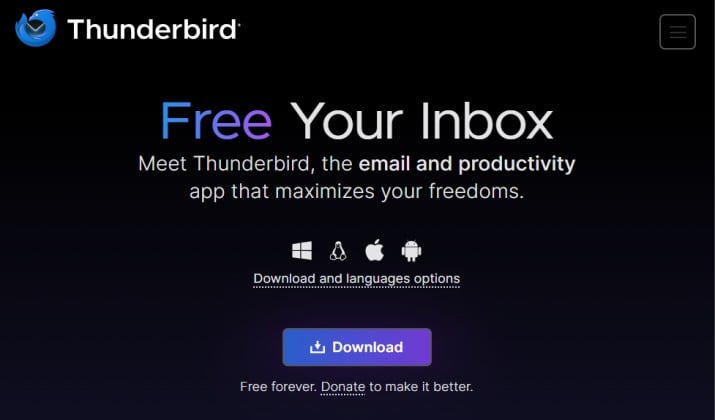
Thunderbird is the safest starting point for most Windows users. It does a lot, it costs nothing, and it stays out of your way.
You can add Gmail, Outlook.com, Yahoo, iCloud, and most work accounts through IMAP. POP3 works too for older setups. Exchange support has improved, though some corporate setups may still need an add on or IMAP with calendar sync through other means.
Once accounts are in, Thunderbird pulls them into a unified inbox, so you can scan everything at once or flip to a single account when you need focus.
Mail, calendar, contacts, tasks, and chat live in one window. You can accept a meeting invite, add a contact, and set a reminder without leaving your inbox.
Offline mode downloads messages for reading and searching later. Search stays fast in large mailboxes, and filters help you sort newsletters, receipts, and work mail.
Privacy is a core strength here. Thunderbird is an open source email client for Windows, so its code is public and its community watches how it handles data.
What you get in daily use:
- A unified inbox that keeps every account in one view, with a quick flip back to a single account when you need focus
- Built in calendar, contacts, tasks, and chat, so meeting invites and reminders stay close to the mail that sparked them
- OpenPGP encryption for signed and encrypted messages, plus no ads in your inbox and no scanning of your mail to serve ads
- Offline reading and fast search, even when your mailbox grows large over time
- Easy migration from other clients, MBOX files, and profile folders, with add ons for a better calendar view, a fresh theme, or tools for large attachments
Your data stays on your machine unless you choose a sync service.
The interface looks a little classic at first, but you can shape it with folders, layouts, and colors until it feels yours.
Also read: Best Email Clients for Windows 11
2. eM Client
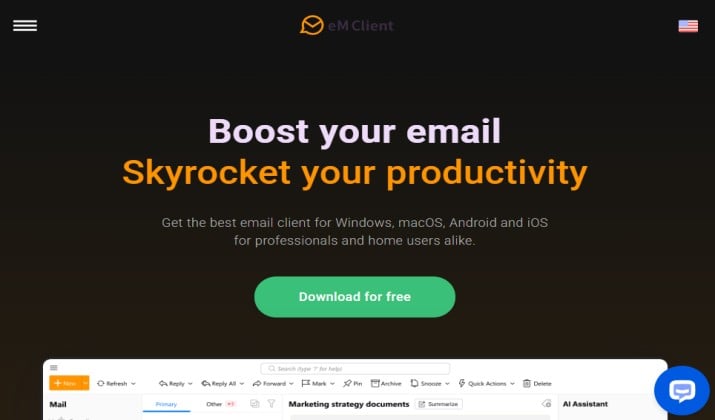
eM Client feels like the app many people expect when they picture a modern Windows mail program. It looks clean, feels fast, and puts mail, calendar, contacts, tasks, and notes side by side.
The free tier allows two accounts. That works well if you have one personal account and one work account. It starts to pinch if you add a third account for a side project or a family inbox. The paid version lifts that cap and adds extras like unlimited accounts, VIP support, and more AI help.
Account support is strong. It handles IMAP, POP3, Exchange, Microsoft 365, Gmail, iCloud, and more. Calendar invites look good, contacts sync well, and the sidebar makes it easy to check tomorrow while you answer today.
What stands out in daily use:
- A polished layout that keeps mail, calendar, contacts, tasks, and notes within reach, so you rarely need to jump between apps
- Quick search and offline access that hold up when you work through a busy inbox
- Translation and quick replies that help when you answer a lot of mail in a short window
- No ads in the free version, with your mail staying local and encryption available for sensitive messages
The free tier does not nag too hard, though you will see upgrade hints when you hit the account limit.
Pick eM Client if you have two accounts, you want a polished look, and you prefer an app that feels ready to go without much tweaking.
3. Mailbird
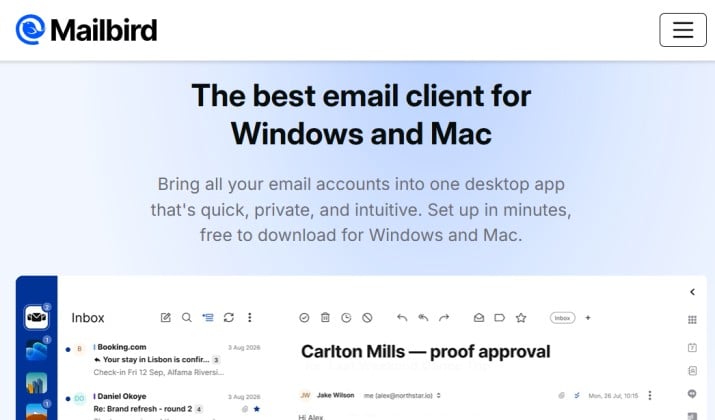
Mailbird wins on first impression. It looks friendly, uses color well, and integrates with apps like WhatsApp, Google Calendar, Dropbox, and Slack in the sidebar. For someone who likes everything in one window, that setup feels inviting.
The free tier is limited. It allows one account, and some features stay locked. You can read and send mail, use the unified inbox idea in a basic way, and enjoy the layout.
If you add a second account, you hit the paywall. The paid version unlocks unlimited accounts, snooze, speed reader, and more integrations.
Mail supports IMAP and POP3, plus Gmail, Outlook.com, Yahoo, and Exchange through standard protocols. Calendar and contacts work, though the experience feels lighter than Thunderbird or eM Client. Offline access covers basic reading, and search works well for everyday inboxes.
Privacy is mixed. Mailbird does not scan mail for ads, but the free version pushes you toward a paid plan.
If you like the look and you truly use one account, the free tier can be pleasant. If you use more than one account, the limit will frustrate you quickly.
Mailbird is a good taste of a modern client. It is not the best pick if you need a free email client for Windows that grows with you.
Read this too: Best Encrypted Email Apps
4. Mailspring
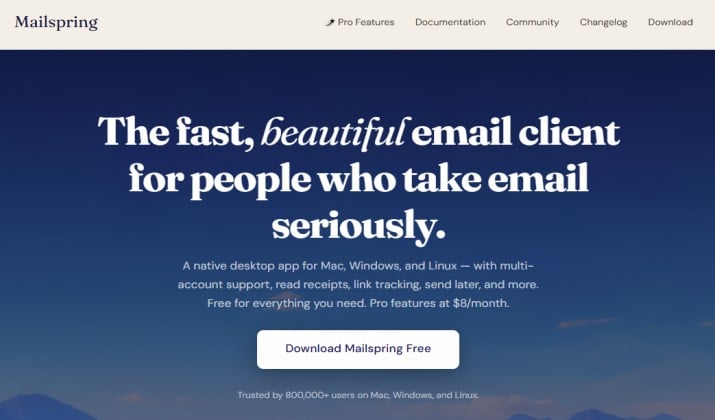
Mailspring feels light and fast. It opens quickly, it scrolls smoothly, and its interface stays calm even when your inbox is full. That speed makes it a good pick for a laptop that you carry around all day.
The free tier covers core mail well. You can add multiple accounts, use a unified inbox, search fast, and work offline. It supports IMAP for Gmail, Outlook.com, Yahoo, iCloud, and most providers. Exchange support is limited, so check your work setup first. POP3 is not a focus here.
Calendar and contacts are present but basic. You can view events and manage contacts, yet you may still lean on a browser calendar for complex scheduling.
Privacy is decent. Mailspring does not show ads, and it stores mail locally. The app does use its own sync service for some features, which privacy focused users may want to read about before they commit.
Choose Mailspring if you want a lightweight email client for Windows that feels modern and quick. If you need deep calendar tools or full Exchange support, look elsewhere.
5. BlueMail
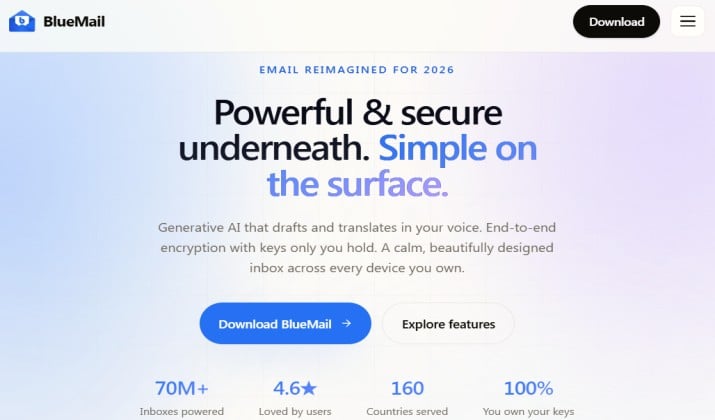
BlueMail is built for people who use many accounts across many devices.
It runs on Windows, Mac, Android, and iOS, and it keeps a similar look everywhere. That consistency helps if you check mail on your phone and your PC.
The free Windows version allows multiple accounts and a unified inbox. It supports IMAP, POP3, Exchange, Gmail, Outlook.com, Yahoo, and more.
Calendar and contacts sync, offline access works, and the interface includes smart grouping for newsletters and social mail. Migration is straightforward, with import from common providers.
The catch is the business model. BlueMail shows ads and promotes its premium plan inside the app. Some users find the upsells distracting.
Privacy has also drawn questions in the past, so read the current policy and check what data syncs through BlueMail servers versus staying local.
BlueMail still earns a spot for people who want one app on every device and do not mind ads in exchange for that convenience.
Explore: Free Email Services Without Phone Number Verification
6. Spark Mail
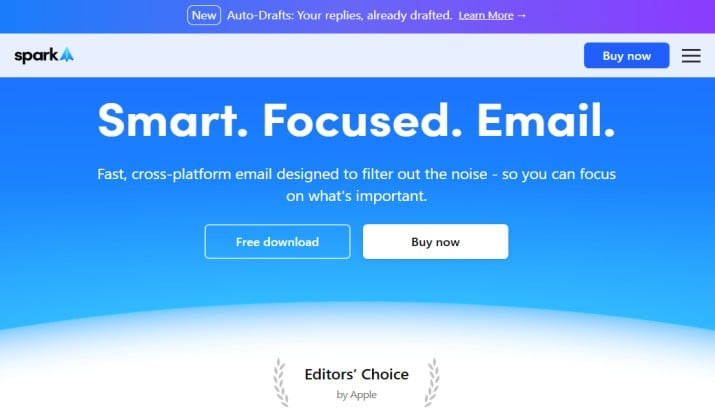
Spark Mail made its name on the Mac and iPhone, and its Windows version brings the same smart feel.
It sorts mail into Personal, Notifications, and Newsletters automatically, so your main view stays focused on messages from real people. That sorting alone saves a lot of scanning time.
The free tier allows multiple accounts and includes a unified inbox. It supports IMAP for Gmail, Outlook.com, Yahoo, iCloud, and more, plus Exchange for work.
Calendar and contacts are built in, offline access works, and the search is strong. Team features like shared drafts and comments help small teams that answer mail together.
Privacy is good, though Spark uses its own servers to power smart features like push notifications and sorting. That is common for modern mail apps, but it is worth knowing.
Spark does not show ads in your inbox. Some advanced features, like extra AI writing help and priority support, sit behind a premium plan.
Spark suits you if you get a lot of newsletters and alerts and you want the app to sort them for you. It feels modern without feeling noisy.
7. Canary Mail
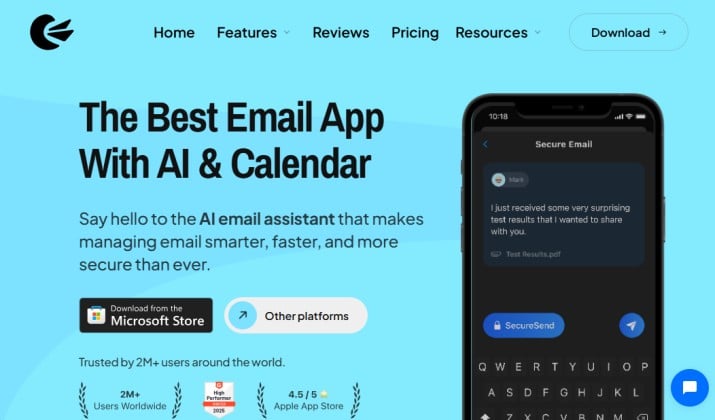
Canary Mail leans into security first. It supports end to end encryption, including PGP, and it makes secure mail feel less intimidating. If you send sensitive mail for work, this focus matters.
The free tier lets you try core mail with multiple accounts. It supports IMAP, Gmail, Outlook.com, Yahoo, iCloud, and Exchange.
The unified inbox works well, calendar and contacts are included, and offline access covers reading and drafting. The interface looks clean and modern, with a focus on writing.
Some AI features, like smart replies and summaries, sit behind a paid plan. That is fine if you do not need them. The free tier still gives you a secure email client for Windows that handles daily mail well.
Canary feels best for people who care about encryption and want a polished app without learning a complex setup. I
8. Betterbird
Betterbird is Thunderbird with extra polish. It uses the same open base, so it supports the same accounts, protocols, calendar, contacts, tasks, and OpenPGP encryption.
It adds small fixes and improvements that some users love, like a better folder pane, extra layout tweaks, and faster updates for certain features.
Because it shares Thunderbird DNA, migration is easy. You can import a Thunderbird profile, keep your folders, and keep your filters. It is free, shows no ads, and respects privacy in the same way. Plus, it supports add ons and offline access.
Think of Betterbird as a friendly fork, not a rival. It proves how strong the open source base really is.
9. Microsoft Outlook
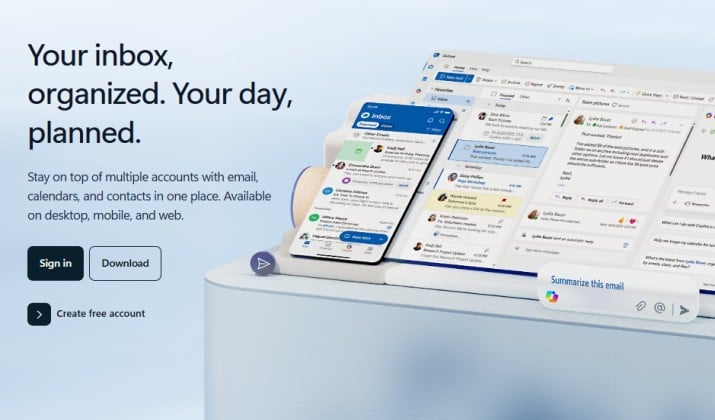
The new Outlook for Windows is free to download and use with a Microsoft account, and it comes preinstalled on many PCs. If you already live in Microsoft 365, it feels familiar right away.
Mail, calendar, contacts, and tasks sit together, and it handles Exchange and Microsoft 365 accounts very well.
The free version works with Outlook.com, Gmail, Yahoo, iCloud, and other IMAP accounts. It offers a unified inbox, good calendar views, offline access, and strong search.
Migration from the classic Outlook app or from web mail is smooth. For students and office workers, the integration with OneDrive and Teams is handy.
The new Outlook routes some mail through Microsoft cloud services to power features, and it shows ads in the free version for Outlook.com accounts.
It also pushes you toward a Microsoft 365 subscription for the full classic Outlook experience. If you want an email client without ads and without a cloud middleman, this is not it.
Outlook is still a strong pick if your work runs on Microsoft 365 and you want the smoothest calendar and meeting flow.
10. Claws Mail
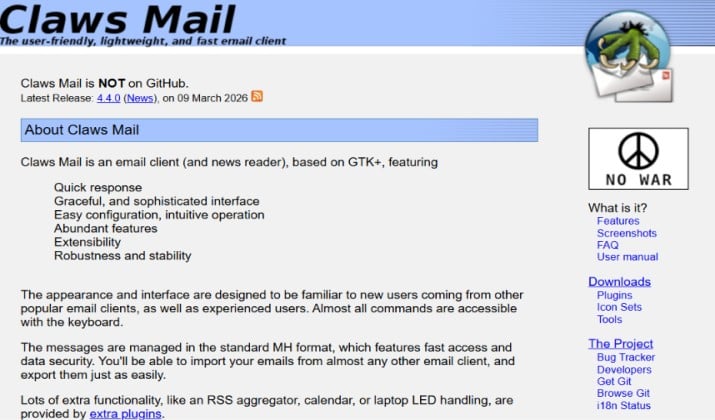
Claws Mail is the quiet achiever on this list. It is tiny, fast, and kind to older PCs. If your laptop struggles with heavier apps, Claws Mail will feel like a breath of fresh air.
It is truly free and open source, supports IMAP, POP3, and standard accounts, plus has a unified view through folders and filters.
It handles offline access well, it searches fast, and it uses very little memory. Plugins add calendar support, RSS, spam filtering, and encryption.
The interface looks dated, but it is highly configurable once you spend a few minutes with it.
Claws Mail suits technical users and people who want a lightweight email client for Windows above all else. For a second PC, a low spec laptop, or a user who loves keyboard shortcuts and plain speed, it is excellent.
So, Which is the Best Free Email Clients for Windows?
The best free email clients for Windows cover every style, from tiny and fast to polished and smart. You do not need to pay to get a unified inbox, offline access, calendar, and contacts.
Thunderbird earns the top spot because it respects your time, your data, and your wallet.
It handles multiple accounts without limits, it keeps your mail private, and it grows with add ons when you need more.
Install it, add your accounts, and enjoy an inbox that finally feels under control.