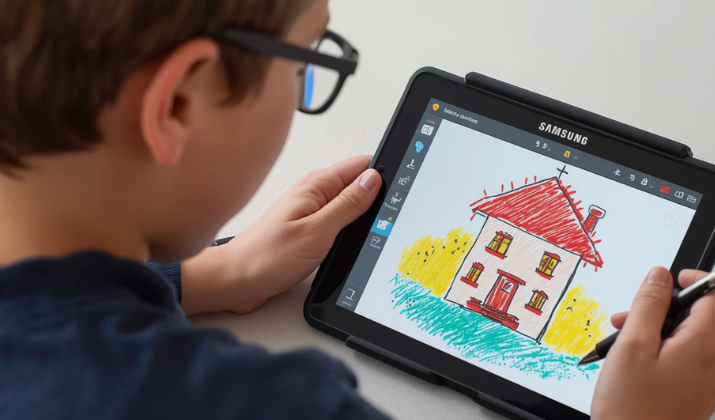
If you own a Samsung tablet and you’re not using it to sketch, doodle, paint, or create absolute masterpieces, you’re leaving 90% of its power on the table.
The S Pen isn’t just a fancy stylus. It’s a magic wand for artists. But a wand needs the right spellbook, and that’s where these drawing apps come in.
I tested, pushed, and sometimes rage-quit my way through dozens of apps so you don’t have to. Whether you’re a total beginner sketching on your Galaxy Tab S9, a pro illustrator grinding commissions on a Tab S10 Ultra, or just someone who wants to unwind with mandalas after work, this list has you covered.
Every single app below is on Google Play, plays nice with the S Pen, and brings something killer to your canvas.
Let’s get your creativity off the bench and into the game.
What Makes a Drawing App Perfect for Samsung Tablets?
Before we jump into the list, let’s talk about why Samsung tablets are different. The S Pen has 4096+ levels of pressure sensitivity, tilt support, and virtually no lag on newer Galaxy Tabs. A great app takes full advantage of that.
Here’s what I looked for:
- S Pen optimization: Pressure, tilt, and palm rejection that actually works
- Layer support: Because undo isn’t always enough
- Brush engine: Customizable, realistic, and lag-free
- UI for big screens: No tiny buttons you can’t tap with a stylus
- Export options: PSD, PNG, JPG at minimum. Bonus for animation or vector
- Price: Free, one-time purchase, or subscription that’s actually worth it
Got it? Good. Let’s dive in.
1. Infinite Painter
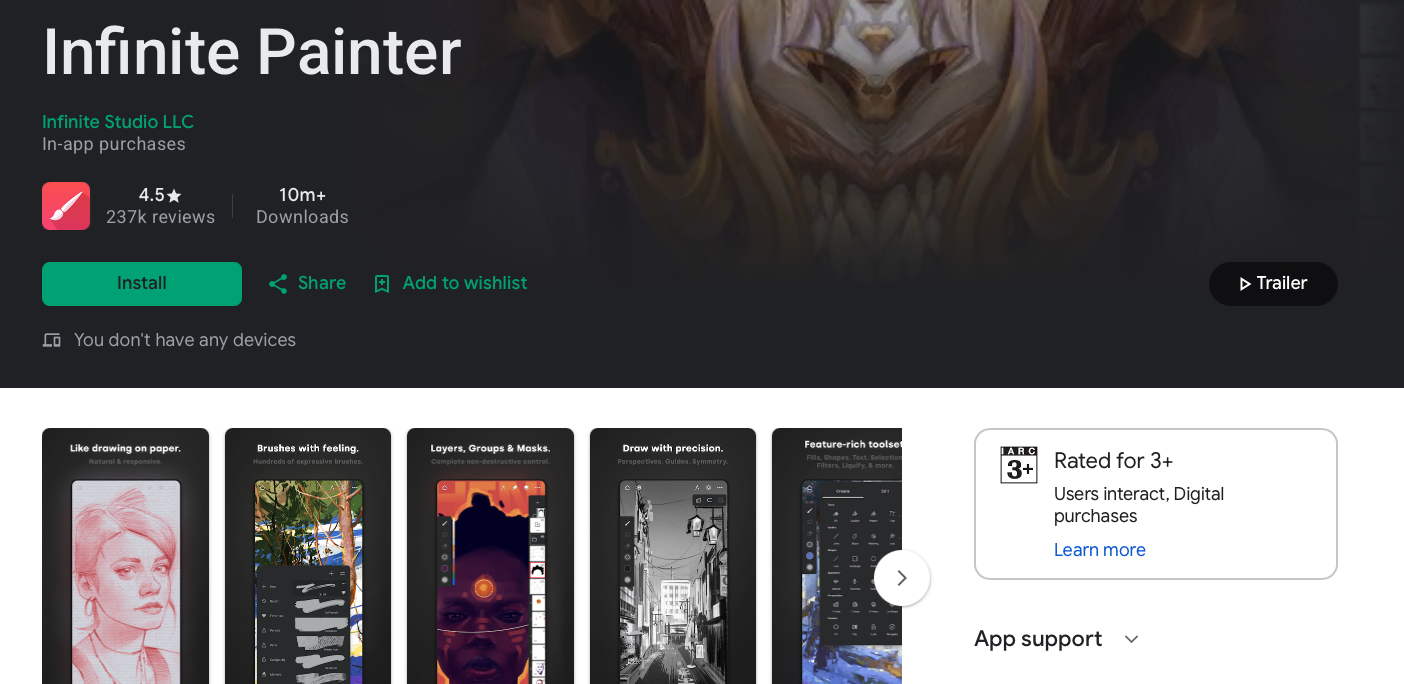
Infinite Painter feels like it was built by artists, for artists, with Samsung tablets in mind. The brush engine is insane. We’re talking 200+ natural presets and the ability to create your own from scratch. Pressure and tilt response with the S Pen is buttery smooth, and the interface stays out of your way when you’re in the zone.
Why it slaps on Galaxy Tabs:
- Full S Pen support with customizable pressure curves
- Advanced layer blending modes like Photoshop
- Perspective guides, liquify, pattern tools, and even a color wheel that doesn’t suck
- Free version is generous; full unlock is a one-time purchase, not a subscription
Heads up: The learning curve is real. But once it clicks, you won’t go back.
2. Sketchbook
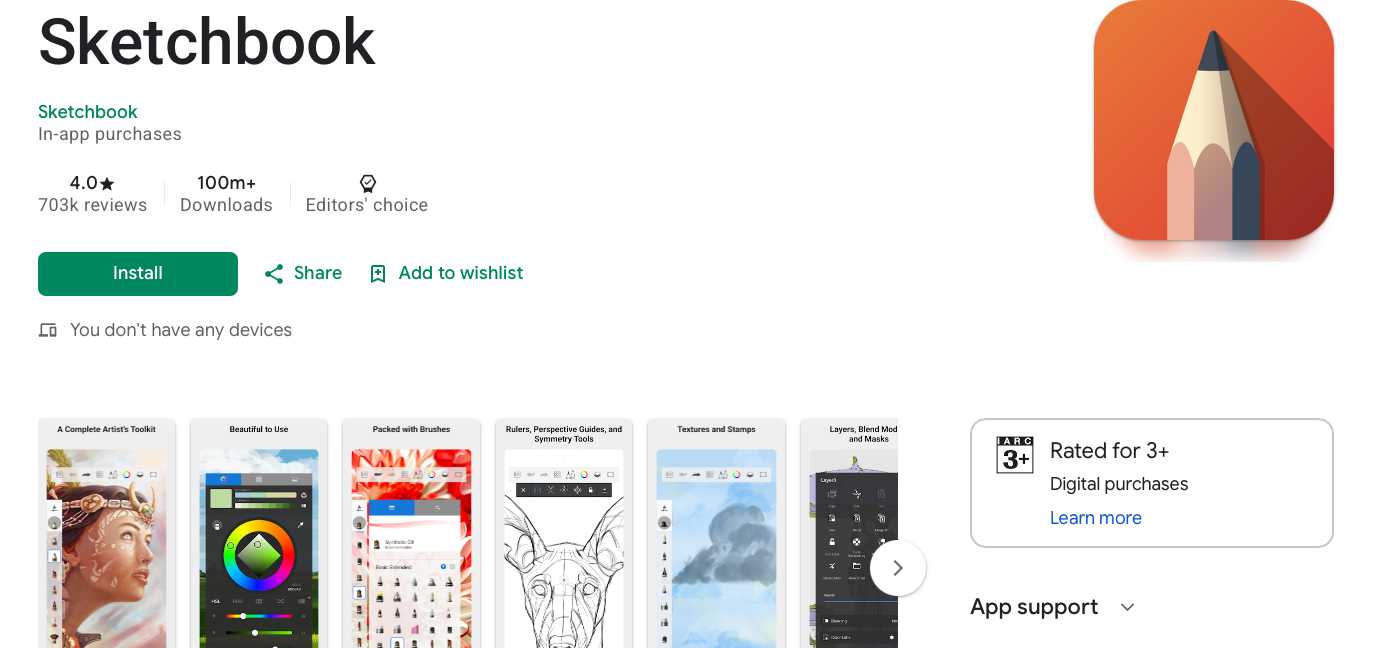
Autodesk Sketchbook used to be paid, then went free, and thank the art gods for that. It’s clean, fast, and doesn’t nag you with ads or paywalls. If you’re rocking a Galaxy S24 Ultra or Tab S9 with the S Pen, this app feels like an extension of your hand.
Why it slaps on Galaxy Tabs:
- Distraction-free interface perfect for Samsung’s big AMOLED screens
- Brushes feel natural and responsive with S Pen
- Copic color library built in for designers
- 100% free. No “pro” version. No in-app purchases
Heads up: Less feature-heavy than Clip Studio or Infinite Painter. But for sketching and painting, it’s flawless.
3. Clip Studio Paint
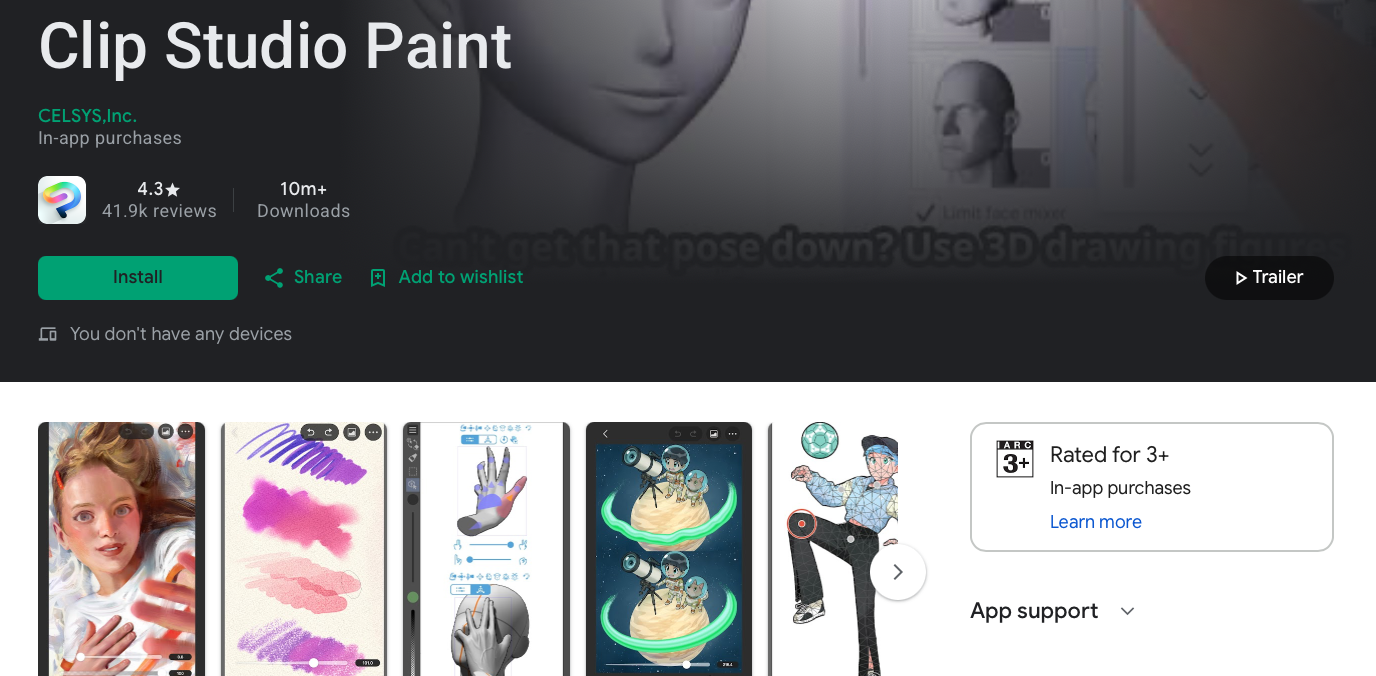
If you’re drawing professionally, you’ve heard of Clip Studio Paint. Many pros call it the best drawing app for Samsung tablets, full stop. It’s the industry standard for comics and manga because of its vector layers, 3D models, panel tools, and animation timeline.
Why it slaps on Galaxy Tabs:
- Desktop-class features on Android
- Time-lapse recording for your Reels/TikToks
- Massive asset store for brushes, textures, 3D poses
- Optimized for Tab S series with S Pen shortcuts
Heads up: Subscription model. Monthly or annual. Try the free trial first to see if you’ll use the pro features.
4. ibis Paint X
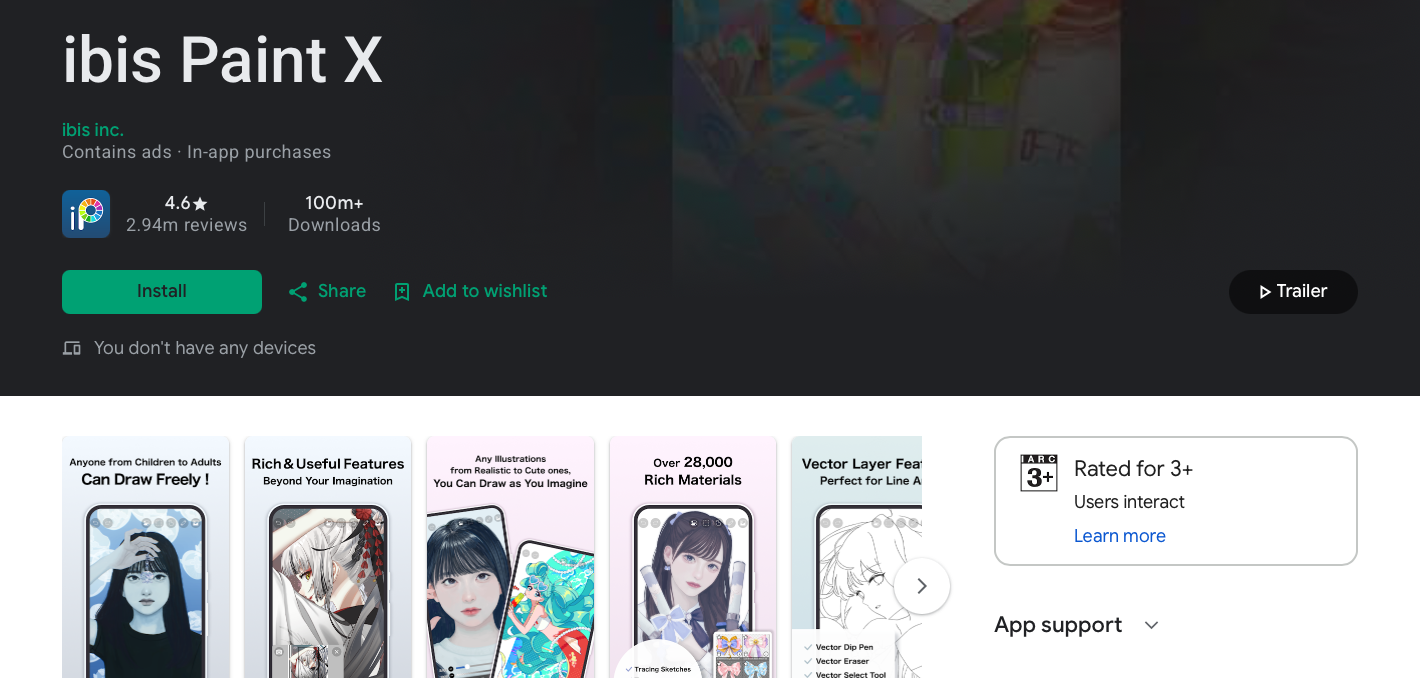
With 400+ million downloads, ibis Paint X is a beast. It’s wildly popular with anime/manga artists and anyone who loves sharing process videos. It records your entire drawing process and lets you post it in-app or export it.
Why it slaps on Galaxy Tabs:
- 15,000+ brushes, 2,000+ materials, 1,000+ fonts
- Stabilization for shaky hands. Lifesaver with S Pen
- Channel system for clipping masks and blending
- Free with ads; cheap “remove ads” purchase unlocks more brushes
Heads up: The UI is busy. Give it a week before you judge it.
5. Krita
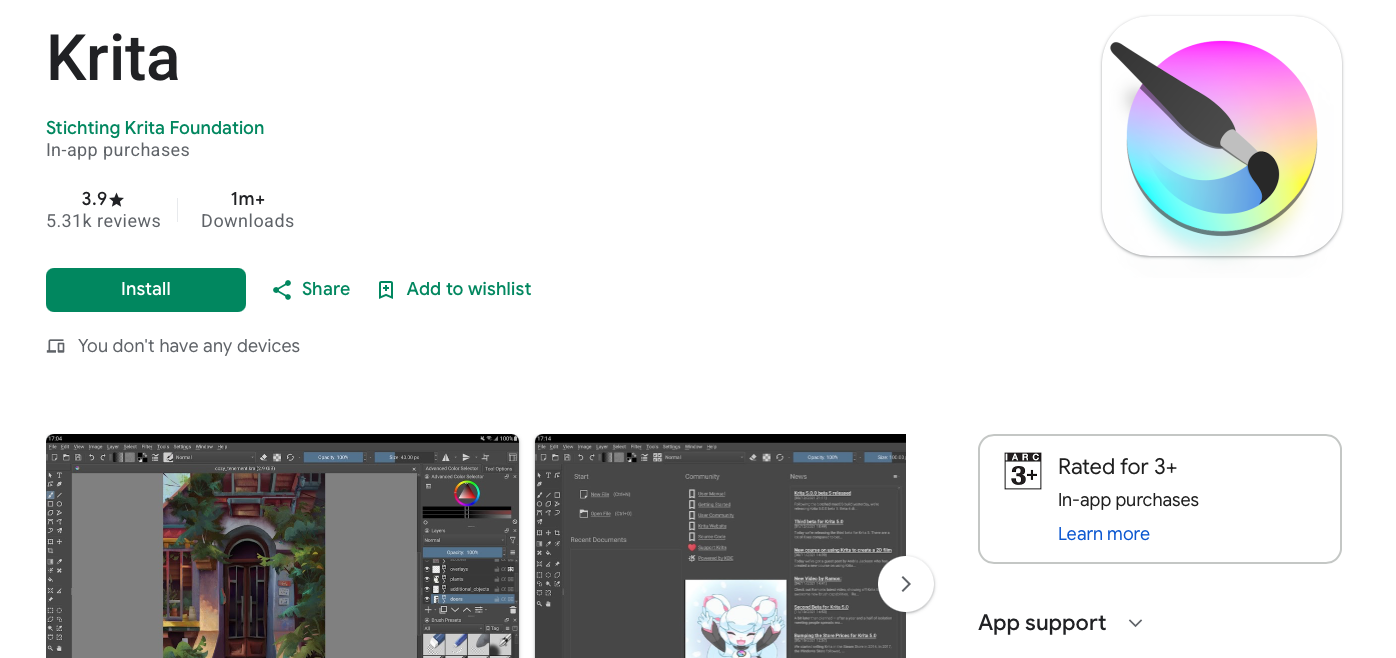
Krita is a free, open-source painting program that rivals Photoshop for illustration. The Android version brings the full desktop experience to your Galaxy Tab. No subscriptions, no ads, no catch. Just pure power.
Why it slaps on Galaxy Tabs:
- Professional brush engines and brush stabilizers
- Animation tools, vector tools, and layer management
- PSD support so you can work with Photoshop files
- Community-driven updates and completely free
Heads up: It’s heavy. Use it on Tab S7 or newer for the best experience. Older tabs might lag with big canvases.
6. ArtFlow
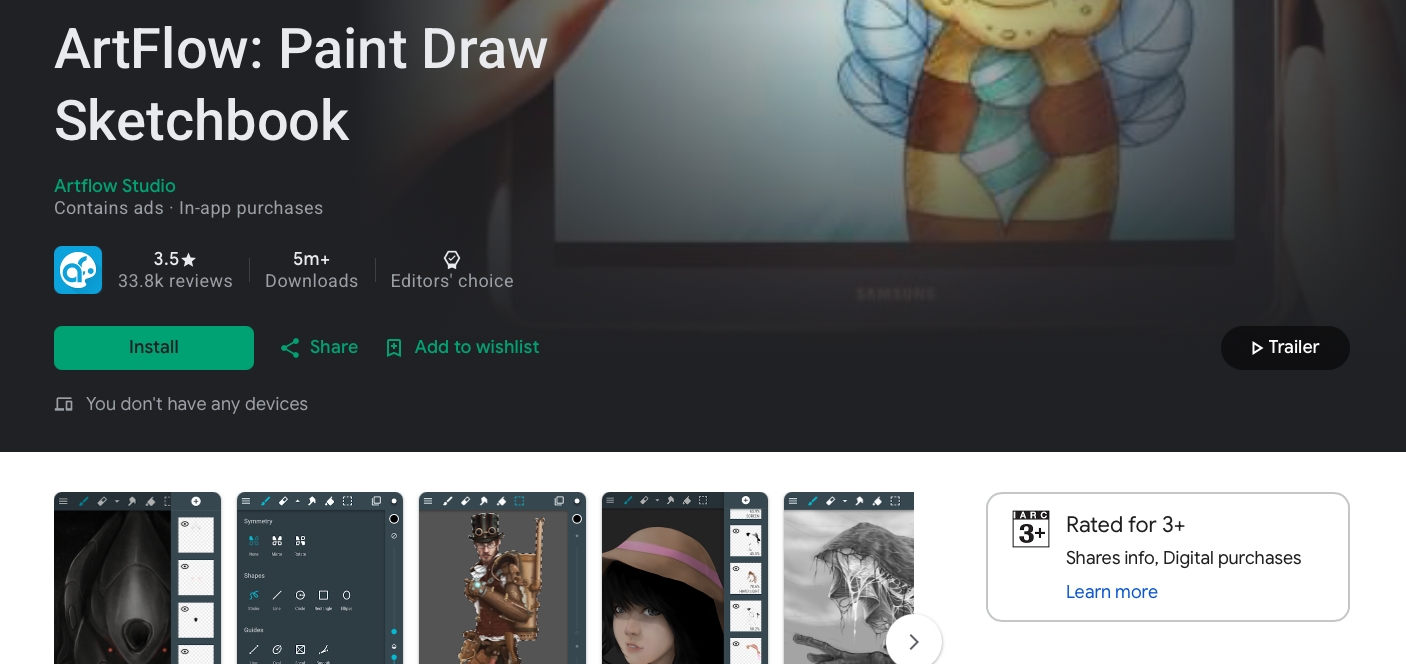
ArtFlow has been an Android art staple for years. It’s fast, intuitive, and GPU-accelerated so your 100+ layer 6000x6000px canvas doesn’t turn your Tab into a toaster.
Why it slaps on Galaxy Tabs:
- Up to 50 layers and 256 undo levels in free version
- Pressure-sensitive S Pen support with palm rejection
- Custom canvas presets for Tab S screen ratios
- Pro version is a one-time purchase for unlimited layers and PSD export
Heads up: Development is slightly slower, but it’s still rock solid.
7. PENUP
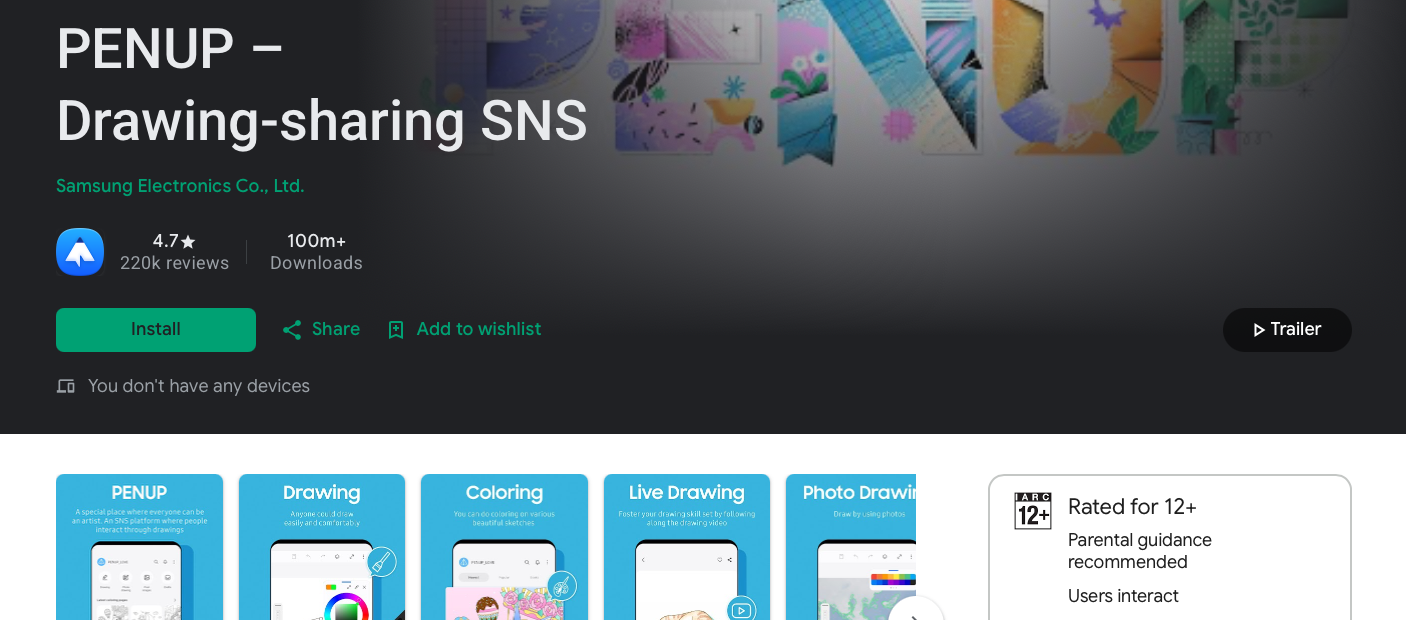
PENUP is Samsung’s own social drawing app. It’s probably already pre-installed on your Galaxy Tab. Think of it as Instagram meets coloring book meets art class. You can trace photos, do live drawing challenges, and share with a massive community.
Why it slaps on Galaxy Tabs:
- Designed specifically for Samsung tablets and S Pen
- Coloring pages and tutorials for total newbies
- Live drawing lets you watch artists create in real time
- Completely free, no sign-up required to draw
Heads up: Though not a full pro art studio, but for practice and fun, it’s unbeatable.
8. MediBang Paint
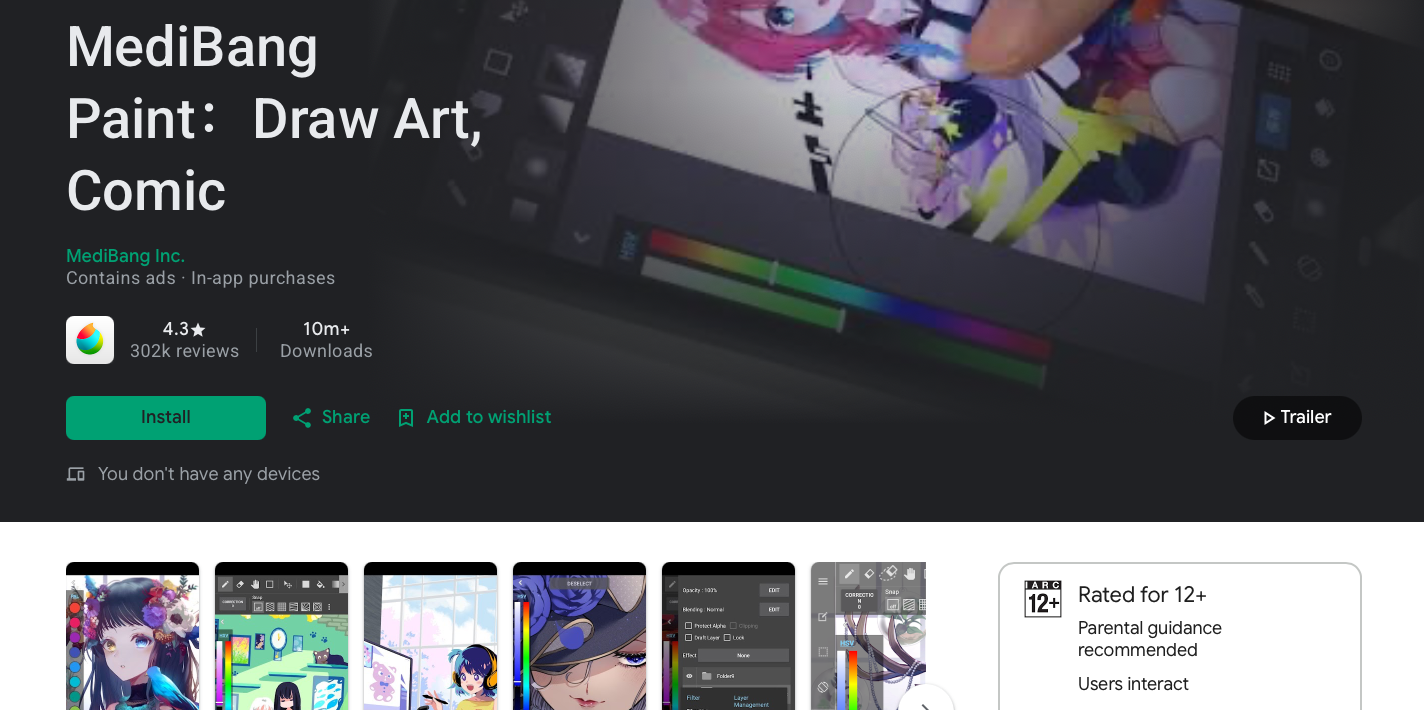
MediBang is like Clip Studio Paint’s free cousin. It’s built for comics and manga with panel tools, screentones, cloud saving, and comic fonts. And yes, it’s totally free.
Why it slaps on Galaxy Tabs:
- Cloud sync across phone, tablet, and PC
- 1GB free cloud storage for your projects
- Huge library of free brushes and tones
- Lightweight enough for older Galaxy Tabs
Heads up: You’ll see ads unless you go premium. But they’re not intrusive.
9. Tayasui Sketches
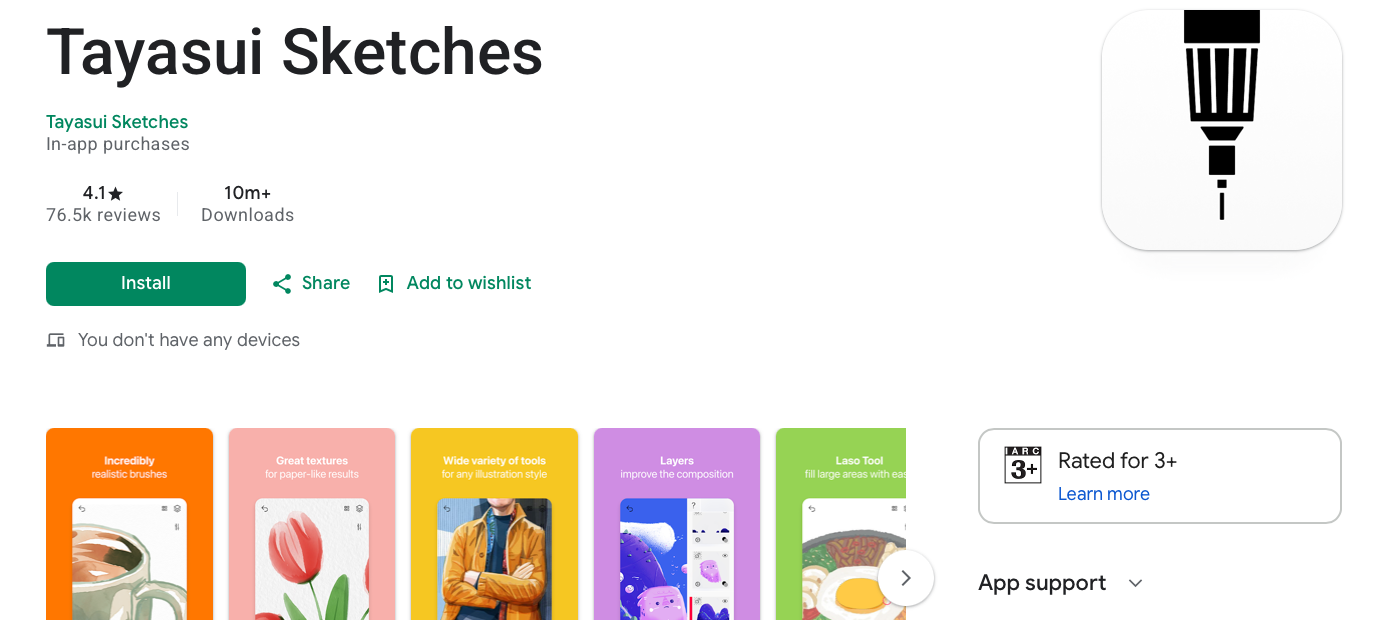
Tayasui is what you grab when you want zero distractions and brushes that behave like the real thing. It’sminimalist, gorgeous, and the watercolor wet brush is chef’s kiss. The interface scales perfectly on GalaxyTab S9/S10 screens, and S Pen pressure feels super natural.
Why you’ll love it:
- 20+ ultra-realistic tools with brush editor
- Layers, import photos, color eyedropper
- Stylus support designed for tablets
- Free version is solid. Go for Pro if you need more.
Heads up: Canvas size is fixed at 2224 x 1668 px. Fine for most work, but huge print projects are excluded.
10. HiPaint
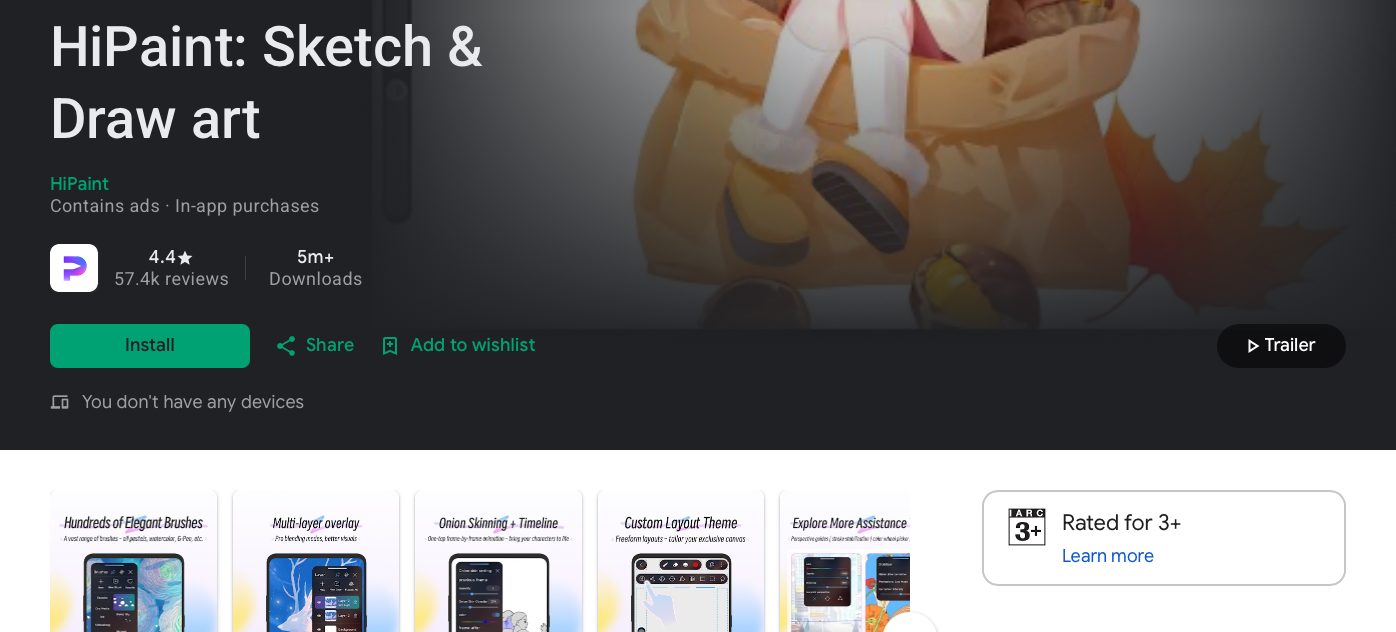
If you’ve been jealous of iPad users with Procreate, HiPaint is your answer. It’s lightweight but packed: 90+ brushes, animation timeline, layer blending modes, and a clean UI that doesn’t get in your way. Made for phones and tablets.
Why you’ll love it:
- Pro-grade tools: layers, clipping masks, liquify, symmetry
- Time-lapse recording built in
- Custom UI and multi-layer liquify in recent updates
- Free with optional advanced features
Heads up: Made by Aige Technology. Updates are frequent and it’s Android-first.
How to Choose the Right App for You?
Overwhelmed? Use this quick cheat sheet:
|
Your Goal |
Go With |
|---|---|
|
Total beginner, just want fun |
PENUP, Sketchbook |
|
Anime, manga, or webtoons |
Clip Studio Paint, ibis Paint X, MediBang |
|
Realistic painting |
Infinite Painter, ArtFlow, |
|
Free and no ads, ever |
Sketchbook, Krita |
|
Post your art online |
ibis Paint X, PENUP, Clip Studio Paint |
Pro Tips to Make Your Samsung Tablet a Beast Art Machine
- Turn on ‘Show pointer location’ in S Pen settings. Helps with precision.
- Buy a matte screen protector. Paperlike or similar. Kills glare and adds tooth so the S Pen doesn’t feel like skating on ice.
- Map the S Pen button. Most apps let you set it to undo, eyedropper, or switch brush/eraser. Game changer.
- Use Samsung Notes for warmups. It’s not on this list because it’s not a full art app, but it’s perfect for 5-minute gesture sketches.
- Export in PSD if you can. That way you can finish or tweak on your PC later.
The Bottom Line
Your Samsung tablet is a portable art studio. The S Pen is the best stylus in the Android world. But none of that matters if you’re stuck using a janky app.
Start with Sketchbook or PENUP if you’re new. Grab Infinite Painter when you’re ready to level up. Go Clip Studio Paint if you’re turning pro.
The only wrong choice is not starting. Download one today, open a blank canvas, and make something. Your future art-obsessed self will thank you.
Now stop reading and start drawing.