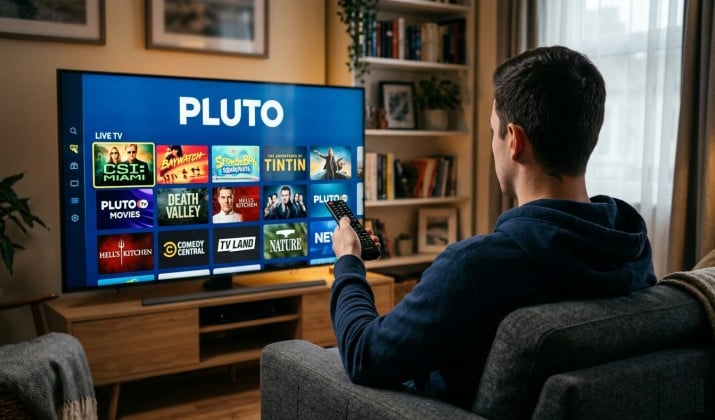
You already know Pluto TV rocks for free movies, live news, and 24/7 channels. But watching on your phone gets old fast. The real experience starts when you install Pluto TV app on smart TV and kick back on the couch.
Most smart TVs make this super simple. No tech skills needed. I’ll walk you through every major brand so you can stop squinting at your laptop and start watching Pluto TV on TV instead of phone or laptop like it was meant to be.
This is your complete Pluto TV setup guide for smart TVs. Pick your TV brand below and follow the steps. You’ll be streaming in minutes.
Before You Start: What You Need
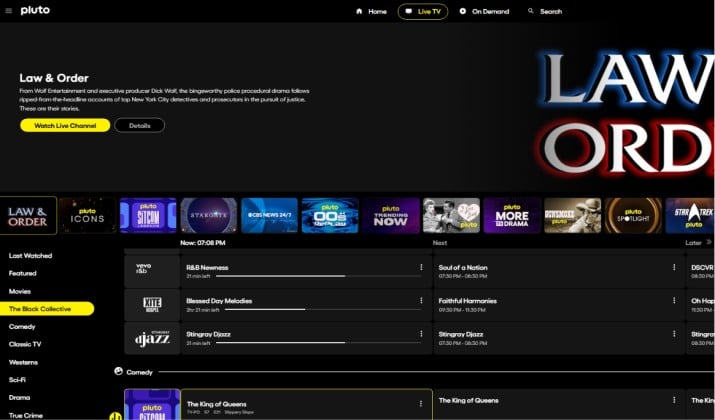
Pluto TV is 100% free. No credit card or trial required. But double-check these three things before you try to install Pluto TV app on smart TV:
- Internet connection: Your TV needs to be online. Wi-Fi or ethernet both work.
- Storage space: The app is small, but your TV needs a little free space.
- Updated software: Older TV software sometimes hides new apps. Run a quick system update first.
Ready? Let’s get Pluto TV on smart TV for your specific model.
How to Install Pluto TV on Samsung Smart TV? Step-by-Step Guide
Samsung runs on Tizen OS. If you bought your TV after 2016, you’re set. Here’s how to install Pluto TV on Samsung smart TV.
- Grab your Samsung remote and press the Home button.
- Navigate left to Apps. This opens the Samsung App Store.
- Select the Search icon in the top right corner.
- Type Pluto TV using the on-screen keyboard.
- Select the Pluto TV app from the results. Hit Install.
- Once it downloads, press Open. Or find it later in your Apps row on the home screen.
Quick tip: Want faster access? Press and hold the Select button on the Pluto TV app icon. Choose Add to Home.
How to Install Pluto TV on LG Smart TV (webOS Content Store)?
LG TVs use webOS. The process feels a lot like Samsung. Here’s how to install Pluto TV on LG smart TV.
- Press the Home button on your LG Magic Remote.
- Scroll through the launcher bar and open the LG Content Store.
- Click the Search icon and type Pluto TV.
- Select the app and hit Install.
- After it downloads, choose Launch.
You can also long-press the app icon to pin it to your main home bar for one-click access.
Add Pluto TV Channel on Roku TV and Roku Streaming Devices
Roku makes this dead simple. Pluto TV is one of the most popular free channels on Roku.
- Press Home on your Roku remote.
- Scroll down and select Streaming Channels to open the Channel Store.
- Choose Search Channels and type Pluto TV.
- Select Add Channel. Roku will download it immediately.
- Go back to Home. You’ll see Pluto TV at the bottom of your channel list. Select it to open.
Roku also lets you add channels from the web. Visit channelstore.roku.com, log in, and add Pluto TV from there. Your TV will update automatically. This is the easiest way to add Pluto TV on Roku TV and Roku streaming devices.
Add Pluto TV on Amazon Fire TV / Firestick From the Amazon Appstore
If you have a Fire TV, Firestick, or a TV with Fire TV built-in, here’s how you get Pluto TV on Amazon Fire TV / Firestick.
- From the Fire TV Home screen, select the Find icon or Appstore.
- Choose Search and type Pluto TV.
- Select the Pluto TV app under Apps & Games.
- Click Get or Download. Wait for it to install.
- Select Open to launch it right away.
To pin it: From Home, go to Your Apps & Channels. Highlight Pluto TV, press the Menu button on your remote, and select Move to Front.
Download Pluto TV From Google Play Store on Android TV / Google TV
This covers Sony, NVIDIA Shield, Chromecast with Google TV, and many others. If you want to install Pluto TV on Android TV and Google TV devices, do this:
- On your home screen, open the Google Play Store app.
- Select the Search icon.
- Type Pluto TV and select the official app.
- Click Install.
- Once it’s done, select Open. You’ll also find it in your main Apps row.
How to Install Pluto TV on Vizio SmartCast TV?
Vizio does things a little differently. Newer Vizio SmartCast TVs don’t have an “app store” you install from. Most apps are already loaded or cast from your phone.
- Press the V button or Home button on your Vizio remote.
- Look for Pluto TV in your app row. Many newer Vizios have it pre-installed.
- If you see it, select it and it will launch or update.
- If you don’t see it, press the Input button and select SmartCast. Then use your phone to cast Pluto TV to the TV from the mobile app.
So for most people, you don’t actually install it. You just launch it. That’s how to install Pluto TV on Vizio SmartCast TV.
How to Install Pluto TV on Hisense / TCL via Built-in App Store?
Hisense and TCL TVs run different systems. Some use Roku TV, some use Google TV, some use Fire TV, and some use VIDAA. The steps change based on what you have.
- If your Hisense or TCL has Roku TV: Follow the Roku steps above.
- For Google TV: Follow the Android TV/Google TV steps.
- In case it has Fire TV: Follow the Fire TV steps.
- If it has VIDAA: Open the VIDAA App Store, search for Pluto TV, and install it.
Check your TV’s home screen. The app store name tells you which guide to follow. That’s the easiest way to handle Pluto TV on Vizio, Hisense, and TCL smart TVs.
If Pluto TV App is Not Available on My Smart TV Store, What Can I Do?
Have an older TV? Can’t find Pluto TV in the store? You still have options.
Option 1: Use a streaming stick. A $25 Roku or Fire Stick plugs into your TV’s HDMI port. Then you install Pluto TV on that device instead. It’s the fastest fix.
Option 2: Sideload Pluto TV APK on unsupported smart TVs via Downloader / browser. This only works on Android TV/Google TV. You would use an app called Downloader to install the Pluto TV APK file directly.
This is technical and not officially supported. You need to enable “Unknown Sources” in settings. If you’re not comfortable with that, stick with a streaming stick.
Option 3: Cast or AirPlay. Open Pluto TV on your phone. Tap the Cast or AirPlay icon and send it to your TV. No install needed.
Pluto TV Activation and Sign-in on TV: Guest vs Account
Once you open Pluto TV, you get a choice. Here’s how to sign in / activate Pluto TV on smart TV or use as guest.
Use as Guest: You can watch everything immediately. No email, no password. Just open the app and start streaming.
Sign in with an Account: Creating a free account lets you favorite channels, continue watching across devices, and set up parental controls. To activate, the TV shows a code. Go to pluto.tv/activate on your phone or computer, log in, and enter the code.
Do you need an account to watch Pluto TV on smart TV? No. You never need an account. Pluto TV is free either way. Logging in just unlocks extra convenience features.
How to Update Pluto TV App on Smart TV to the Latest Version
Apps update automatically on most TVs. But if Pluto TV feels buggy, try this:
- Samsung/LG: Go to the app store, find Pluto TV, and see if an Update button shows instead of Open.
- Roku: It updates on its own. You can force it under Settings > System > System Update.
- Fire TV: Go to Settings > Applications > Manage Installed Applications > Pluto TV > Check for Updates.
- Android/Google TV: Open Play Store > Profile icon > Manage apps & device > Updates available.
Keeping it updated gives you new channels and fixes bugs.
Step-by-Step Instructions to Install Pluto TV on My Smart TV
Let’s recap the universal method that works for 90% of TVs:
- Turn on your TV and connect to the internet.
- Press Home on your remote and open your TV’s app store. It might be called Apps, Content Store, Channel Store, Appstore, or Play Store.
- Use Search to find Pluto TV.
- Select Install, Download, Get, or Add Channel.
- Open the app and start watching. No payment needed.
That’s the core process to install Pluto TV app on smart TV no matter the brand.
Which Smart TV Is Best for Pluto TV?
All of them work, but here’s the breakdown. If you want the smoothest experience to download Pluto TV free movies and TV, Roku and Fire TV tend to load fastest and get updates first. Samsung and LG have great native apps too. Google TV gives you the best voice search.
If your current TV doesn’t support it, don’t buy a new TV. Grab a Roku Streaming Stick 4K or Fire TV Stick 4K Max. For under $50 you can install Pluto TV app on smart TV even if your TV is 10 years old. That’s the most budget-friendly win.
So pick your TV from the list above, follow the steps, and you’ll have Pluto TV running in under two minutes. Enjoy the free channels.