Ever wanted to hear your own voice singing a full track you wrote, even if you don’t consider yourself a singer? That’s exactly what you can do when you use your own voice in Suno AI.
Suno’s Voices feature lets you clone your voice, drop it into original songs, and sound like you spent hours in a studio. You record a short sample, name your voice, and Suno handles the rest. This Suno AI voice cloning guide walks you through every step so you can start creating today.
What Is Suno Voices and Why Use It?
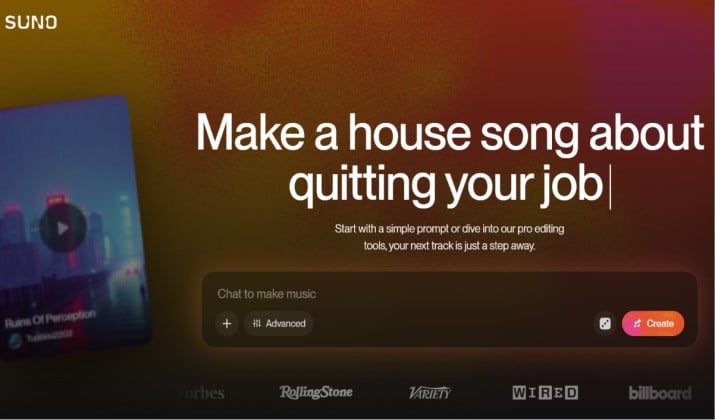
Suno Voices is Suno’s custom voice tool. You upload or record a clean sample of your voice, Suno builds a voice model from it, and then you can apply that model to any song you generate.
Why bother? Three big reasons:
- You get songs that sound like you. Not a generic AI singer. Your tone, your vibe.
- You skip the studio time. Record once, use it forever.
- You control your sound. Want a soft pop version of you? A gritty rock take? You can build different models for different styles.
If you’ve searched for a Suno AI custom voice tutorial, this is it. Let’s get you set up.
How To Use My Own Voice in Suno?
Here’s the fastest way to use your own voice in Suno AI if you’re just starting out.
Step 1: Update to Suno AI 4.5 or Newer
The Voices feature and Cover tool rolled out with 4.5. If you’re on an older version, update first. You can grab Suno on iOS, Android, or use it on web.
App links:
Step 2: Go To Create > Voices
In the Suno app or web dashboard, hit “Create” then find the “Voices” tab. Click “Create New Voice.”
Step 3: Record or Upload Your Sample
Suno needs 30–120 seconds of clean audio to learn your voice. You can record directly in the app or upload a WAV/MP3 file. This is where training a Suno AI custom voice model from a 30–120 second sample happens.
Step 4: Name and Save Your Voice
Give it a clear name like “Alex – Warm Pop” or “Sam – Rock Grit.” You’ll see why in a minute when you start to manage multiple voices.
Step 5: Make a Song With Your Voice
Head to “Create Song.” Write your lyrics or let Suno generate them. Under “Voice,” pick the custom voice you just made. Hit Create. Suno will render the track using your cloned voice.
That’s the core workflow for how to add your voice to Suno. You just went from zero to a full song with your voice on it.
Best Mic and Recording Tips for Suno Voice Cloning
Your results live or die by your sample quality. If you want Suno AI to actually sound like your real voice, follow these tips:
|
Tip |
Why It Matters |
How to Do It |
|---|---|---|
|
Record in a quiet room |
Background noise gets baked into your model |
Close windows, turn off fans, record at night |
|
Use a decent mic |
Phone mics work, but USB mics are better |
Try a Blue Yeti, Shure MV7, or even Apple EarPods |
|
Speak or sing naturally |
Suno learns your tone and cadence |
Read a paragraph, sing a chorus, avoid monotone |
|
Keep it 60-90 seconds |
Sweet spot for accuracy vs. upload time |
One verse + one chorus works great |
|
Use WAV or 320kbps MP3 |
Compressed audio loses detail |
Export at 44.1kHz, 16-bit or higher |
|
No effects or music |
Reverb, autotune, or beats confuse the model |
Dry, raw vocals only |
Nail these and your Suno AI voice cloning tutorial 2026 experience gets way smoother.
Suno Voices: How To Create, Name, and Manage Custom Voices?
Once you start to use your own voice in Suno AI, you’ll probably want more than one version of yourself. Here’s how to stay organized.
Create multiple styles: Record one sample where you sing soft and airy. Record another where you push more power. Suno lets you build Suno AI custom models for specific vocal styles like “90s male rock” or “soft female pop.” Each becomes its own voice you can pick later.
Name them clearly: “Jess – Belting” and “Jess – Whisper” beats “Voice1” and “Voice2.” You’ll thank yourself when your library grows.
Delete or retrain: If a voice sounds off, trash it and upload a better sample. You can always improve the model.
Suno AI 4.5 Cover Tool To Turn Any Vocal Clip Into a Full Song
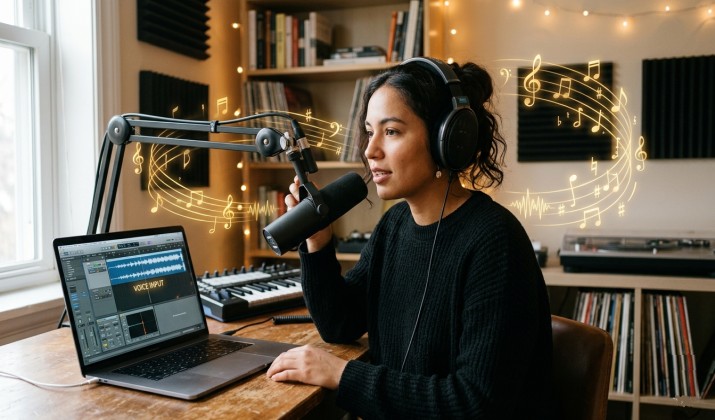
The Cover feature is where things get fun. Say you have a 15-second phone recording of you humming a melody.
- Go to Create > Cover.
- Upload your vocal clip.
- Add lyrics and pick a style like “Acoustic Folk” or “EDM.”
- Choose your cloned voice.
- Hit Create.
Suno builds a full instrumental and uses your own voice in Suno songs with the Cover or Add Audio tool. This is perfect for how to make a song in Suno with your own voice even if you can’t sing perfectly. Suno smooths pitch and timing while keeping your tone.
Using Suno’s Extend Feature To Continue a Song With Your Own Voice
Made a 1-minute chorus you love? Don’t start over. Use Extend.
Open your song, click “Extend,” add new lyrics for a verse or bridge, keep your custom voice selected, and Suno will continue the track in the same style. This keeps your voice consistent across the whole song instead of sounding like two different takes stitched together.
Suno AI Voice Cloning vs Voice Changer vs Cover Feature
People mix these up a lot. Here’s what each one actually does:
|
Feature |
What It Does |
When to Use It |
|---|---|---|
|
Voices |
Clones your voice from a sample. You own the model. |
You want all future songs to use your voice |
|
Voice Changer |
Swaps the voice on an existing Suno song |
You already made a song and want to test your voice on it |
|
Cover |
Turns your raw vocal clip into a full produced song |
You have a melody idea and want Suno to build around it |
So if you’re focused on how to upload or record your voice in Suno Voices step‑by‑step, you want the Voices tab. If you just want AI cover songs with your own voice using Suno Voices, Cover is faster.
How To Make Suno AI Actually Sound Like My Real Voice?
If your first result sounds “kinda like you” but not quite, try this:
- Re-record with more emotion. Flat samples = flat AI. Smile, use dynamics, act like you’re performing.
- Add variety to your sample. Sing high and low. Speak a few lines. The model needs range.
- Check your input levels. Clipping or super quiet audio hurts quality. Aim for -12dB to -6dB peaks.
- Use version 4.5 or later. The model got a major upgrade for realism.
Suno AI Voices feature explained simply: it copies patterns. Give it better patterns, get better results.
How To Fix Weird Artifacts or Glitches in Suno AI Custom Voices?
Hearing robotic chirps, slurred words, or pitch jumps? Here’s how you fix them:
- Shorten your prompt. Super long lyrics in one section can glitch. Break into verse/chorus.
- Regenerate the section. Click the “…” on the track and hit “Redo” or “Extend” from a clean point.
- Simplify tricky words. AI sometimes stumbles on names or slang. Try phonetic spelling.
- Re-upload your voice. If artifacts show up in every song, your source sample might have noise.
Using Suno With Your Own Voice for YouTube, TikTok, and Spotify Songs
You can use songs made with your cloned voice on social platforms, but follow the rules. Suno’s Terms say you need rights to any voice you upload. Since it’s your voice, you’re clear.
For Spotify or Apple Music distribution, Suno lets you export stems. That means you can download your vocals and drop them into a DAW like Logic or Ableton. You’re essentially exporting Suno songs with your cloned voice and mixing them in a DAW for final polish.
Ethical and Legal Use of Your Own Voice in AI Music Tools
This part matters. Suno AI voice verification and consent requirements are strict. You must own the voice or have written consent. You can’t upload a clip of a friend, celebrity, or ex without permission. Suno can ban accounts for violations.
The good news: when you use your own voice in Suno AI, you’re the copyright owner of that voice model and the songs you create with it, based on Suno’s current Terms. Always double check the latest terms before commercial release.
Suno AI Voice Changer Workflow With External Voice Packs
Want to change a Suno song to your voice after it’s made?
- Generate the song with a default Suno voice.
- Export the vocal stem.
- Use a tool like LALAL.AI or another voice swap tool to replace the vocal with your cloned voice.
- Re-import to your DAW.
This is slower than using your own voice in Suno AI directly, but it gives you more control if you’re mixing.
Suno AI Pricing
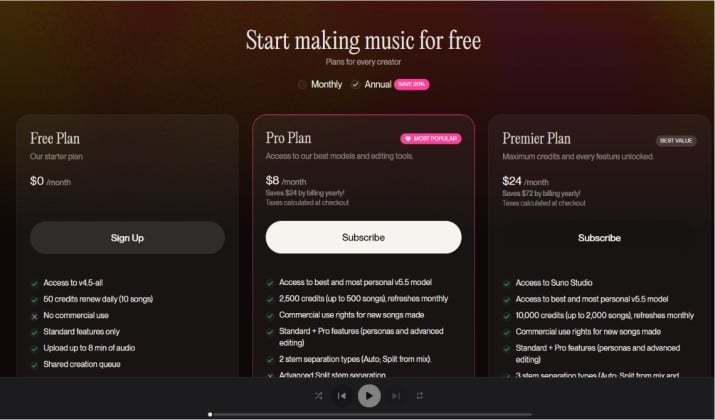
Suno AI offers a tiered, credit-based subscription model ranging from free to $24/month. Free plans give you limited credits per day. Pro and Premier plans give you more credits, faster generation, and commercial use rights.
The best plan for you depends on whether you need commercial use rights.
Suno AI vs Other AI Voice / Song Generators for Custom Voices
How does Suno stack up?
|
Tool |
Custom Voice? |
Full Song Generation? |
Ease of Use |
Best For |
|---|---|---|---|---|
|
Suno AI |
Yes, 30-120s sample |
Yes, lyrics + music + vocals |
Very beginner friendly |
All-in-one songs with your voice |
|
Udio |
Limited, newer |
Yes |
Similar to Suno |
Alternative song styles |
|
Kits.AI |
Yes, but needs more data |
No, voice conversion only |
More technical |
Producers who already have instrumentals |
|
ElevenLabs |
Yes, speech focused |
No music |
Medium |
Voiceovers, not singing |
If your goal is to use your own voice in Suno AI and get a finished track fast, Suno is currently the most direct path.
Quick Recap on What You Can Do Now
You know how to add your voice to Suno, train it, and drop it into songs. You can build multiple vocal styles, fix glitches, and export for YouTube or Spotify. The main thing to remember: start with a clean sample, name your voices well, and you’ll get tracks that actually sound like you.
Now open Suno and try it. Record 60 seconds, make your first voice, and generate a chorus. Once you hear yourself on a real track, you’ll get why creators are so hyped about this.