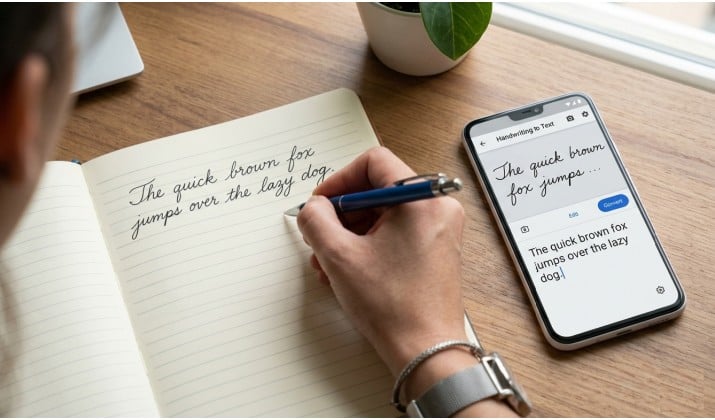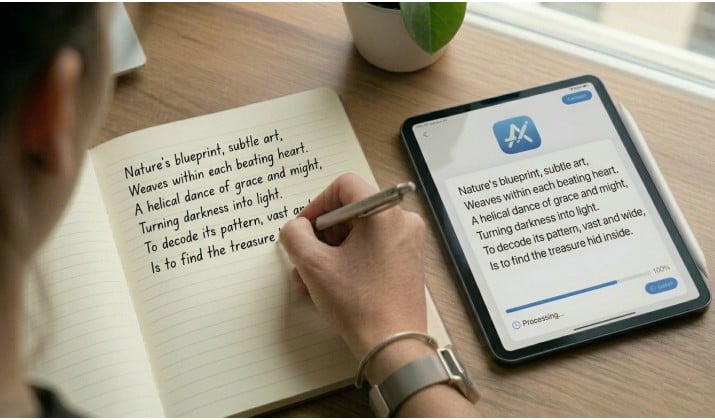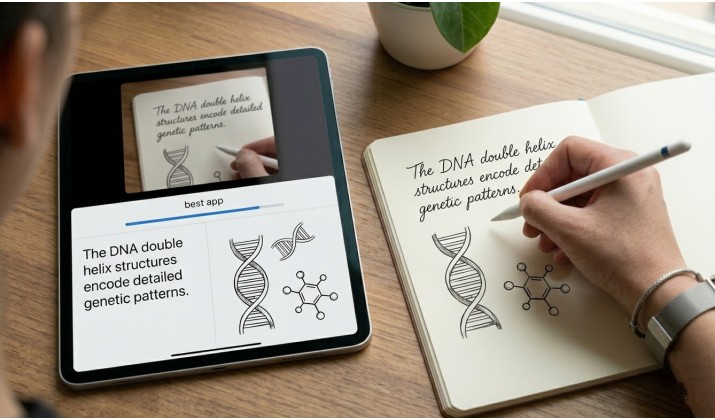
If you love taking notes with your Apple Pencil but hate retyping everything later, you’re in luck. Your iPad can turn those scribbles into clean, editable text in seconds. For students, professionals, or just someone who thinks better with a pen, the best handwriting to text apps for iPad save time and keep ideas searchable.
I’ve tested dozens of options , so you don’t have to. Below you’ll find the 7 best apps to convert handwriting to text on iPad, what makes each one stand out, and which one fits your workflow. Let’s get into it.
Why People Prefer Handwriting on iPad
Typing works well for many tasks, but handwriting still feels faster and more personal for brainstorming and learning. Studies often show that writing by hand improves memory retention, especially for students.
With an iPad and Apple Pencil, you get the flexibility of paper plus the convenience of digital tools.
Modern iPad note taking apps with handwriting recognition can:
- Convert handwritten notes to text on iPad instantly
- Search handwritten content like typed documents
- Export notes as PDF, Word, or plain text
- Sync notes across devices
- Organize notebooks with folders and tags
- Support diagrams, equations, and annotations
Many of the best AI note taking apps for iPad now include advanced handwriting OCR on iPad, which means they can recognize messy handwriting surprisingly well.
What Makes a Great Handwriting to Text App iPad Apple Pencil Users Will Love
Before we jump to the list, here’s what I looked for:
- Accuracy: It should actually read your handwriting, even if it’s messy.
- Speed: You want instant conversion, not a 30-second wait.
- Export options: The app should export to Word, PDF, and cloud storage without a hassle.
- Offline support: Because Wi-Fi isn’t always there when inspiration strikes.
- Apple Pencil feel: Good palm rejection and natural ink flow matter.
Here are the best handwriting to text apps for iPad that check those boxes.
1. GoodNotes 6
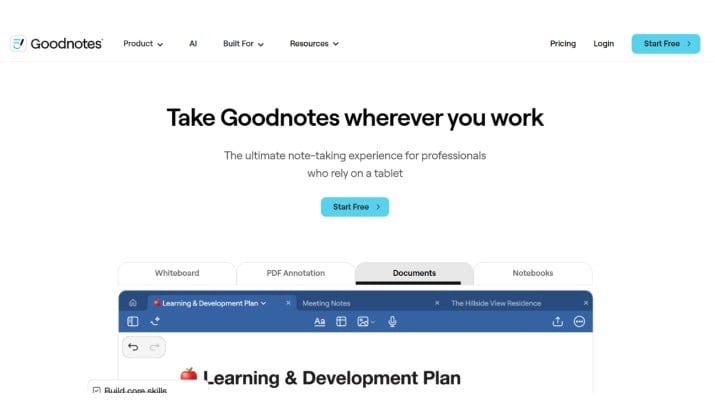
Best for: Converting handwriting to text for iPad students in lecture halls
GoodNotes 6 handwriting to text conversion on iPad feels like magic. You write with your Apple Pencil, lasso the text, tap “Convert,” and boom: the typed text appears.
Why you’ll like it:
- The handwriting recognition is sharp, even with cursive or mixed print.
- You can convert handwriting to text on iPad free with the limited version, then upgrade if you need more notebooks.
- It indexes your handwriting, so you can search handwritten notes like typed text before you even convert them.
- Exporting is easy. Send your notes to PDF, Word, or straight to Google Drive.
Heads up: The best features live behind a yearly subscription. But if you take a lot of notes, it pays for itself fast.
If you want the best iPad handwriting apps for lecture notes and studying, you can download GoodNotes 6 from Apple App Store.
2. Notability
Best for: Turning handwritten meeting notes into text on iPad for work
Notability handwriting to text on iPad works a bit differently. You write your notes, then use the “Convert to Text” feature on any selection. What sets it apart is the audio sync.
Why you’ll like it:
- Record the lecture or meeting while you write. Later, tap a word and hear what was said at that moment.
- The handwriting OCR on iPad is solid and supports multiple languages.
- You can convert handwriting to text on iPad and drag the typed text right into emails or docs.
- It handles PDFs like a pro, so you can annotate slides and convert your comments too.
Heads up: Conversion is a manual step. It won’t happen live as you write.
For professionals who live in meetings, Notability is easily one of the best handwriting to text apps for iPad you can download from Apple App Store.
3. Apple Notes
Best for: Converting handwriting to text for iPad beginners
Using Apple Scribble to turn handwriting into text on iPad costs nothing. Open Apple Notes, start writing with your Apple Pencil, and Scribble converts as you go. You can also select older handwritten notes and tap “Copy as Text.”
Why you’ll like it:
- Apple Notes handwriting to text with Apple Pencil (built‑in Notes + Scribble) needs no setup.
- It works offline handwriting to text on iPad, so you’re covered on a plane or in class with bad Wi-Fi.
- Search works across handwriting and typed text.
- It’s deeply tied to iCloud, so your notes show up on Mac and iPhone instantly.
Heads up: You get fewer formatting and export options than paid apps. PDF export is simple, but Word requires an extra step.
If you want to convert handwritten notes to text on iPad without spending money, download Notes from Apple App Store today. It’s the simplest handwriting to text with Apple Pencil and Scribble setup you’ll find.
4. Nebo
Best for: Converting handwriting to text for medical / law / engineering students on iPad
If your notes include more than just words, check out Nebo. MyScript built this app, and it runs on the same engine people used to call the MyScript Notes AI handwriting app for iPad. That engine still sets the bar for accuracy, especially with messy or technical writing.
Why you’ll like it:
- Write a math equation and Nebo solves it right on the page. Sketch a flowchart and it snaps your lines and shapes into place.
- The AI handwriting recognition on iPad works across 66 languages and handles print, cursive, and mixed styles without much fuss.
- You choose how you convert. Turn your writing into typed text line by line as you go, or lasso a full paragraph and convert handwriting to text on iPad when you finish.
- Export options are strong. Send your work to Word, PDF, or HTML and keep your formatting, diagrams, and equations intact.
Heads up: The layout feels very functional. You get power first, pretty second. Give yourself a day to learn the gestures and you’ll fly.
For STEM majors and anyone who mixes notes with visuals, Nebo earns its spot among the best handwriting to text apps for iPad.
The MyScript tech behind it is why so many other apps license the same recognition. If raw accuracy matters to you, this is where you should start testing. You can download this app from Apple App Store.
Read this too: Best handwriting Fonts in Word
5. Microsoft OneNote
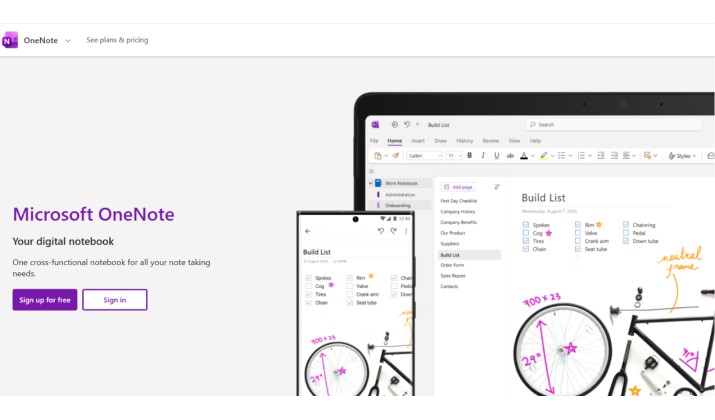
Best for: Handwriting to text that exports to Word, PDF, and cloud storage
Microsoft OneNote handwriting to text on iPad is free and capable. Scribble your notes, grab the lasso tool, select the ink, and choose Ink to Text.
Why you’ll like it:
- You get unlimited notebooks with a free Microsoft account.
- OneNote syncs across iPad, Windows, Mac, and Android without hiccups.
- The Ink to Text tool keeps your bullet points and indents, so your structure stays clean.
- Search scans all your handwritten notes to text on iPad and typed pages together.
Heads up: Conversion happens after you write. Live conversion is not here yet. Accuracy trails GoodNotes slightly on very messy writing.
If your school or company already uses Microsoft 365, this is the best handwriting to text app for iPad for your workflow. You convert Apple Pencil handwriting to text on iPad and drop it into Word in seconds.
The app is available on Apple App Store.
6. Noteshelf 3
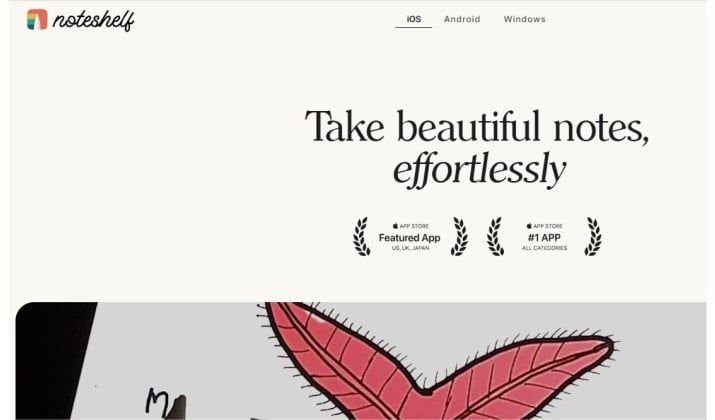
Best for: iPad note taking with handwriting recognition that feel like real paper
Noteshelf 3 nails the Apple Pencil experience. The ink flows naturally. The new AI tools add real utility on top of that feel.
Why you’ll like it:
- Handwriting to text works well and supports dozens of languages.
- The AI assistant can summarize your handwritten notes after you convert them.
- You can record audio, annotate PDFs, and organize everything with tags and favorites.
- You pay once. No subscription needed.
Heads up: Text conversion runs one page at a time. You cannot convert a full notebook in a single tap.
For a mix of comfort and function, Noteshelf deserves a spot with the best handwriting to text apps for iPad. You enjoy writing, then you turn that writing into usable text when you need it. You can download the app from Apple App Store.
You might like this: Best Google Fonts That Look Like Handwriting
7. CollaNote
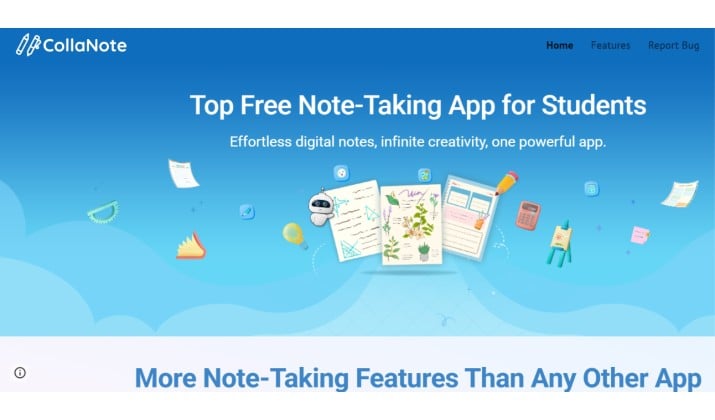 Best for: Converting handwriting to text on iPad free with no subscription
CollaNote proves you do not need to pay to get great results. Students built this app, and it shows in the feature set.
Why you’ll like it:
- You can convert handwriting to text on iPad without hitting a paywall. The core features cost nothing.
- The handwriting OCR on iPad handles daily notes well. You also get audio recording, PDF markup, and a built in browser for research.
- Apple Pencil support feels refined. You get strong palm rejection and a wide pen library.
- You can export handwriting as PDF, Word, or plain text from iPad, and back up to iCloud, Google Drive, and Dropbox.
Heads up: The interface shows a lot of tools at once. Hide the ones you do not use and the app feels cleaner.
CollaNote completes this list of best handwriting to text apps for iPad because it delivers pro level tools for free. If your budget is zero and you still want to convert Apple Pencil handwriting to text on iPad, install this one first from the Apple App Store.
How To Convert Handwriting to Text on iPad With Apple Pencil Step by Step
You picked an app. Now here is the basic process you will use in most of them:
- Open your note app and create a new page.
- Write with your Apple Pencil. Focus on your ideas. Do not worry about perfect letters.
- Select the handwriting. Most apps give you a lasso or selection tool. Circle the text you want.
- Tap Convert to Text or Ink to Text. The name changes by app, but the idea stays the same.
- Review the result. Fix any small errors.
- Copy the text or export handwriting as PDF, Word, or plain text from iPad.
With Apple Scribble, you skip steps 3 and 4. Write directly in any text field and iPad OS converts your writing live. That is the fastest way to use handwriting to text with Apple Pencil and Scribble for messages, searches, and quick notes.
Another interesting read: Best handwriting Fonts for GoodNotes
Which iPad Apps Let Me Search Handwritten Notes Like Typed Text?
You do not always need to convert first. GoodNotes, Notability, Apple Notes, OneNote, Nebo, and CollaNote all index your handwriting. Tap the search bar, type a keyword, and the app highlights it in your ink.
If you create hundreds of pages, that feature alone saves you time. You get searchable notes today. You convert handwriting to text on iPad only when you need to share or edit. These iPad apps that convert handwritten notes to typed text give you flexibility either way.
Quick Tips to Boost Accuracy
Help the app read your writing better with four habits:
- Leave space between words. Tight writing confuses the OCR.
- Stay consistent. Switching between print and cursive mid sentence lowers accuracy.
- Use lined templates. Lines keep your writing straight and readable.
- Train Scribble in Settings. Your iPad learns your style and improves over time.
Follow those tips and even free tools that convert handwriting to text on iPad free will surprise you with how well they work.
Picking Your Winner
Match the app to your workflow.
Students juggling lectures do well with GoodNotes 6 and Notability. They’re two of the best handwriting to text apps for iPad when you need speed, search, and clean exports.
If you want free and simple, start with Apple Notes. You already have it, and it just works. When your notes are full of equations or diagrams, Nebo handles them better than most thanks to the MyScript tech under the hood. If you already live in Microsoft 365, OneNote keeps everything synced across your devices without extra effort.
Prefer to pay once and be done? Noteshelf gives you a great writing feel with no subscription. And if your budget is zero, CollaNote still gives you pro level tools for free.
Test two or three with your own handwriting. See which one reads you best.