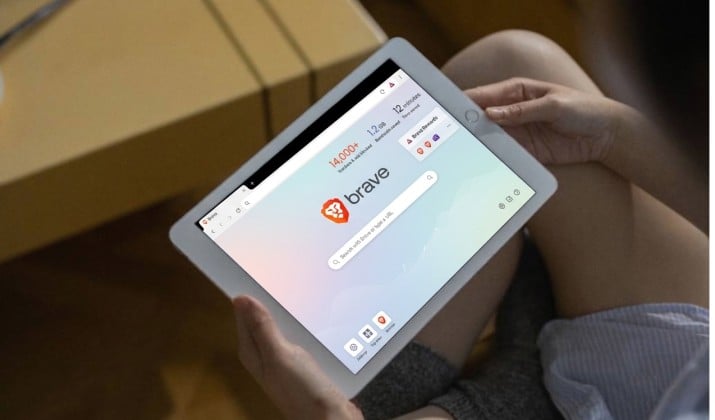
Your Chromebook already has the Chrome browser. It sits in the dock, it opens when you click a link, and it handles school work, office work, and video calls without a fuss. So why look for anything else?
Chrome fits the system perfectly, but it does not fit every person perfectly. Some people want stronger privacy. Others want fewer ads. And some want tab tools Chrome still does not offer.
This guide covers the best browsers for Chromebook, so you can pick one with confidence and keep Chrome around for the moments when you still need it.
Every browser in this list offers a free core browser. Paid extras, where they exist, are optional.
What To Know Before Installing?
Here is the reality to keep in mind before you install anything. On a Chromebook, Chrome is the system default. You cannot fully replace it in the same way you can on a Windows laptop.
You can add other browsers, though. Most people do it in one of two ways.
- You can install an Android app from Google Play, which feels familiar and works well with touch.
- You can turn on Linux, also called Crostini, and install a full desktop browser.
A quick note on hardware helps too. Many newer Chromebooks use ARM chips. Others use Intel chips.
Android apps run well on both. Linux browsers also run on both, but check that the Linux build matches your chip type.
Intel Chromebooks have the widest Linux choice. ARM Chromebooks still run a lot, yet a few niche builds may lag behind.
If your Chromebook is managed by a school or workplace, Play and Linux may be locked. In that case, Chrome stays your main option, and that is fine.
How To Choose the Right Browser?
Start with how you use your Chromebook day to day and make a note of your browsing priorities:
- Compatibility: Does it open your school portal, banking site, and work apps without errors?
- Privacy: Does it block trackers and ads by default, or do you need to add that yourself?
- Extensions: Do you need Chrome Web Store extensions, Firefox add ons, or almost none at all?
- Install method: Do you want a quick Play install, or are you happy to set up Linux for a desktop build?
- Hardware: Does it run well on ARM and Intel, and on older machines with less memory?
Quick Chromebook Browser Comparison
|
Browser |
Best for |
Install on Chromebook |
Price |
|
Google Chrome |
Google apps and school work |
Built in |
Free |
|
Microsoft Edge |
Chrome compatibility plus Microsoft tools |
Play or Linux |
Free |
|
Mozilla Firefox |
Privacy with a non Chromium engine |
Play or Linux |
Free |
|
Brave |
Privacy plus speed |
Play or Linux |
Free; optional VPN and AI |
|
Opera |
Built in tools and sidebar |
Play or Linux |
Free; optional VPN Pro |
|
Vivaldi |
Tab lovers and customization |
Play or Linux |
Free |
|
DuckDuckGo |
Simple private search |
Play |
Free |
|
LibreWolf |
Maximum Firefox privacy |
Linux |
Free |
|
Ungoogled Chromium |
Chromium without Google services |
Linux |
Free |
|
Tor Browser |
Strong anonymity |
Play or Linux |
Free |
Best Browsers for Chromebook
1. Google Chrome
Chrome is the browser your Chromebook was built around. It signs into your Google account, syncs passwords and history, and opens Docs, Sheets, Slides, Classroom, and Meet without extra setup.
Sites test against Chrome first, so odd login errors show up less often here than anywhere else. On a Chromebook, Chrome also gets system level updates and security fixes, which keeps maintenance simple.
Chrome does collect more data than privacy focused rivals. You can tighten settings and add a tracker blocker, but you will still be inside Google’s ecosystem.
Many people keep Chrome for work and school, then add a second browser for personal browsing. That split works well and it costs nothing.
Price: Free. No paid plan for the browser itself.
Get it here: Play Store
Also read: Best Browsers for Android Tablets
2. Microsoft Edge
Edge feels familiar if you already use Chrome, because it runs on the same Chromium engine.
It supports most Chrome extensions, it opens Google apps cleanly, and it adds extras like vertical tabs, Collections for research, Immersive Reader for long articles, and strong tracking prevention.
If your work uses Microsoft 365, Outlook, Teams, or OneDrive, Edge makes that side of life smoother too.
On a Chromebook, Edge works best as a Linux install for a full desktop feel. The Android app from Play works for quick browsing, but it behaves like a mobile app, with mobile layouts and mobile menus.
Pick Linux when you want desktop extensions and desktop tab tools.
Price: Free. Optional Microsoft 365 plans are separate and not required.
Get it here: Play Store
3. Mozilla Firefox
Firefox is the strongest mainstream alternative that does not use Chromium. That matters.
When every browser uses the same engine, the web starts to bend toward one company. Firefox keeps choice alive, and it brings its own add on store, its own sync, and its own privacy controls.
Enhanced Tracking Protection blocks many trackers and cookies without turning the web into a broken mess.
On a Chromebook, you have two good paths. The Firefox Android app from Play is easy, fast, and touch friendly.
Price: Free. Mozilla VPN is a separate paid add on and is not required.
Get it here: Play Store
Read this too: Best Browsers for Amazon Fire Tablet
4. Brave
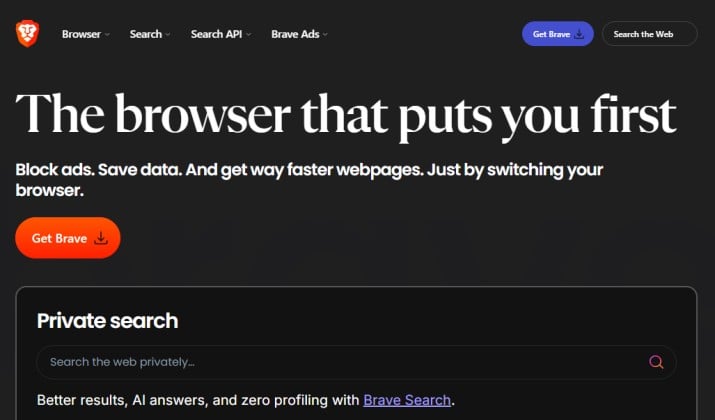
Brave looks like Chrome, because it shares the same base, but it behaves very differently under the surface.
Shields block ads, trackers, and many cookie popups by default. Pages load with less clutter, which often makes browsing feel quicker on a modest Chromebook. You still get Chrome Web Store extensions, so you do not lose the tools you rely on.
Brave is free to use. The company sells extras like Brave VPN and a premium tier for its Leo AI assistant. You do not need either one to get the core privacy benefit.
Brave pricing: Free browser. Brave VPN is priced at about $9.99 per month and Leo premium at about $14.99 per month. A stripped down Brave Origin build will cost a one time payment of $59.99.
Get it here: Play Store
5. Opera
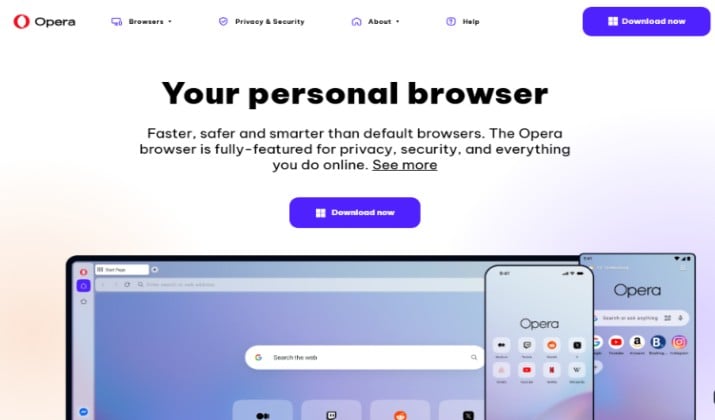
Opera packs a lot into one window.
It has a sidebar for messaging apps, a built in ad blocker, a free VPN for basic use, Workspaces to split work and personal tabs, and a music player that floats over your work.
If you like having tools in reach without installing ten extensions, Opera feels tidy. It runs on Chromium, so most sites and Chrome extensions work as expected.
Price: Free browser with free basic VPN. Opera VPN Pro is a paid upgrade.
Get it here: Play Store
6. Vivaldi
Vivaldi is made for people who love control.
You can stack tabs, tile tabs side by side, set custom keyboard shortcuts, change the interface colors, add notes to a page, and save sessions for a project.
It feels like a browser built by people who actually keep 40 tabs open. It runs on Chromium, so compatibility stays high, and it supports Chrome extensions.
All that power has a cost. Vivaldi can feel busy at first, and it uses more memory than a minimal browser when you turn every feature on.
Price: Free. No paid browser plan.
Get it here: Play Store
Explore: Best Email Browsers for Speed and Security
7. DuckDuckGo
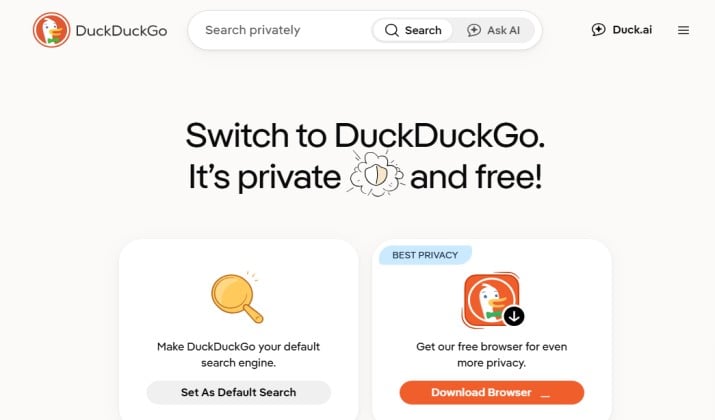
DuckDuckGo keeps things simple.
Its browser blocks many trackers, clears data with one tap through Fire Button, and pairs with its private search engine by default.
It does not try to be a full desktop power tool. It tries to be a clean, private way to search and read. For a second browser on a Chromebook, that focus is a strength.
The tradeoff is clear. The Chromebook version is an Android app from Play. It does not offer desktop extensions or desktop tab tools.
Price: Free. Optional DuckDuckGo Privacy Pro subscription is separate and not required.
Get it here: Play Store
8. LibreWolf
LibreWolf takes Firefox and hardens it. It strips out telemetry, tightens tracking protection, and clears data more aggressively by default.
You do not need to spend an evening in settings to get a private setup. It still supports many Firefox add ons, so you can add a password manager or a reader tool and keep going.
LibreWolf is a Linux only choice on a Chromebook, which limits its audience. It also updates a little behind Firefox, and some sites may ask you to adjust a setting before they work.
Price: Free. Community supported; donations are optional.
Get it here: Microsoft Store
9. Ungoogled Chromium
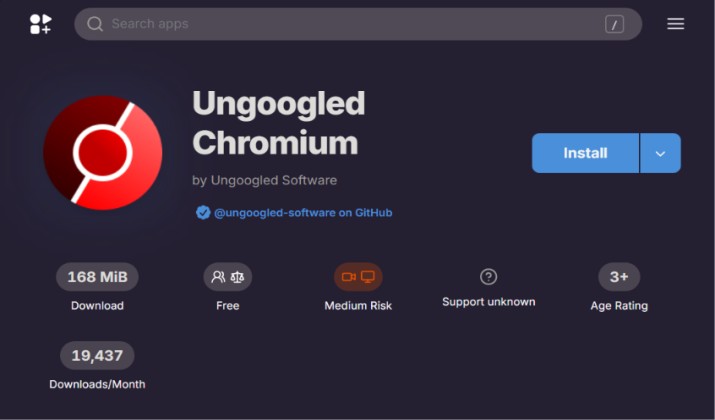
Ungoogled Chromium is Chromium with Google services removed.
It gives you the Chromium engine and the clean speed that comes with it, without Google sync, without Google search defaults, and without background Google calls. That appeals to people who like Chromium compatibility but want less Google in the loop.
The catch is maintenance. You manage updates and extensions yourself, and some features that rely on Google services will not work.
This is not a set and forget browser. It suits tinkerers, developers, and privacy fans who enjoy control.
On a Chromebook, install it through Linux and keep Chrome or Brave nearby for sites that need Google sign in.
Price: Free. Community supported.
Get it here: Flathub repository (Linux build)
10. Tor Browser
Tor Browser routes traffic through the Tor network and blocks many tracking methods that other browsers miss.
It is built for anonymity, not for speed. Pages load slower, some sites show extra checks, and video streaming can feel sluggish. Those limits are the price of stronger anonymity. For journalists, researchers, activists, and anyone browsing sensitive topics, that price is worth it.
On a Chromebook, you can run Tor Browser from Play or Linux. Linux gives you the fuller desktop version.
Do not use Tor as your everyday browser for Docs and banking. Use it for the specific tasks where anonymity matters, and keep a faster browser for daily work.
Price: Free. The Tor Project accepts donations; no paid plan is required.
Get it here: Play Store
How To Install Another Browser on Your Chromebook?
You do not need to be technical to try a second browser. Start with the easy path, then move to Linux only if you want the desktop version.
Play install: Open Google Play on your Chromebook, search for the browser, and tap Install. Open it from the launcher. This works well for Firefox, Edge, Brave, Opera, Vivaldi, DuckDuckGo, and Tor Browser.
Linux install: Open Settings, then Developers, then turn on Linux. Give it storage, open Terminal, and follow the official install steps for the browser you want. This is how you get desktop Firefox, Brave, Edge, Opera, Vivaldi, LibreWolf, Ungoogled Chromium, and Tor Browser.
Keep both: Pin your new browser to the shelf so you can reach it fast. Keep Chrome pinned too for school portals and sites that insist on Chrome.
Final Word: Which is the Best Browser for Chromebook?
Chrome is still the safest default for a Chromebook, and it earns that place. It fits the system, fits school and work, and rarely breaks a site.
But if I had to pick one browser that gives most Chromebook users the best mix of speed, privacy, compatibility, and ease, I would pick Brave.
It blocks ads and trackers by default, so pages feel cleaner and often load faster on modest hardware. Plus, it supports Chrome extensions, so you keep your tools. It runs well through Linux, and its Play app covers quick browsing too.
Install Brave through Linux if you can, and use it for a full week of real work. Keep Chrome pinned for the few sites that demand it.
Move your bookmarks, sign into your password manager, and notice how much quieter the web feels. If Brave clicks, make it your daily driver and keep Chrome as backup.