
If you use your tablet for reading, watching, shopping, studying, and late night scrolling, the browser you pick shapes all of that.
This guide looks at the best browsers for Android tablets. You do not need to test them all. Most people end up happiest with one daily driver plus a second browser for private searches or work.
Every browser below starts free on Google Play. A few offer paid extras such as a VPN, and those extras are noted where they matter.
Quick Android Tablet Browser Comparison
|
Browser |
Best for |
Price |
Tablet highlight |
|
Google Chrome |
Google users, compatibility |
Free |
Strong sync, tab groups |
|
Mozilla Firefox |
Extensions, open web |
Free |
Real add ons, Collections |
|
Brave |
Privacy plus speed |
Free, optional VPN paid |
Shields block ads, trackers |
|
Microsoft Edge |
Microsoft, work use |
Free |
Collections, Read Aloud |
|
Opera |
Built in tools |
Free, optional VPN Pro paid |
Flow, Player, free VPN |
|
Opera GX |
Gaming, style |
Free |
GX Control, gamer themes |
|
Vivaldi |
Custom layout |
Free |
Tab bar, panels |
|
Samsung Internet |
Samsung tablets, reading |
Free |
Video Assistant, Secret mode |
|
DuckDuckGo |
Simple private search |
Free, optional Privacy Pro paid |
Fire Button clears session |
|
Yandex Browser |
Reading, translation |
Free |
Reader mode, translate |
Best Browsers For Android Tablets
1. Google Chrome
Chrome is the safe starting point. It comes preinstalled on many tablets, it syncs with your Google account in seconds, and almost every site tests against it first.
If a site looks odd in another browser, it will almost always look right here. That reliability matters when you use web apps for banking, school, shopping, and work.
Tab groups help you keep research, shopping, and reading apart. Passwords and payment methods sync if you turn that on. Safe Browsing warns you about risky pages.
The trade off is privacy. Chrome collects more data than privacy focused rivals, and it offers no full ad blocker on Android.
If you care more about quiet reading than Google sync, Brave or Firefox may feel better.
Price: Free
Get it here: Play Store
2. Firefox
Firefox runs on its own engine, called Gecko, so the web does not depend on one company alone.
On a tablet, that shows up in real features. You can install a curated set of extensions on Android, including content blockers such as uBlock Origin. That one change can make news sites load faster and read cleaner.
Collections let you save pages by topic, such as trip plans or class notes. Enhanced Tracking Protection blocks many trackers by default.
You can send tabs between phone, tablet, and desktop with a Firefox account. It may feel a touch slower than Chromium browsers on some heavy sites, but the gap is small in daily reading and video.
If extensions matter, Firefox is hard to beat.
Price: Free
Get it here: Play Store
Also read: Best Email Browsers for Speed and Security
3. Brave
Brave is the browser I would hand to most tablet owners first.
It blocks ads and trackers by default with Shields, so pages load faster, use less data, and feel calmer.
You do not need to install anything or learn settings. Open it, browse, and notice how much quieter news sites feel.
You can set a default search engine, turn on HTTPS upgrades, and block fingerprinting. Brave Leo can summarize a long page when you ask.
Sync works across phone, tablet, and desktop. The optional Brave VPN is paid, and some crypto features may feel extra if you never use them. You can ignore those and still enjoy the core browser.
Price: Free, Brave VPN is a paid optional extra
Get it here: Play Store
4. Microsoft Edge
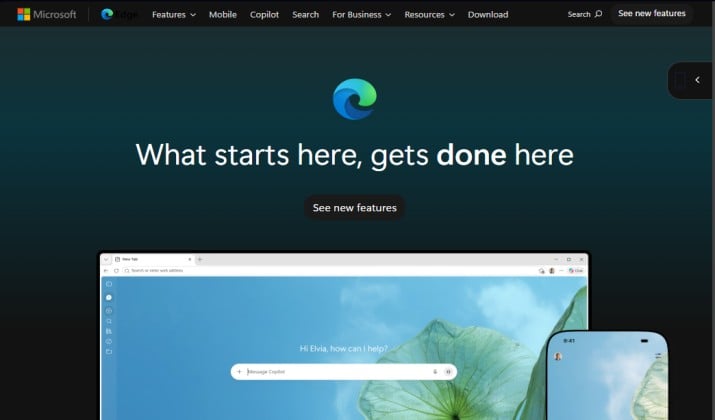
Edge makes sense if your work or school life runs on Microsoft.
Sign in and your favorites, passwords, and Collections sync to Windows and to your tablet. Collections work well for research. You can save pages, images, and notes in one place, then open them later on a laptop.
On Android tablets, Edge offers a clean reading view, Read Aloud for long articles, and Copilot for quick summaries.
It also supports extensions in newer builds. The layout adapts well to split screen, so you can keep a doc open beside the browser.
If you do not use Microsoft apps, some home screen prompts may feel like noise. You can turn many of them off in settings.
Price: Free, some Copilot features may need a Microsoft plan
Get it here: Play Store
Read this too: Best Browsers for Amazon Fire Tablet
5. Opera
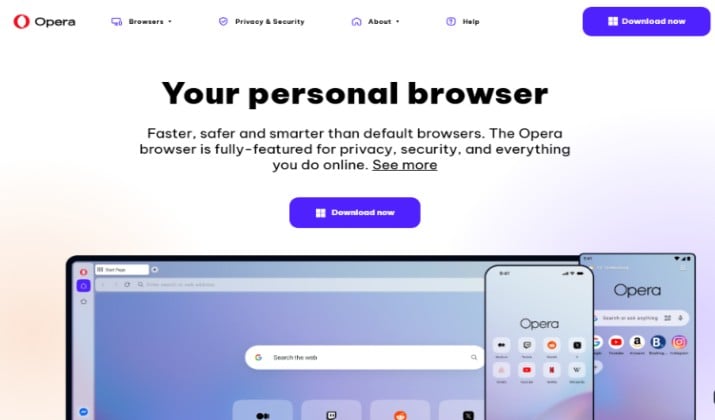
Opera packs a lot into one app, and that suits a tablet.
It includes a built in ad blocker, a free VPN, a music player, and Flow, which lets you send links, notes, and files between phone, tablet, and desktop.
If you like to keep everything in one place, Opera saves you from installing extra apps.
The free VPN is handy for public WiFi. It does not replace a full paid VPN for heavy use, but it adds a layer for casual browsing.
The Player lets you keep music going while you read. On a big screen, the sidebar and tab layout feel natural.
Spend ten minutes turning off what you do not need, and the browser settles into a clean daily tool.
Price: Free, Opera VPN Pro is a paid optional extra
Get it here: Play Store
6. Opera GX
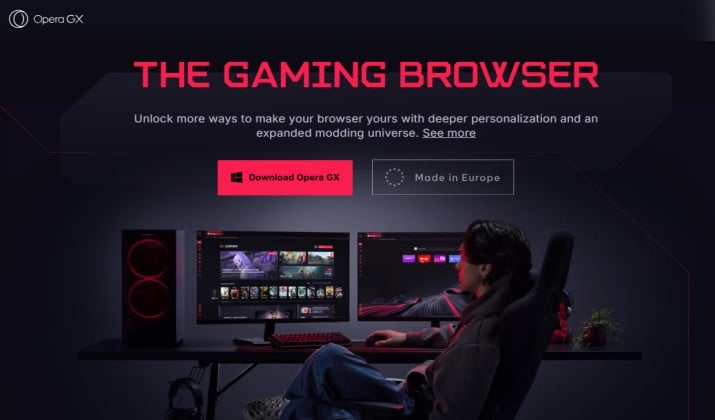
Opera GX is Opera with a gamer mindset.
It keeps the same useful core, ad blocker, free VPN, and Flow, and adds GX Control, themes, and a gamer focused start page with news, deals, and releases.
If you use your tablet for gaming news and streams, the look and layout feel made for you.
GX Control lets you set limits on RAM and CPU use, which can help when you keep many tabs open beside a game or stream.
Themes let you change colors and sounds so the browser feels personal. You can still use it for normal reading and shopping without switching apps.
If you prefer a plain browser, standard Opera or Brave will feel calmer.
Price: Free
Get it here: Play Store
Explore: Best Kindle Fire Silk Browser Alternatives
7. Vivaldi
Vivaldi is the browser for people who like to arrange things just so.
It offers a tab bar for tablets, panels for bookmarks and notes, and a built in ad blocker and tracker blocker.
You can change the layout, move the address bar, and set gestures to match how you hold your tablet.
While Tab stacks group related pages, Notes let you save a quote without leaving the page. The Privacy Dashboard shows what it blocked.
Mail and feed reader live inside the browser if you want them, though you can hide them and keep it simple.
Start with the default layout, turn on the ad blocker, and add one panel at a time. In a week, it will feel like your own workspace.
Price: Free
Get it here: Play Store
8. Samsung Browser
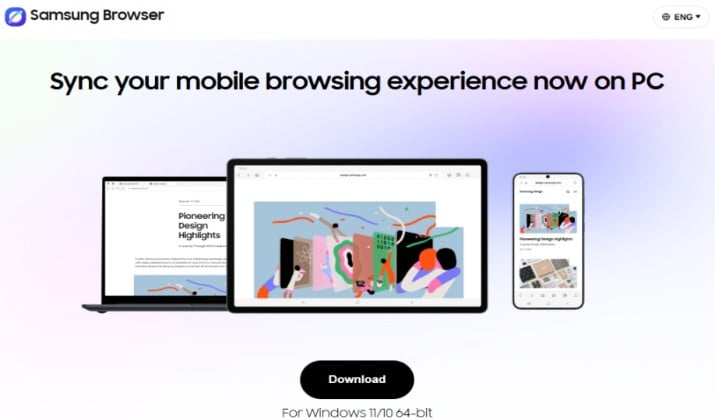
If you own a Samsung tablet, start here before you install anything else.
Samsung Browser is built for large screens. Tabs sit along the top like a desktop browser. Video Assistant helps with playback and the Secret mode keeps private tabs apart.
Smart Anti Tracking limits cross site tracking, and extensions can add ad blocking and translation.
Reading feels pleasant and dark mode is easy on the eyes at night. The menu is customizable, so you can put the tools you use most within thumb reach.
It works on other Android tablets too and keeps the same calm layout. It does not offer desktop extensions like Firefox, and its sync is strongest inside the Samsung world.
For pure reading and video, it is one of the nicest options here.
Price: Free
Get it here: Play Store
9. DuckDuckGo
DuckDuckGo keeps privacy simple. It blocks trackers, forces encrypted connections where possible, and grades each site so you can see how it treats you.
The Fire Button is the star. Tap it and the browser clears tabs and data in one move. That feels freeing when you share a tablet with family or you want a fresh start.
Search is private by default. The browser also offers Email Protection, which gives you a private forwarding address to hide your real email on sign ups.
On a tablet, the layout stays simple. It does not offer extensions or deep sync, and some sites may ask you to prove you are human more often because trackers are blocked.
For private searches and clean reading, it is a joy to use.
Price: Free, DuckDuckGo Privacy Pro is a paid optional extra
Get it here: Play Store
10. Yandex Browser
Yandex Browser is a strong pick for reading and translation.
Its reader mode strips a page down to text and images. Built in translation helps when you land on a page in another language.
Turbo mode can compress pages on slow connections, which helps on a tablet you carry to cafes or on trips.
The browser also offers a clean tab layout, voice search, and a personal feed on the start page. It syncs across devices with a Yandex account.
Privacy policies differ by company, so check the settings if you care about data collection. For translation and reading, it earns its place on this list.
Price: Free
Get it here: Play Store
Which Is the Fastest Browser for Android Tablet?
Blocking makes the biggest difference. Browsers that block ads and trackers by default often feel fastest because they download less.
That is why Brave, Vivaldi, and Opera feel snappy on news pages. Chrome feels fast on Google sites and web apps because it is tuned for them. Firefox feels steady, and extensions can close the gap.
If speed is your top need, try Brave first, then compare it with your current browser on the same three sites you visit daily.
Which Is the Most Secure Browser for Android Tablet?
Security starts with updates.
Pick a browser that still gets regular updates from Google Play, turn on auto updates, and keep your tablet system updated too. Look for Safe Browsing, HTTPS upgrades, and warnings for risky downloads.
All ten browsers above offer those basics when you keep them updated. For extra safety, use a password manager, turn on two factor auth for important accounts, and avoid sideloading old browser APKs.
Brave and DuckDuckGo make the safest defaults because blocking is on from the start.
So, Which Is the Best Browser for Android Tablets?
Brave takes the top spot for most people because it blends speed, blocking, and ease in one free app. You get Chromium compatibility, so sites work. There is Shields, so ads and trackers stay quiet. You also get sync, private windows, and a clean tablet layout without a long setup.
If you want one browser to install today, install Brave. Use it for a week. Notice how pages feel and how little you need to adjust.
If you miss something specific, such as Firefox extensions or Samsung Video Assistant, you now know exactly which rival to add as your second browser.
The best browsers for Android tablets are the ones you will actually enjoy opening, and Brave makes that easy from day one.