
Your Fire tablet already has a browser. It is called Silk, and it works fine for quick searches, shopping on Amazon, and opening a link from an email. But if you read a lot, watch videos, do school work, or care about privacy, Silk can start to feel limited.
These are the best browsers for Amazon Fire tablet picks that make sense in real life. Some install straight from the Amazon Appstore. Others need a few extra steps. A few work best as a second browser for private searches or light reading.
Pricing is subject to change. Every browser below is free to download and use. Some offer an optional paid upgrade, and we call that out where it matters.
What to Know About Fire OS?
Here is the one thing that shapes every choice. Fire tablets run Fire OS, which is based on Android. They use the Amazon Appstore by default. They do not ship with the Google Play Store.
Amazon also restricts publication of third party browser apps in its Appstore, so availability can differ by device, Fire OS version, marketplace, and region.
A browser that shows up for a friend may not show up for you. That is normal for Fire OS, and this guide tells you how each browser installs.
How to Choose the Right Browser for Your Fire Tablet?
Start with how you browse, not with a feature list. The right browser should feel easy on day one and stay fast after a week of tabs.
- Choose comfort: Your phone and laptop already know your bookmarks, passwords, and history, so sticking with that same browser on your Fire tablet keeps everything in one place.
- Prioritize privacy: Built in blocking does the quiet work in the background, cutting trackers and ad clutter before pages even finish loading.
- Speed counts: Older tablets reward lighter choices, and a browser that uses less memory keeps taps responsive instead of laggy.
- A clean reader view matters: If you read long articles or watch a lot of video, choose a browser with a good reader view.
- Flexible enough for shared use: One tablet can serve two very different users, so let Silk handle the child profile while your own browser stays in the adult profile.
How to Install a Browser That Is Not in the Amazon Appstore?
If a browser is in the Amazon Appstore, just search for it and tap Get.
In case it is not there, you can often still install it by sideloading. Sideloading means installing the Android app file, called an APK, directly from the developer or a trusted source. Here are the steps involved:
- Open Settings, then Security and Privacy, then Apps from Unknown Sources or Install Unknown Apps.
- Allow Silk Browser or Files to install apps. Turn this permission off again after you finish.
- Download the APK from the official browser website or a reputable APK mirror.
- Open the downloaded file and tap Install, then open the new browser and sign in if you want sync.
Best Browsers for Amazon Fire Tablet
Below are ten solid options, ranked by how well they balance ease of install, everyday speed, privacy, and features on Fire OS. The first pick wins for most people. The rest win for specific needs.
1. Amazon Silk
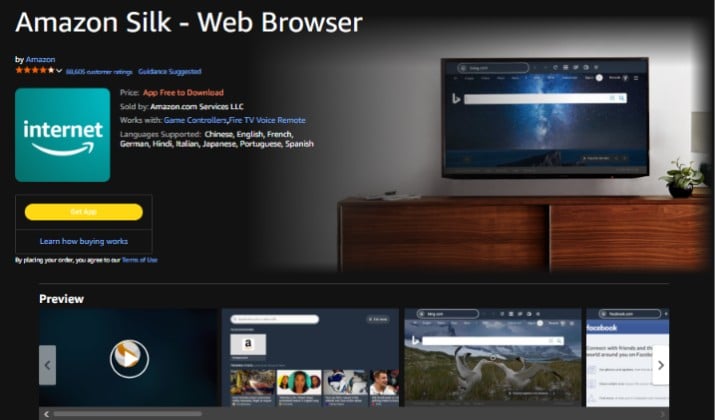
Silk is the browser that came with your tablet, and for many people it remains the simplest choice. It opens fast, works well with Amazon services, and needs no setup.
If you mainly browse Amazon, read news, check email, and watch Prime Video, Silk does the job with very little fuss.
It offers private tabs and controls for trackers and cookies, and on Kids profiles it stays inside Amazon Kids controls.
Where Silk falls short is sync and choice. It does not sync with Chrome, Firefox, or Edge on your phone, and its privacy controls are basic compared with privacy first browsers.
Think of Silk as your reliable everyday browser, and add one more if you want stronger privacy or sync.
Also read: Best Browsers for Windows 11
2. Firefox
Firefox is the best all round alternative if you want a full browser on your Fire tablet.
It feels familiar, syncs bookmarks, history, passwords, and open tabs with Firefox on your phone and computer, and has strong privacy controls without feeling complicated.
You get Enhanced Tracking Protection, private browsing, a clean tab view, and a reader view that strips clutter from long articles. For school work and research, that reader view alone makes Firefox worth trying.
Firefox has appeared in the Amazon Appstore in some regions, and in other cases you need to sideload the Firefox for Android APK from Mozilla.
3. Brave
Brave is the pick if ads and trackers slow you down.
It blocks many ads and trackers by default, so pages often load faster and use less data. That speed boost is easy to feel on an older Fire HD 8 or Fire 7.
Brave also gives you a simple privacy dashboard, HTTPS upgrades, and fingerprinting protection. You can turn off Brave Rewards and just enjoy cleaner browsing.
Sync works with Brave on your phone and computer. On Fire OS, Brave usually needs sideloading. Download the Android APK from Brave, install it, and allow updates from the same source.
Read this too: Best Browsers for Windows 10
4. DuckDuckGo
DuckDuckGo is the simplest privacy browser on this list.
It does not try to be a full desktop replacement. It gives you clean searches, automatic tracker blocking, and one tap Fire Button that clears your tabs and data.
If you want privacy to feel easy, this is a great second browser. The app shows a clear privacy grade for each site, so you see what a site tried to track in plain language.
On a Fire tablet, it works best for quick private searches, price checks, and reading news without leaving a long trail. For heavy tab use, pair it with Firefox or Brave.
5. Opera
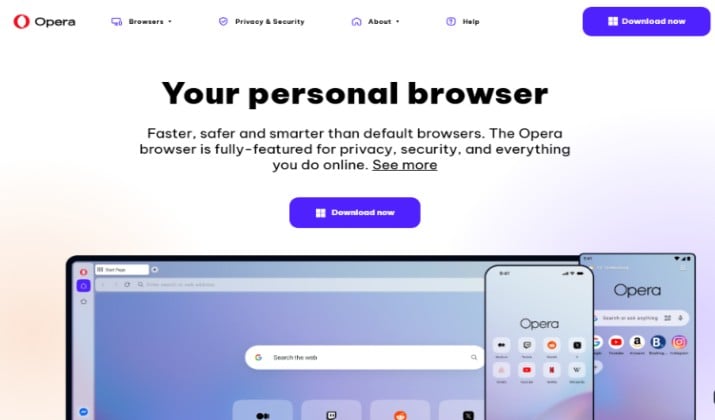
Opera is a good choice if you like built in extras.
It includes a free VPN, an ad blocker, a news feed, and a data saving mode in one app. You do not need to hunt for add ons.
Tabs are easy to manage, the start page shows your frequent sites, and the built in VPN can help on public Wi Fi. You can turn it on or off with one tap.
Opera has appeared in the Amazon Appstore in some regions, and in other cases you need to sideload it. If you use Opera on your phone or computer, sign in to sync bookmarks and history.
Explore: Best Gaming Browsers
6. Opera Mini
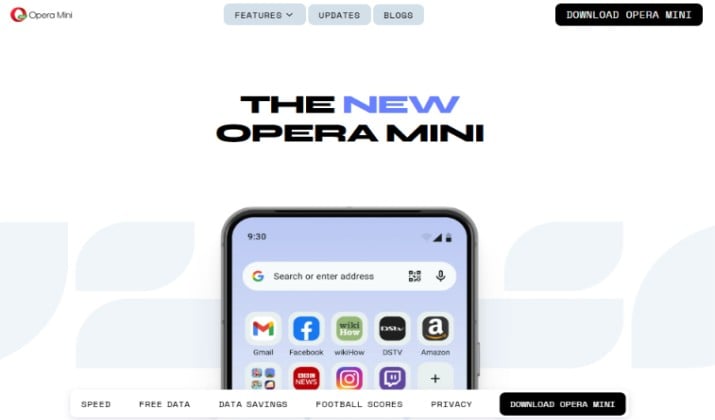
Opera Mini is the light weight cousin of Opera. It is made for slower connections and tablets with less memory.
It compresses pages before they load, so you use less data and pages often feel faster on weak Wi Fi. If your Fire tablet feels slow, Opera Mini can make a real difference.
The browser has a simple layout, a data saving meter, an ad blocker, and a download manager that handles large files well.
It is not the prettiest browser here, but it is one of the most practical for older devices and travel on hotel Wi Fi or a mobile hotspot.
7. Microsoft Edge
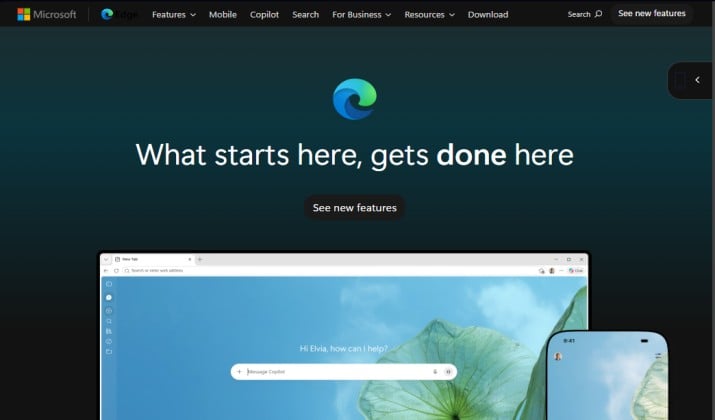
Microsoft Edge is the best pick if you live in the Microsoft world.
If you use Outlook, OneDrive, Microsoft 365, or a Windows laptop, Edge syncs your favorites, passwords, and collections across all of them. That sync can save a lot of copy and paste.
Edge also includes tracking prevention, a reading view, and collections for saving articles and products.
On a Fire HD 10 or Fire Max 11, collections feel useful for school projects and trip planning. Edge usually needs sideloading on Fire OS. Sign in with your Microsoft account if you want sync.
8. Vivaldi

Vivaldi is for people who like to shape their browser. It lets you change tab layout, themes, search engines, and gestures in ways most browsers do not allow.
It also includes built in ad and tracker blocking, tab stacking, notes, and a reading view. The browser is based on Chromium, so most sites work as you expect.
On a Fire Max 11, the tab bar feels natural and makes multitasking easier.
The tradeoff is weight. Vivaldi uses more memory than Opera Mini or DuckDuckGo, so it feels best on newer tablets. On older models, keep your tab count low.
9. Firefox Focus
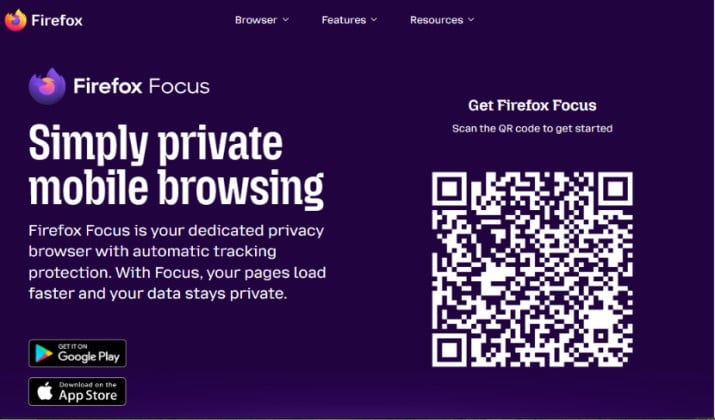
Firefox Focus is the fastest way to browse without leaving a trace.
You open it, search, read, and close it. When you close it, it clears history, cookies, and trackers. No tab pileup or long history to clean later.
Focus blocks many ads and trackers by default, so pages load quickly. It is perfect as a second browser for gift shopping, health searches, or anything you do not want saved in your main browser.
Use Firefox as your main browser and Focus as your private browser, and you get the best of both. It is very light, so it runs well on older Fire tablets.
10. Dolphin Browser
Dolphin Browser earns a spot because it is easy to use with one hand and has gesture controls that feel natural on a tablet.
You can draw a symbol to open a favorite site, and you can use voice search when typing feels slow.
Dolphin also includes an ad blocker, a download manager, and a private mode. It handles video and older web pages well.
If Silk feels plain and Firefox feels heavy, Dolphin sits in the middle. It is friendly and simple to learn. For banking or work that needs strong sync, use Firefox, Brave, or Edge instead.
Quick Comparison: Which Fire Tablet Browser Apps Fit You?
If you want a fast answer, use this table as a shortcut. Pick the row that sounds like you, then try that browser for a few days.
|
Browser |
Best for |
Install on Fire OS |
Price |
|
Amazon Silk |
Everyday Amazon use |
Preinstalled |
Free |
|
Firefox |
Sync and research |
Appstore or sideload |
Free |
|
Brave |
Ad blocking and speed |
Sideload |
Free |
|
DuckDuckGo |
Private searches |
Sideload |
Free |
|
Opera |
Built in VPN |
Appstore or sideload |
Free |
|
Opera Mini |
Older tablets, slow Wi Fi |
Sideload |
Free |
|
Microsoft Edge |
Microsoft 365 sync |
Sideload |
Free |
|
Vivaldi |
Custom layout |
Sideload |
Free |
|
Firefox Focus |
Private sessions |
Sideload |
Free |
|
Dolphin Browser |
Gestures and voice |
Sideload |
Free |
Which Browser Should You Pick?
If you want one answer, pick Firefox.
It wins for most Fire tablet owners because it balances privacy, sync, reading, and everyday speed. It works well on Fire HD 8, Fire HD 10, and Fire Max 11.
Firefox gives you real tracker protection without making sites break. It syncs with your phone and computer. And when it is not in the Appstore, sideloading it is straightforward from Mozilla.
The best browsers for Amazon Fire tablet are not about finding a perfect browser. They are about finding the browser that fits your tablet, your Wi Fi, and your habits.
Start with Firefox, keep Silk for Amazon Kids and quick links, and add Brave or Focus if you want more privacy. Try one for a week. If tabs feel slow, if a site breaks, or if sync feels clunky, switch.
Install one browser today, open five of your favorite sites, and see how it feels.