A Smart TV is not a computer, and that is exactly why choosing the right browser matters.
On a phone or laptop, almost any modern browser works well. On a TV, the remote, the 10-foot viewing distance, weak TV processors, and strict app-store rules change everything.
The best Smart TV browser is not always the fastest desktop browser. It is the one that opens quickly, works with arrow keys or a pointer remote, plays web video without stuttering, and does not force you to connect a keyboard just to type a web address.
There is also an important platform rule to understand first: your TV’s operating system decides most of your options.
Samsung TVs run Tizen, LG TVs run webOS, Amazon devices run Fire OS, Sony/TCL/ Hisense and many others run Google TV or Android TV, while Roku and VIZIO SmartCast generally offer no general-purpose browser to install.
That means the smartest approach is to start with your TV’s built-in browser if it has one, then add a TV-optimized third-party browser only if you need more features.
This guide focuses on browsers that are actually usable on a TV, not phone browsers awkwardly stretched onto a big screen.
Who This Guide Is For
This guide is for you if you want to browse the web on your living-room TV without turning it into a frustrating project.
It is especially useful if you:
- Own a Samsung, LG, Fire TV, Google TV, or Android TV and want to know which browser actually works on it
- Want to read news, check scores, look up recipes, watch web video, or open a site that has no TV app
- Share your TV with family and want a safer, simpler setup
- Are tired of sideloading random browsers that do not work with a remote
- Want a clear recommendation, not a list of desktop browsers pretending to be TV browsers
It is not for people who want to replace a laptop. If you need to do heavy work, fill out long forms, use banking portals, or manage complex web apps, a phone, tablet, or computer will still be faster. A TV browser is best for quick browsing, reading, and watching.
If you are buying a new TV mainly for browsing, this guide will also help you set expectations.
How We Chose These Recommendations
We judged each option by how it actually behaves in a living room. Here is what mattered most:
TV compatibility first: We prioritized browsers that are either built into a major TV platform or designed for TV use. That is why TV Bro, Puffin TV, BrowseHere, Samsung Internet, LG Web Browser, and Amazon Silk rank ahead of sideloaded phone browsers. If a browser is not available in your TV’s app store, we say so clearly instead of pretending it installs with one click.
Remote usability: A good TV browser must work with arrow keys, a pointer remote, or voice control. Browsers that require precise mouse clicks for basic navigation were pushed lower, even if they are excellent on phones.
Video and site compatibility: We favored browsers that handle HTML5 video, fullscreen playback, and common US sites such as news, sports, YouTube, shopping, and recipe sites. Dedicated streaming apps still beat browsers for Netflix, Prime Video, and Disney+, so we did not reward browsers for promising premium streaming access.
Privacy and safety: We looked for tracker blocking, private browsing, easy history clearing, and no reliance on Flash or shady streaming claims. Free browsers that push pirated content, fake “free premium” streaming, or unsafe downloads were left out.
Realistic setup effort: We separated “install from the app store” from “sideload with a mouse.” Both can be useful, but they are not the same experience. The top picks are the ones most people can install and use in minutes.
Things to Note
Before you install anything, a few practical realities will save you time:
Your TV is not getting a full desktop browser. Even the best TV browsers skip features, simplify layouts, and struggle with complex logins, captchas, and web apps. If a site keeps failing on the TV, cast it from your phone or open it on a laptop instead of fighting the TV interface.
Sideloading has trade-offs. Sideloaded browsers can be useful, but they do not update the same way App Store or Play Store apps do, they may not work with your remote, and they can break after a TV software update. Only download APKs from sources you trust.
New Fire TV models are more locked down. Some newer Fire TV Stick models running Vega OS do not support sideloading in the same way as older Fire OS models. If you own a newer Fire TV device, start with Amazon Silk and casting, and do not assume every sideload guide will work.
Flash is gone, and that is a good thing. Older articles recommended browsers for Flash support. Flash is discontinued and insecure. Modern TV browsers use HTML5 video, which is safer and better supported.
Streaming apps still win for streaming. A browser is great for the open web, but Netflix, Hulu, Prime Video, Disney+, YouTube, and sports apps offer better quality, DRM support, subtitles, and remote controls than a browser tab. Use the browser for what apps cannot do.
Shared TVs need shared-TV habits. Do not save passwords, payment methods, or email logins on a family TV. Sign out when you finish, clear history if others use the same profile, and keep auto-fill off for sensitive accounts.
A mouse can change everything. If you plan to browse often, a small wireless keyboard with a touchpad or an air-mouse remote is one of the best upgrades for a Smart TV. It makes sideloaded browsers usable and makes even native browsers faster for typing and clicking.
How to Choose the Right Smart TV Browser
1. Start with Your Platform
- Samsung Tizen: Use the built-in Internet app first.
- LG webOS: Use the built-in Web Browser first.
- Amazon Fire TV: Start with Amazon Silk.
- Google TV / Android TV: There is usually no preinstalled browser, so install TV Bro, BrowseHere, or Puffin TV Browser.
- Roku / VIZIO: Do not waste time hunting for a browser app. Casting or screen mirroring from a phone or computer is the practical workaround.
2. Remote-First Design Beats Raw Speed
A browser can be fast on benchmarks and still feel terrible on a TV if every click requires a mouse.
TV Bro, Puffin TV, BrowseHere, Silk, Samsung Internet, and LG’s browser are designed around remote navigation.
Sideloaded phone browsers such as Chrome, Opera, and Kiwi can work, but they usually need a wireless mouse, keyboard, or air-mouse remote to feel comfortable.
3. Video Playback Matters More Than Tabs
Most people use a TV browser for web video, live streams, sports highlights, news, YouTube links, recipes, or a site without a TV app.
A good TV browser should handle HTML5 video, offer fullscreen easily, and avoid constant buffering. Built-in browsers are often best for DRM-protected services, while TV-optimized third-party browsers are better for general websites.
4. Privacy and Parental Controls
TV browsers rarely offer the same parental controls as a full computer browser.
The safest setup is layered: use your TV’s PIN/profile controls where available, use your router or DNS filtering for the whole home, keep the browser in a separate profile if possible, and avoid saving passwords or payment details on a shared TV.
For privacy, choose a browser with tracker blocking, private mode, and easy history clearing, and sign out of accounts when you finish.
5. Do Not Expect a Laptop Replacement
Even the best TV browser will struggle with heavy web apps, complex logins, captchas, banking portals, and sites built for touchscreens.
For serious work, casting from a phone or laptop is still faster. A TV browser is best for quick browsing, reading, and watching, not for long typing sessions.
Best Browsers for Smart TV
1. TV Bro
Best overall free browser for Google TV and Android TV
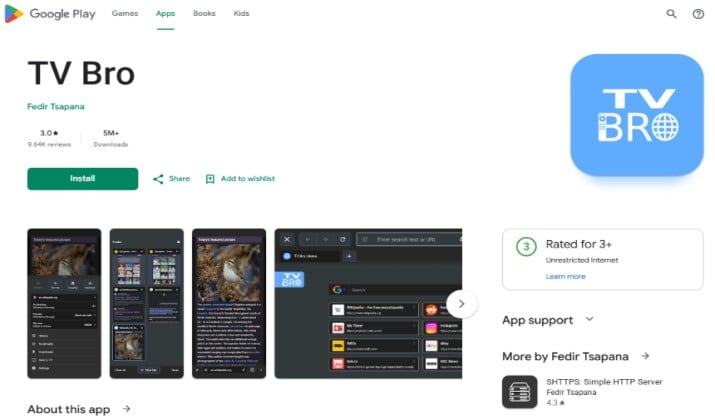
TV Bro is the best starting point for most Android TV and Google TV owners because it was built specifically for TV remote control. It is free, open-source, lightweight, and does not try to copy a phone interface onto a television.
Why it stands out:
- Clean interface designed for arrow-key navigation
- Tabs, bookmarks, history, and voice search
- Desktop-mode option for sites that load a broken mobile layout
- Built-in ad blocking
- Works well without a mouse or keyboard
Best for: Everyday browsing, news, articles, web video, and users who want a simple free browser that just works.
Limitation: It is not as polished as a desktop browser, and some complex sites may still need a mouse for precise clicks.
Also read: Best Android Browsers for Streaming Videos
2. Puffin TV Browser

Fastest-feeling browser for Android TV, now paid
Puffin TV Browser remains one of the most TV-optimized browsers available, with a card-based interface, large on-screen elements, and cloud acceleration designed to make pages load faster on low-power TV hardware.
Right now, Puffin TV and TV Bro are consistently named as the two browsers to install first on Android TV.
The biggest change to know is pricing. Puffin TV Browser pricing is now subscription-based, with no free usage quota or free trial in its current model.
Pricing has been listed at low-cost options such as around $2 per month, plus smaller weekly and daily prepaid options. That makes it affordable, but it is no longer the free default it once was.
Why it stands out:
- Very fast page loading through cloud processing
- Excellent remote-friendly layout
- Good handling of video-heavy pages
- Virtual mouse and on-screen keyboard designed for TV
Best for: Older or budget TVs, slow connections, and users who want the smoothest browsing experience and do not mind a small subscription.
Limitation: It requires a paid subscription to function, and it is blocked entirely in some regions.
3. Samsung Internet for Tizen
Best built-in browser for Samsung TVs
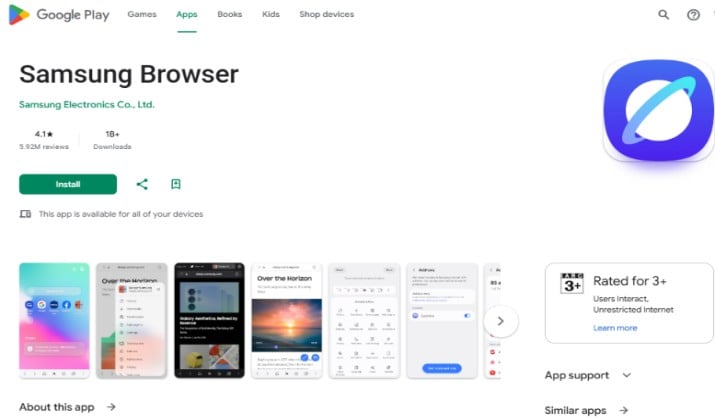
If you own a Samsung Smart TV, you do not need to install anything to start browsing. Samsung’s built-in Internet app, called Web Browser on older models, is already on the Home screen or Apps page.
It is Chromium-based, works with the standard Samsung remote, and supports a USB or Bluetooth mouse and keyboard on supported models.
Why it stands out:
- No installation needed
- Designed for Samsung’s remote and TV interface
- Good HTML5 support for most websites and web video
- Bookmarks, history, tabs, and private browsing
- Regular updates through Samsung’s TV software
Best for: Samsung owners who want browsing without sideloading, extra accounts, or third-party apps.
Limitation: Features vary by model and region, and some sites may still load a simplified layout. It is not available as a general browser for non-Samsung TVs.
Read this too: Best Browsers for Privacy
4. LG Web Browser
Best built-in browser for LG TVs
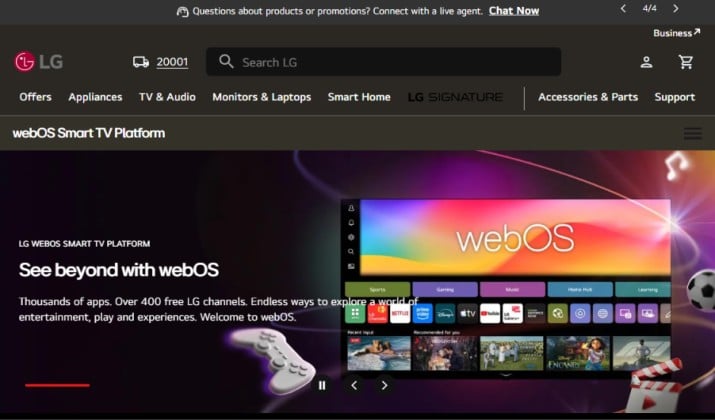
LG’s webOS TVs include a built-in Web Browser that is one of the easiest TV browsers to control. If your LG TV has a Magic Remote, the pointer works like a mouse, which makes clicking links, scrolling, and filling in search boxes far easier than arrow-key navigation alone.
Why it stands out:
- Pointer remote makes browsing feel natural
- Clean webOS integration with Home screen access
- Good HTML5 video support
- Tabs, bookmarks, and private browsing
- No sideloading required
Best for: LG OLED, QNED, and webOS Hub TV owners who want the simplest built-in experience.
Limitation: Like Samsung’s browser, it is tied to LG’s platform and cannot be installed on other brands. Heavy websites may still feel slower than on a phone or laptop.
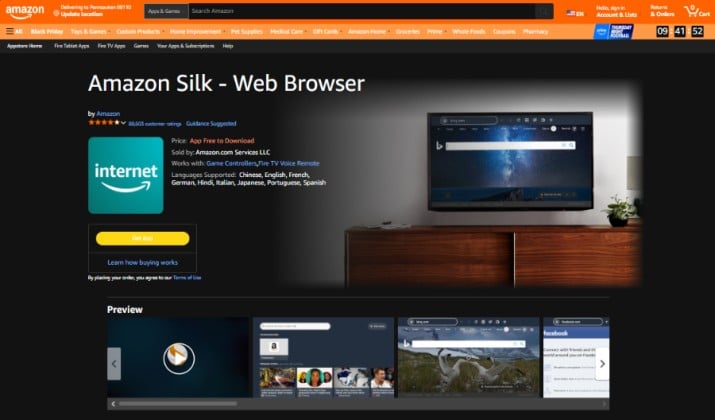
5. Amazon Silk
Best browser for Fire TV
Amazon Silk is the default browser for Fire TV devices and Echo Show, and it is the browser Amazon recommends for Fire TV web browsing. It is designed for remote navigation and Alexa voice control, and it integrates well with Fire TV’s interface.
Why it stands out:
- Free and preinstalled or easily available from the Amazon Appstore
- Remote and Alexa-friendly controls
- Good handling of JavaScript-heavy pages compared with many TV browsers
- Bookmarks, history, and private browsing
- Works with Fire TV Stick, Fire TV Cube, and Fire TV Edition TVs
Best for: Fire TV users who want a stable, simple browser for articles, web video, and quick searches.
Limitation: It is not a full desktop browser. Some sites may ask for a mouse, and it does not replace dedicated streaming apps for Netflix, Prime Video, or other DRM-heavy services.
6. BrowseHere
Best feature-rich alternative for Android TV and Google TV
BrowseHere, also listed as Browser TV Web – BrowseHere, is a strong alternative if TV Bro feels too minimal. It is made with TV use in mind and includes a remote-friendly layout, web-video player, voice search, bookmarks, ad blocking, downloads, and IPTV-related features.
It is especially useful on TCL Android TV and Google TV devices, where it is often recommended alongside TV Bro.
Why it stands out:
- Polished TV interface with large controls
- Built-in ad blocker
- Dedicated web-video playback
- Voice search and downloads
- Free to use
Best for: Users who want more features than TV Bro, especially video playback and downloads, without paying for Puffin.
Limitation: Feature depth varies by TV model and region, and IPTV features are only useful if you already use legal IPTV sources.
Explore: Best Gaming Browsers
7. Google Chrome
Best for sync and casting, but usually requires sideloading
Chrome is the world’s most popular browser, but it is not a native Android TV browser. Google TV and Android TV generally do not include Chrome in the Play Store, and Chrome is not officially available in the Amazon Appstore for Fire TV either.
That does not mean Chrome is useless on a TV. It is still useful in two ways:
- Sideloading: On Android TV, Google TV, and compatible Fire TV hardware, you can install Chrome by sideloading the Android APK. Once installed, it offers familiar sync, saved passwords, history, and bookmarks.
- Casting: On TVs with Chromecast built-in or a Chromecast device, you can cast a Chrome tab from a phone or computer. This is often smoother than using sideloaded Chrome directly on the TV.
Why it stands out:
- Syncs bookmarks, history, and passwords across devices
- Excellent compatibility with Google services
- Strong extension and website support on desktop casting
- Familiar interface for Chrome users
Best for: Chrome users who want account sync or who prefer casting a tab rather than browsing directly on the TV.
Limitation: Sideloaded Chrome is not designed for TV remote navigation, so you will likely need a mouse or keyboard. A sideloaded phone build may also have poor remote navigation or unsuitable DRM behavior for some video sites.
8. Opera
Best sideloaded browser for ad blocking and background features
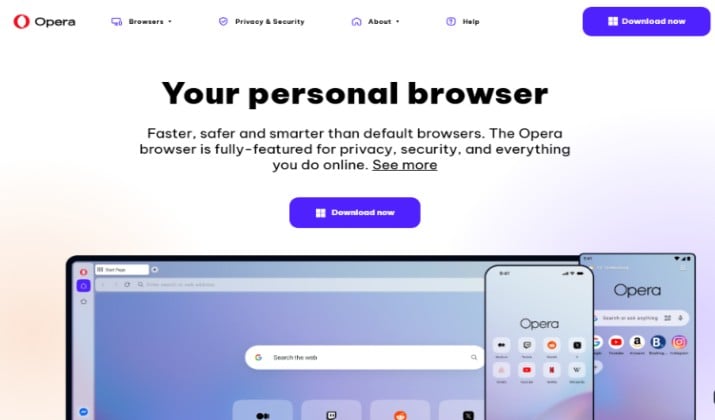
Opera has long been popular for its built-in ad blocker, data-saving features, and clean interface. On Smart TVs, it is not a native TV browser, but it can be sideloaded on Android TV and Google TV devices. Some guides describe Opera’s TV experience as workable, though mediocre without a mouse.
Why it stands out:
- Built-in ad blocker
- Chromium-based compatibility
- Sync with Opera on phone and desktop
- Useful for reading and general browsing once a mouse is connected
Best for: Opera users who want the same browser across devices and do not mind using a wireless mouse.
Limitation: It is not optimized for a TV remote, and installation requires sideloading on most TVs. It is not a replacement for a native TV browser.
9. Brave Browser
Best privacy-focused browser for US users
Brave is built around privacy by default. It is a Chromium-based browser with built-in ad and tracker blocking, fingerprinting protection, and the option to use Brave Search instead of Google.
For a shared living-room TV, that matters: fewer trackers, fewer intrusive ads, and less data collected while family members browse.
There is one important catch: Brave does not offer an official Android TV version. On most Android TV, Google TV, and older Fire TV devices, you will need to sideload the Android APK.
It also is not listed in the Amazon Appstore, and the latest builds are not fully compatible with a Fire TV remote, so plan on using a Bluetooth mouse, wired mouse, or mobile-app remote for smooth navigation.
Newer Fire TV Stick models running Vega OS cannot sideload apps the same way, so Brave is best for Android TV / Google TV boxes and older Fire OS hardware.
Why it stands out:
- Free with built-in ad blocking and tracker protection
- Brave Shields block ads, trackers, and fingerprinting by default
- Private browsing and easy history/cookie clearing
- Syncs with Brave on phone and desktop
- Chromium compatibility for most US websites, news, banking, shopping, and streaming portals
Best for: US users who want a private, ad-light browser on a secondary TV, guest TV, or Android TV box, and who are comfortable sideloading and using a mouse.
Limitation: It is not remote-optimized, requires sideloading on most TVs, and is not a replacement for a native TV browser like TV Bro or Amazon Silk. For everyday remote-only browsing, start with a native TV browser first and use Brave when privacy matters more than remote convenience.
10. Kiwi Browser
Best lightweight sideloaded Chromium option
Kiwi is a Chromium-based browser known for speed, extensions support on mobile, and a clean interface.
It is not designed specifically for Android TV, but it can be sideloaded and works decently with a mouse or keyboard. Some guides list Kiwi as a sideload-only option for Android TV.
Why it stands out:
- Fast Chromium engine
- Lightweight feel on capable hardware
- Tabbed browsing and downloads
- Familiar Chrome-like experience
Best for: Advanced users who want a Chromium browser on Android TV and are comfortable sideloading and using a mouse.
Limitation: It is not remote-optimized, and sideloading requires extra steps. For most users, TV Bro or BrowseHere will feel easier.
Quick Recommendations by TV
|
Your TV
|
Start with
|
Add if needed
|
|---|---|---|
|
Samsung Tizen
|
Samsung Internet
|
Cast from phone for heavy sites
|
|
LG webOS
|
LG Web Browser
|
Cast from phone for heavy sites
|
|
Amazon Fire TV
|
Amazon Silk
|
Sideloaded Chrome only with a mouse
|
|
Google TV / Android TV
|
TV Bro
|
BrowseHere or Puffin TV
|
|
Sony / TCL / Hisense Google TV
|
TV Bro
|
BrowseHere
|
|
Roku / VIZIO
|
No browser app
|
Cast or mirror from phone/computer
|
If children use the TV, do not rely on the browser alone. Use these steps together:
- Set a PIN for purchases and app installs on the TV.
- Use separate profiles where your TV supports them.
- Turn on private browsing or clear history after shared use.
- Do not save passwords, payment cards, or email logins on a shared TV.
- Use your router’s parental controls or a family DNS filter to block adult sites across all devices.
- Keep the TV browser updated through your TV’s system updates or the Play Store/Appstore.
- For video, prefer official apps such as Netflix, YouTube, Prime Video, and Disney+ over random streaming sites. Official apps offer better quality, DRM support, and safer playback.
So, Which is the Best Browser For Smart TV?
The best browser for a Smart TV is the one that matches your TV’s platform and your remote. For most people, that means using the built-in browser on Samsung, LG, or Fire TV, and installing TV Bro on Google TV or Android TV.
Add BrowseHere if you want more features, or Puffin TV if you want the fastest-feeling experience and do not mind a small subscription.
Use Chrome, Opera, or Kiwi only if you are comfortable sideloading and connecting a mouse or keyboard, and use casting whenever a site feels too difficult to navigate on the TV itself.
Start simple, keep your TV updated, and avoid browsers that promise Flash support, free premium streaming, or access to pirated content.
A clean, updated, TV-optimized browser will give you the best balance of speed, safety, and everyday usability.
People Also Ask
1. Does My Smart TV Have a Web Browser?
It depends on your TV. Samsung Tizen TVs include Samsung Internet, LG webOS TVs include a Web Browser, and Fire TV includes Amazon Silk. Google TV and Android TV usually do not include a browser, so you will need to install TV Bro, BrowseHere, or Puffin TV. Roku and VIZIO SmartCast TVs generally do not offer a general-purpose browser.
2. What Is the Best Browser for Android TV?
For most people, TV Bro is the best free starting point because it is designed for a TV remote, lightweight, and easy to use. BrowseHere is the best feature-rich free alternative, while Puffin TV is the fastest-feeling option if you do not mind paying a small subscription.
3. Can I Install Google Chrome on My Smart TV?
Sometimes, but not as a native TV app. Chrome is not in the Android TV Play Store or Amazon Appstore. On compatible Android TV, Google TV, and older Fire TV devices, you can sideload the Android APK, but you will likely need a mouse or keyboard. Casting a Chrome tab from your phone or computer is often easier.
4. Why Is Browsing So Slow on My Smart TV?
TV processors are weaker than phone or laptop processors, and many sites are built for touchscreens and fast hardware. A remote-friendly browser, a stronger Wi-Fi connection, and closing unused tabs can help. For heavy sites, casting from a phone is usually faster than browsing directly on the TV.