Best Free CorelDRAW Alternatives
The programs listed here can help you create different illustrations, layouts, and logos. They have exceptional features and toolsets, vibrant color palettes, and can support multiple file formats. They may have different approaches to graphic design but are equipped with more simplicity and efficacy. They deliver excellent graphics precisely the way you expect. So, are you ready to discover some of the best FREE alternatives to CorelDRAW?, sit and stay tight.1. Inkscape
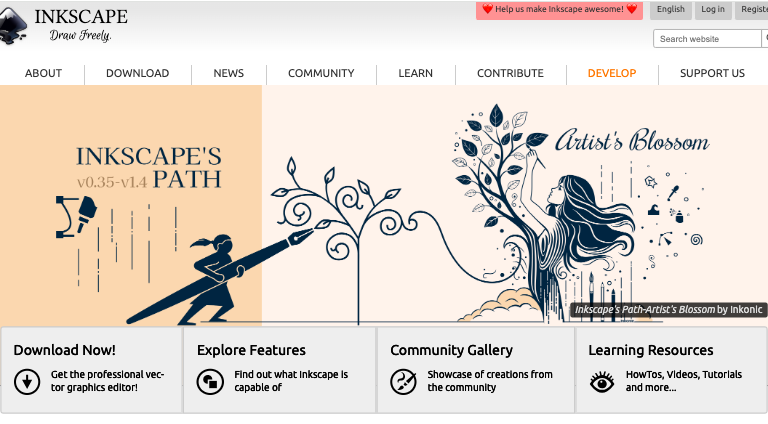
Key Features of Inkscape
- Works with layers
- Boolean path operations
- Object grouping
- Automatic bitmap tracing tools
- Anti-aliasing bitmap images
- Calligraphy, Pencil, Drawing, Pen and Shape tools
- It supports multiple file formats
What We Like
- It’s free
- Works on all computers
- It is open-source
- Friendly user interface
- Offers bitmap tracing
- Has plenty of tools for professionals
- Supports multiple file formats
What We Don’t Like
- Out-of-date interface
- Its Mac OS version has lags
- Low-quality text fools
2. GIMP
 GIMP is a free, open-source graphics editor. It also has vector image editing tools which makes it a great CorelDRAW alternative for scripted images, design objects, and icons.
GIMP uses various programming algorithms. It’s equipped with vast customization options and third-party plugins.
There’s so much flexibility and extensibility with GIMP. It integrates with various programming languages such as Perl, Python, and Scheming to increase customization levels.
GIMP is a free, open-source graphics editor. It also has vector image editing tools which makes it a great CorelDRAW alternative for scripted images, design objects, and icons.
GIMP uses various programming algorithms. It’s equipped with vast customization options and third-party plugins.
There’s so much flexibility and extensibility with GIMP. It integrates with various programming languages such as Perl, Python, and Scheming to increase customization levels.
Key Features of GIMP
- Customized user interface
- Supports different input devices
- Plenty of design elements
- Image retouching
- Layers
- High-end photo manipulation tools
- Original artwork creation
- Color management features
What We Like
- User-friendly interface
- Highly customizable
- Free and open-source
- Supports various file formats
- Broad functionality
- Excellent support
What We Don’t Like
- It sometimes lags
- Poorly developed web and mobile-based versions
3. PaintShop Pro
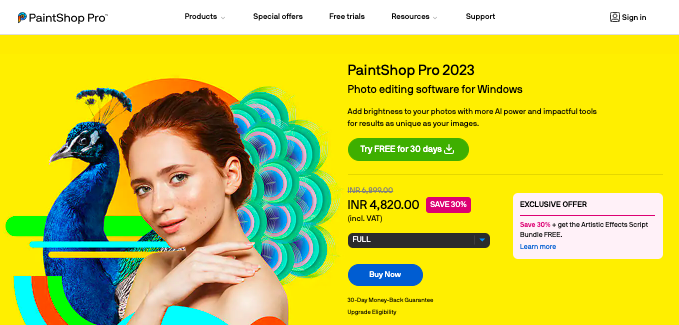 PaintShop Pro is another interesting vector and raster graphics editor to use in graphics design and photo editing. It has the most amazing tools, including the SmartClone feature.
Using SmartClone, you can merge multiple elements effortlessly and add unique effects. Sounds exciting, doesn’t it?
Its parallel toolbox contains layers and masks. Your digital drawing and painting couldn’t be any easier with the unique brushes in the toolbox, not forgetting the HDR tools.
PaintShop Pro never disappoints with its 360-degree photo editing support.
You must be wondering why PaintShop Pro is on this list.
Well, it’s because it offers a 30-day free trial. This is enough time to produce outstanding graphics for your brand.
It has a simple, navigable interface with editing options and a photo organizer. This is your ideal choice if you want to take image editing to the next level.
Beginner or not, you can learn PaintShop Pro and work smoothly to get your projects done.
PaintShop Pro is another interesting vector and raster graphics editor to use in graphics design and photo editing. It has the most amazing tools, including the SmartClone feature.
Using SmartClone, you can merge multiple elements effortlessly and add unique effects. Sounds exciting, doesn’t it?
Its parallel toolbox contains layers and masks. Your digital drawing and painting couldn’t be any easier with the unique brushes in the toolbox, not forgetting the HDR tools.
PaintShop Pro never disappoints with its 360-degree photo editing support.
You must be wondering why PaintShop Pro is on this list.
Well, it’s because it offers a 30-day free trial. This is enough time to produce outstanding graphics for your brand.
It has a simple, navigable interface with editing options and a photo organizer. This is your ideal choice if you want to take image editing to the next level.
Beginner or not, you can learn PaintShop Pro and work smoothly to get your projects done.
Key Features of PaintShop Pro
- Face detection technology for clustering images
- Image slicer tool
- Plenty of integrated learning tools
- Photo editing feature
- Graphic design
What We Like
- Creative tools for pro users
- Powerful features
- Intuitive for novice users
- Ability to copy and paste layer styles
- Compatible with touch-screen
- Incredible content aware cloning
What We Don’t Like
- It’s not cross-platform.
- The upgrade isn’t compelling at all
4. Sketch
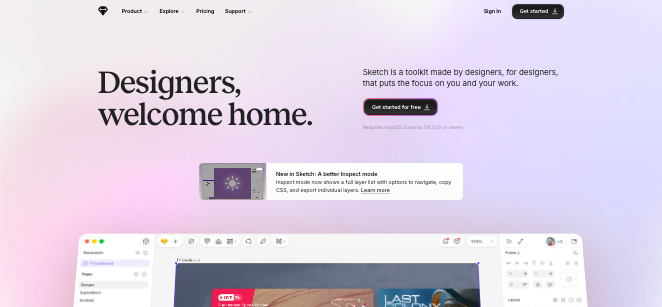 Sketch is a freeware vector graphics editing software for stunning icons, retouched photos, web designs, and vector images.
With Sketch, you can create, prototype, and collaborate. You can transform your ideas into attractive products, and share them with your team and clients.
The robust editor and built-in prototyping make sure your product turns out great.
An intuitive interface welcomes you to a masterful design experience plus great facilitation and expedition of the design validation and approval.
To top it up, this ad-free platform has excellent intuitive controls and uses only 50MB of hard drive space when downloaded.
Sketch is a freeware vector graphics editing software for stunning icons, retouched photos, web designs, and vector images.
With Sketch, you can create, prototype, and collaborate. You can transform your ideas into attractive products, and share them with your team and clients.
The robust editor and built-in prototyping make sure your product turns out great.
An intuitive interface welcomes you to a masterful design experience plus great facilitation and expedition of the design validation and approval.
To top it up, this ad-free platform has excellent intuitive controls and uses only 50MB of hard drive space when downloaded.
Key Features of Sketch
- Contextual user interface
- Responsive design and prototyping
- An extensive toolset
- Plenty of reusable symbols
- Plugin support
- Grids and guides
- Export to HTML
- Vector image editing
- Drawing and typesetting
- Output and collaboration
What We Like
- Top-of-the-line collaboration tools
- Easy to navigate user interface
- An array of professional tools to use
- Newbie friendly platform
- Compatible with Illustrator assets
- Low learning curve
What We Don’t Like
- Designed only for Mac OS users
- One license, one device
- Lack of auto layout flowing options
5. Krita
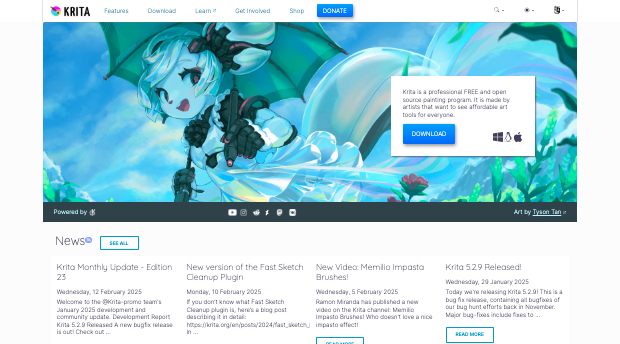 Krita is free, open-source, and has all the basic digital design and drawing tools.
Combine these qualities with an intuitive interface and unmatched photo editing capabilities, and you are good to go.
Krita was developed by designers who needed to give artists a common ground for creativity. It has tools for concept art, texture and matte painting, comics, and illustrations.
Krita offers full access to configurable options, brush presets, and much more. The toolbar controls can help you change brush settings, including size, blending mode, opacity, or color.
Krita is free, open-source, and has all the basic digital design and drawing tools.
Combine these qualities with an intuitive interface and unmatched photo editing capabilities, and you are good to go.
Krita was developed by designers who needed to give artists a common ground for creativity. It has tools for concept art, texture and matte painting, comics, and illustrations.
Krita offers full access to configurable options, brush presets, and much more. The toolbar controls can help you change brush settings, including size, blending mode, opacity, or color.
Key Features of Krita
- Flexible interface
- Supports various file types, including open PSD support
- Brush engines and stabilizers
- Plenty of vector photo editing tools
- OpenGL enhancement
- Layer types
- Color profiles
- Python scripting
What We Like
- Stylish interface
- Plenty of training resources
- Drawing assistants
- Layer management
- Full-color management
- HDR painting support
- Wrap-around mode
- Resource manager
What We don’t Like
- It often lags after an update
- No photo retouching capabilities
- The text tool is inconvenient
6. Adobe Illustrator CC
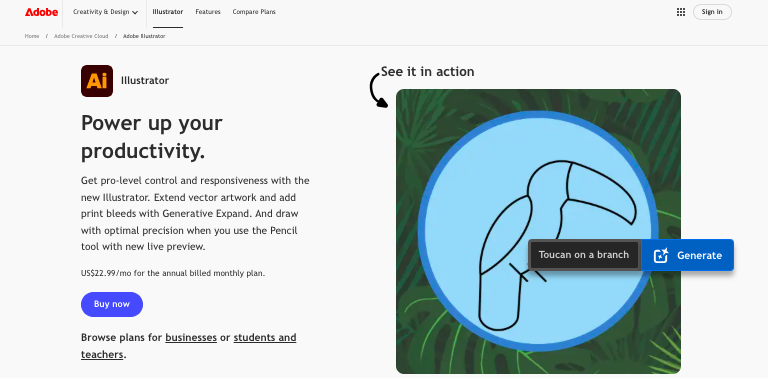 With Adobe Illustrator, you can design complex vector imaging easily. It has excellent color management capabilities and decent drawing tools for the job.
Its user interface is intuitive, with easily accessible features. This platform allows users complete control over their graphic creation process.
To work with Adobe illustrator, you have to use the AI file format. Since the software has tight integration with the rest of the Adobe software, users have the freedom to import objects in Illustrator to Adobe Flash Professional.
Adobe illustrator is not free. However, Adobe does offer a 7-day free trial of Illustrator CC. The trial includes all the features and updates in the latest version.
With Adobe Illustrator, you can design complex vector imaging easily. It has excellent color management capabilities and decent drawing tools for the job.
Its user interface is intuitive, with easily accessible features. This platform allows users complete control over their graphic creation process.
To work with Adobe illustrator, you have to use the AI file format. Since the software has tight integration with the rest of the Adobe software, users have the freedom to import objects in Illustrator to Adobe Flash Professional.
Adobe illustrator is not free. However, Adobe does offer a 7-day free trial of Illustrator CC. The trial includes all the features and updates in the latest version.
Key Features of Adobe Illustrator CC
- Pre-built design templates
- It has a free transform tool
- Color syncing
- Pixel snapping options
- File packaging
- Pixel-perfect designs
- Freeform gradients
- Puppet warm enhancements
What We Like
- Multiple custom plugins
- Excellent zooming
- Adobe software integration
- Adjustable gradients
- Small size source files
- Simplified path feature
- Visual font browsing
What We Don’t Like
- Not easy for beginners
- Monthly subscription needed after free trial
- Files are challenging to share
7. Autodesk Sketchbook
 Autodesk Sketchbook is a component of Autodesk used for vector graphics. It comes with a friendly and straightforward user interface.
One of Sketchbook’s notable features is its compatibility with PSD Photoshop software. You can also use it with JPEG, BMP, TIFF, and PNG file formats.
Autodesk Sketchbook is a component of Autodesk used for vector graphics. It comes with a friendly and straightforward user interface.
One of Sketchbook’s notable features is its compatibility with PSD Photoshop software. You can also use it with JPEG, BMP, TIFF, and PNG file formats.
Sketchbook is a free program loaded with unique features and functionalities. You can also work on the go!
Did you know? Sketchbook interface supports tablet use. With an excellent brush engine, clutter-free workspace, and loads of drawing and sketching tools, any beginner or professional will be excited to start working.Key Features of Autodesk Sketchbook
- Ellipse guides
- Coptic color library
- Camera scanning
- Import line arts
- Steady stroke
- Symmetry tools
- Curved ruler
- Unlimited brushes
- Layer grouping
- Flipbook animation
- Distort transform
- Blending modes
- Fills and gradient fills
What We Like
- Its simplicity
- Excellent feature set
- Import or export layered PSD
- Creative tools to integrate with apps
- No distractions on the interface
- PSD compatibility
- Supports touch input
- Quick learning curve
What We Don’t Like
- Limit to pro designers’ creativity
8. Canva
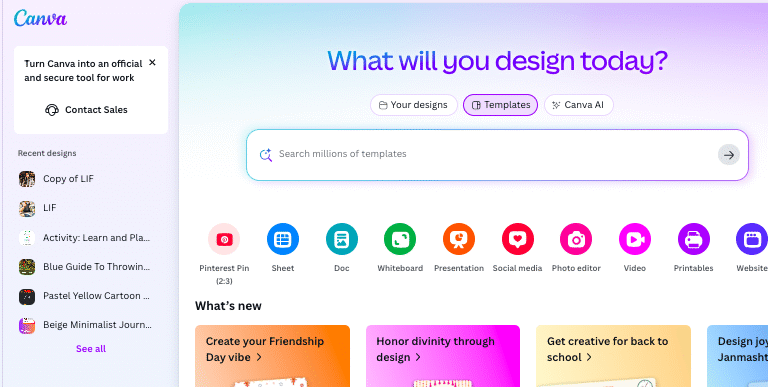 Canva is the master of logo, banner, photo editing, and gif creation.
This web-based platform lets you explore your creative potential with social media graphics, posters, and more.
It’s a free logo maker with a dynamic user interface. Choose from its template designs to start your project.
For logos, Canva will automatically generate a sample based on the information you provide. It has loads of fonts, colors, images, and illustrations to choose from.
The free design tools have delightful team collaboration tools. It’s ideal for enterprises who need customizable presentation slides, prints, and graphs.
The professional templates, layouts, voice icons, and frames will help boost your projects, especially pixel-perfect images for your landing pages.
Canva is the master of logo, banner, photo editing, and gif creation.
This web-based platform lets you explore your creative potential with social media graphics, posters, and more.
It’s a free logo maker with a dynamic user interface. Choose from its template designs to start your project.
For logos, Canva will automatically generate a sample based on the information you provide. It has loads of fonts, colors, images, and illustrations to choose from.
The free design tools have delightful team collaboration tools. It’s ideal for enterprises who need customizable presentation slides, prints, and graphs.
The professional templates, layouts, voice icons, and frames will help boost your projects, especially pixel-perfect images for your landing pages.
Key Features of Canva
- Free custom templates
- Design types
- Branding kit
- Cloud storage
- Large image database
- Collaboration tools
- Text editor
- Drag and drop user interface
- Layout management
What We Like
- One-click design resize
- Upload your own logos and fonts
- Simple to use
What We Don’t Like
- Lack of file merging capability
- No pencil tool
9. Vectr
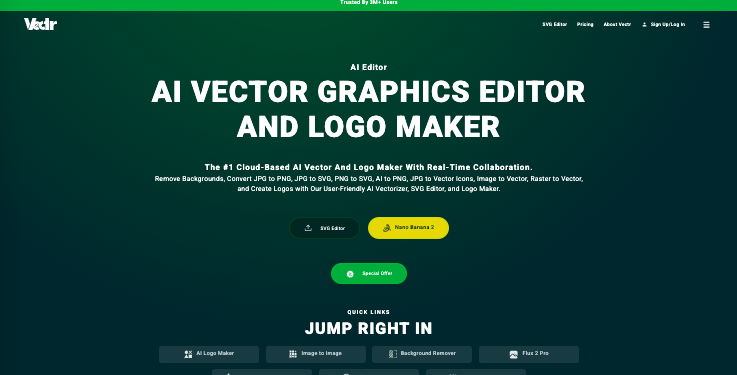 Vectr is a free vector graphics software that delivers incredible outcomes. It doesn’t need a learning curve to get professional icons, logos, business cards, posters, and other products.
Its precision and complete functionality say it all.
Vectr is cross-platform and most suitable for project heads, social media influencers, software engineers, and bloggers.
This software has terrific collaboration tools. Some of its basic features include shape tools, pathfinders, gradients, pen tool, and more.
Vectr is a free vector graphics software that delivers incredible outcomes. It doesn’t need a learning curve to get professional icons, logos, business cards, posters, and other products.
Its precision and complete functionality say it all.
Vectr is cross-platform and most suitable for project heads, social media influencers, software engineers, and bloggers.
This software has terrific collaboration tools. Some of its basic features include shape tools, pathfinders, gradients, pen tool, and more.
Key Features of Vectr
- Arrange and align elements
- Shape tools
- Fills and strokes
- Pathfinders
- Pen tool
- Gradients
- Collaboration transparency tool
- Calendar icons
- Lightning bolts and stars
- Assorted clipart designs
- Arrows
- WordPress plugin
What We Like
- Its versatility
- Image customization tools
- Collaboration options
- Synchronization
- Supports image import
- Low learning curve
- It’s free and cross-platform
What We Don’t Like
- It can only work online
10. Vecteezy
 Vecteezy Editor is an online vector graphics editing platform. You can use it for SVG files when you need to edit or add design components such as shapes.
This freemium software does a great job of editing vectors fast. It has a simple interface with plenty of image customization tools.
Inexperienced users can use Vecteezy without any difficulty. It has basic features with a lot of ads and limitations but will not disappoint.
If you need additional features, you may have to part with some cash.
Vecteezy Editor is an online vector graphics editing platform. You can use it for SVG files when you need to edit or add design components such as shapes.
This freemium software does a great job of editing vectors fast. It has a simple interface with plenty of image customization tools.
Inexperienced users can use Vecteezy without any difficulty. It has basic features with a lot of ads and limitations but will not disappoint.
If you need additional features, you may have to part with some cash.
Key Features of Vecteezy
- Basic vector imaging tools
- Simple interface
- SVG recording options
What We Like
- No hidden paid tools
- User-oriented
- Offers broad functionality
- Plenty of vector design objects
- Works well with text
What We Don’t Like
- You have to register
- It does not have advanced features
- Not a chance to add complex elements to your projects
- Can’t save project progress on Vecteezy
In Conclusion
Finding the right design tool does not have to feel like wandering a maze with a blindfold on.
While CorelDRAW remains a powerful industry staple, there are plenty of free alternatives that deliver impressive vector editing, layout control, and creative flexibility without the price tag.
Whether you choose a browser based option for quick edits or a feature rich desktop program for professional projects, today’s free tools are more capable than ever.
The best choice ultimately depends on your workflow, device, and design goals. Test a few, explore their strengths, and see which one feels intuitive in your hands.
With the right alternative, you can create logos, illustrations, social graphics, and print designs confidently for free or without spending much.
Enjoyed the post?