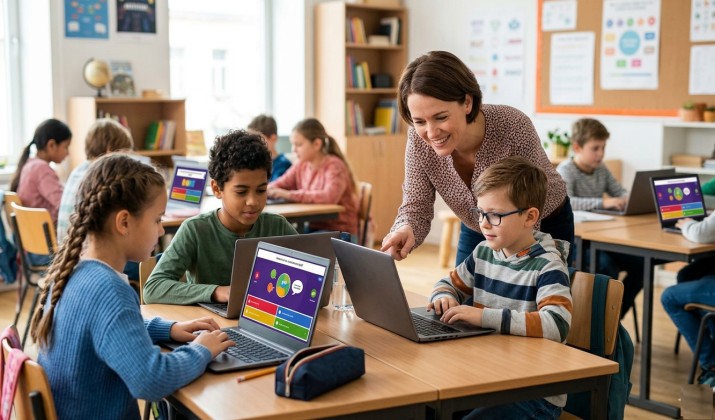
Digital learning works best when your tools connect smoothly and save you time. That’s exactly why so many teachers pair Quizizz with Google Classroom. Together, they make it easier to assign quizzes, track student progress, and keep everything organized in one place.
If you already use Google Classroom, adding Quizizz (now called Wayground) to your workflow can make lessons more interactive without creating extra work.
You can import classes automatically, assign quizzes without sharing game codes, sync grades, and even use Quizizz for homework, exit tickets, and self-paced practice.
Let’s walk through the full setup so you can go from zero to assigning your first game in under 10 minutes.
Why Teachers Use Quizizz with Google Classroom?
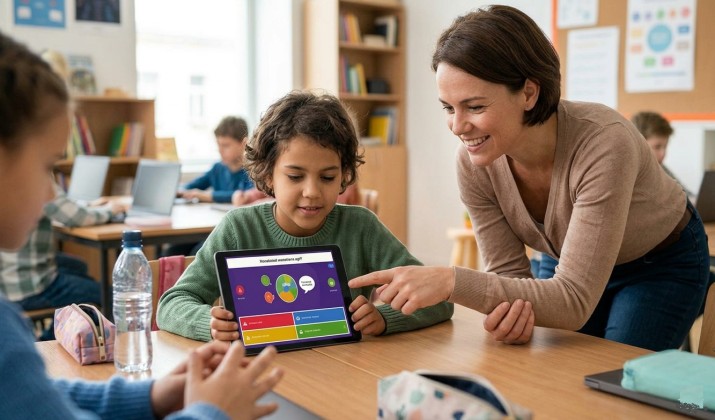
Quizizz (Wayground) has become one of the most popular digital formative assessment tools for Google Classroom because it combines learning with game style interaction.
Students answer questions at their own pace, see instant feedback, and stay engaged through points, themes, and leaderboards.
When you connect Quizizz to Google Classroom, you can:
- Import classes in seconds
- Share quizzes directly to Classroom
- Skip join codes for students
- Track participation automatically
- Send grades back to Classroom
- Monitor quiz reports and performance trends
- Run live games or homework assignments
Many teachers also use Quizizz alongside other best gamified quiz tools for Google Classroom like Kahoot! and Blooket. Still, Quizizz stands out because it supports both live instruction and independent practice in one platform.
If you want interactive quizzes in Google Classroom without Google Forms only, Quizizz gives you a more flexible and engaging option.
How to Set Up Quizizz with Google Classroom for the First Time?
Setting up Quizizz with Google Classroom takes only a few minutes.
Step 1: Create or Sign In to Quizizz
Go to Quizizz and sign in using your Google account. Using the same Google account connected to Classroom makes the setup much easier.
Once you log in, choose your role as a teacher.
Step 2: Connect Your Google Account
Quizizz will ask permission to access your Google Classroom data. Accept the permissions so the platform can:
- View your classes
- Import student rosters
- Share assignments
- Sync grades and reports
This is the core part of the Quizizz Google Classroom integration process.
Step 3: Import Your Classes
After connecting your account, open the “Classes” section in Quizizz. You’ll see an option to import classes directly from Google Classroom.
Select the classes you want to add. Quizizz automatically creates matching class groups and imports student names from Classroom.
This setup is especially helpful if you teach multiple sections or grade levels.
Read this too: Why 90% of Students Love Quizizz?
How to Import Your Google Classroom Roster into Quizizz and Keep It in Sync?
One of the biggest time savers in Quizizz with Google Classroom is automatic roster syncing. Instead of manually entering student names, you can sync Quizizz class roster with Google Classroom instantly.
Here’s how:
- Open your Quizizz dashboard.
- Click “Classes.”
- Select “Import from Google Classroom.”
- Choose the Classroom you want to sync.
- Confirm the import.
Once connected, students added later in Google Classroom often appear automatically during future syncs. This feature helps prevent duplicate student lists and missing participant records.
Step by Step Guide to Connecting Quizizz with Google Classroom for Teachers
Teachers new to Quizizz sometimes worry the setup process will feel technical. Thankfully, it’s fairly straightforward.
Here’s the complete workflow most teachers follow:
- Connect accounts: Sign in to Quizizz using Google.
- Import classes: Bring your Classroom rosters into Quizizz automatically.
- Pick or create a quiz: Choose from public quizzes or build your own.
- Assign the quiz: Share directly to Google Classroom.
- Track reports: Review scores, participation, and question level performance.
- Send grades back: Sync grades into Google Classroom if enabled.
Once everything is connected, you can manage most activities from either platform without repeating steps.
Also read: 12 Best Games Like Kahoot and Quizizz
How to Assign a Quizizz Quiz as a Google Classroom Assignment?
You can assign a Quizizz quiz directly to Google Classroom so students don’t need a game code.
Follow these steps:
- In Quizizz, find or create a quiz. Click Assign.
- Choose Student-paced for homework or Live for an in-class game.
- Under Share with, toggle on Google Classroom. Pick your class and section.
- Set a due date, assign to all students or specific kids, and choose if scores post to the gradebook.
- Hit Assign. Quizizz creates the assignment in your Classroom stream automatically.
- Post the assignment.
Students can open the activity directly from Classroom without typing a join code manually.
That removes confusion and saves classroom time.
Student Paced vs Live Quizizz Modes in Google Classroom Assignments
Quizizz gives you multiple ways to run activities depending on your teaching style.
Live Mode
Use live mode during class instruction. Students answer questions together while you guide the session in real time. Live mode works well for:
- Review sessions
- Warm up activities
- Team competitions
- Interactive lectures
Student Paced Mode
Student paced assignments allow learners to complete quizzes independently. This option works great for:
- Homework
- Remote learning
- Revision practice
- Makeup work
- Independent study
Many teachers combine both formats throughout the week. For example, you might run a live review game on Friday and assign self paced practice over the weekend.
Using Quizizz as a Formative Assessment Tool Inside Google Classroom
Quizizz for teachers using Google Classroom goes far beyond simple quizzes. You can use it as a complete formative assessment system. Teachers commonly use Quizizz for:
- Exit tickets
- Chapter reviews
- Vocabulary practice
- Bell ringers
- Homework checks
- Test preparation
- Reading comprehension
- Quick polls
Because students receive instant feedback, they often stay more engaged compared to traditional worksheets.
Quizizz reports and data to track student progress also help you identify:
- Frequently missed questions
- Students who need support
- Topics requiring reteaching
- Participation trends
This makes Quizizz one of the strongest online quiz platforms that sync with Google Classroom grades while still keeping learning interactive.
How to Make Quizizz Results Show Up as Graded Work in Google Classroom?
A common question teachers ask is: Can Quizizz automatically sync grades to Google Classroom?
In many cases, yes. Quizizz supports grade syncing for eligible assignments. To enable it:
- Open your Quizizz assignment settings.
- Turn on grade sync options if available.
- Share the quiz through Google Classroom.
- After students complete the activity, sync results.
Grades can then appear inside the Classroom gradebook. This saves time because you don’t need to enter scores manually.
Use a Chrome Extension to Transfer Quizizz Grades to Classroom
Some teachers also use grading tools and browser extensions to simplify score transfers further. One example includes Grading Assistant style Chrome extensions that help move grades between platforms more efficiently.
Always review extension permissions carefully before installing classroom tools.
How to Resend a Quizizz Assignment to Absent Students via Classroom?

Students miss class sometimes. Thankfully, Quizizz makes reassignment simple. You can:
- Repost the assignment in Classroom
- Extend the due date
- Assign the quiz only to absent students
- Switch from live mode to homework mode
This flexibility helps students catch up without interrupting your normal lesson flow. It also works well for differentiated instruction because you can assign different quizzes to different student groups.
How to Troubleshoot Common Quizizz + Google Classroom Issues?
Even a good integration occasionally runs into problems. Here are some common Quizizz Google Classroom setup guide fixes.
1. Missing Students in Quizizz
Try refreshing the class sync. You can also:
- Remove and reimport the class
- Ask students to join through Classroom again
- Confirm students use the correct Google account
2. Grades Not Syncing
Check whether:
- Grade sync is enabled
- Students completed the assignment fully
- The assignment was originally shared through Classroom
- Your Google permissions remain active
3. Students Cannot Open Assignments
This often happens when:
- Students use personal Google accounts
- School filters block access
- The assignment link expired
Posting a fresh assignment link usually fixes the issue.
4. Duplicate Classes
This can happen if you import the same class multiple times. Delete extra versions and keep one master class synced to Classroom.
How to Use Quizizz for Remote or Hybrid Classes with Google Classroom?
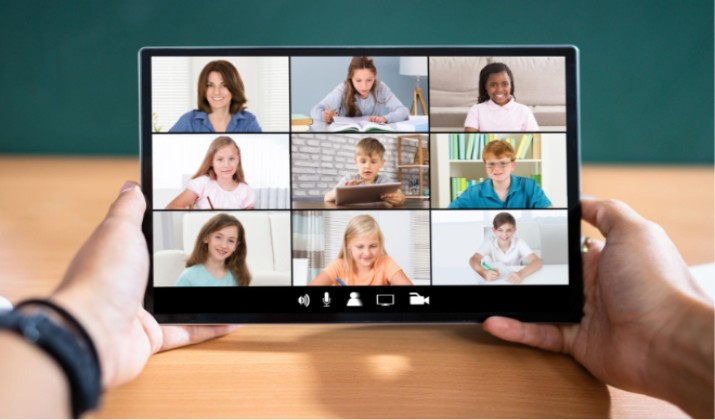
Quizizz became especially popular during remote learning, but many teachers still rely on it for hybrid instruction today.
When paired with Google Classroom, Quizizz supports:
- Fully remote classes
- Hybrid schedules
- Homework based instruction
- Independent practice
- Asynchronous learning
You can schedule quizzes ahead of time, set deadlines, and let students complete work from any location.
This works particularly well for:
- Flipped classrooms
- Homework review
- Exam preparation
- Distance learning programs
Because everything connects through Classroom, students usually access assignments from one familiar location.
Tips to Get Better Results with Quizizz in Google Classroom
Once you feel comfortable using Quizizz with Google Classroom, small adjustments can make your activities even more effective.
- Keep quizzes short: Students stay more focused with shorter activities. Five to fifteen questions often work better than long quiz sessions.
- Mix question types: Use multiple choice, polls, fill in the blank, and open ended responses. This keeps lessons interesting.
- Review reports regularly: Quizizz reports and data to track student progress help you adjust instruction quickly. Instead of waiting for major exams, you can identify learning gaps early.
- Use memes and themes carefully: Gamified elements can improve engagement, but too many distractions may reduce focus for some students. Adjust settings based on your class needs.
- Combine Quizizz with other classroom tools: Quizizz works nicely alongside Google Docs, slides, YouTube lessons, classroom discussions, and digital worksheets. That combination creates a more varied learning experience.
Quizizz (Wayground) Google Classroom Integration
Quizizz has continued expanding its classroom features in recent years, including AI supported lesson tools, improved reporting, and deeper Google Classroom connectivity.
Some teachers may also notice the Wayground branding connected to Quizizz updates and resources. The platform continues evolving as schools look for more interactive alternatives to traditional assessments.
For teachers who want digital formative assessment tools for Google Classroom without relying entirely on Google Forms, Quizizz remains one of the strongest choices available.
Making Your Classroom More Interactive
Using Quizizz with Google Classroom helps you create lessons that feel more engaging without adding extra complexity to your workflow.
You can import classes automatically, assign quizzes directly through Classroom, track student progress, and simplify grading from one connected system. Quizizz gives you flexible ways to run live games, homework assignments, exit tickets, and practice sessions.
If you already use Google Classroom daily, adding Quizizz can make assessments feel more interactive while helping you save time behind the scenes.