If Silk feels slow, cluttered, or just not private enough, you have options.
A lot of Fire tablet owners assume Silk is the only browser they can use. It is not. You can keep Silk for quick Amazon shopping and still use a second browser for everything else. That small change can make reading, searching, video, and logins feel much better.
This guide walks through the best Kindle Fire Silk browser alternatives. You will see what each one does well, where it falls short, and how to install it without guesswork. You will also learn why some browsers install in one tap while others need a little extra setup.
Is This About a Kindle E-Reader or a Fire Tablet?
A Kindle e-reader and an Amazon Fire tablet look similar only in name.
A Kindle e-reader is made for reading books. It has an e ink screen, very long battery life, and only basic web access through an experimental browser. You would not install Firefox or Brave on it.
A Fire tablet is a full Android based tablet. It runs Fire OS, plays video, runs apps, and browses the full web. Silk is the preinstalled browser on Fire tablets. When people search for a Kindle Fire web browser, they almost always mean a Fire tablet web browser. This article is for Fire tablets only.
That distinction matters because install steps, app stores, and compatibility all change once you know which device you own.
If your device says Fire 7, Fire HD 8, Fire HD 10, or Fire Max 11 in Settings, you are in the right place.
Why Compatibility Is Not Just About the Device Name?
Two Fire HD 10 tablets can behave very differently. Although the marketing name stays the same, the software inside does not.
Compatibility depends on four things, and it helps to check them before you install anything.
- Fire OS version: Go to Settings, then Device Options, then System Updates. Newer Fire OS versions support newer browsers.
- Android API level: Fire OS 7 sits on Android 9, API 28. Fire OS 8 sits on Android 10 and 11, API 29 to 30. A browser that needs a newer API will refuse to install or crash on an older tablet.
- Amazon Appstore availability: Some browsers appear in the Amazon Appstore. Others do not. If a browser is missing there, you can often sideload its APK file from the developer site.
- Google Play Services dependence: Fire tablets do not ship with Google Play Services. Browsers that rely on it for sync, sign in, or push may lose features. Browsers that work without it tend to feel smoother on Fire OS.
So when a browser says it works on Android, that does not always mean it works the same way on Fire OS. The list below notes where each pick shines and where you may need a workaround.
Also read: Best Browsers for Windows 11
How to Change Browser on Kindle Fire?
You cannot delete Silk. Amazon keeps it as a system app. You can still make another browser your everyday choice.
Path one is the Amazon Appstore. Open the Appstore, search for the browser name, and tap Get. Updates arrive on their own.
Path two is sideloading. You allow apps from unknown sources for that one install, download the APK from the official developer site, open the file, and tap Install. After that, you can turn the permission back off.
To set a default, open a link from an email or a note. Fire OS will ask which browser to use. Pick your new browser and tap Always. Or go to Settings, then Apps, then Default Apps if your Fire OS version shows that menu.
Now, here are the best browsers for Fire tablet owners who want a real Silk browser replacement.
Best Kindle Fire Silk Browsers
1. Firefox
Firefox is the most complete Silk replacement for most Fire tablet owners.
It feels familiar, it syncs with desktop Firefox, and it gives you real control over trackers. If you want one browser to install first, start here.
You get tab sync, bookmarks, history sync, and password sync through a free Firefox account. Extensions add even more.
On a tablet, uBlock Origin alone can clean up a lot of heavy pages and make news sites load faster. Reader View strips clutter when you want to read a long article without pop ups and autoplay video.
Pricing: Free. No paid plan needed for the browser, sync, or extensions.
Read this too: Best Gaming Browsers
2. Brave
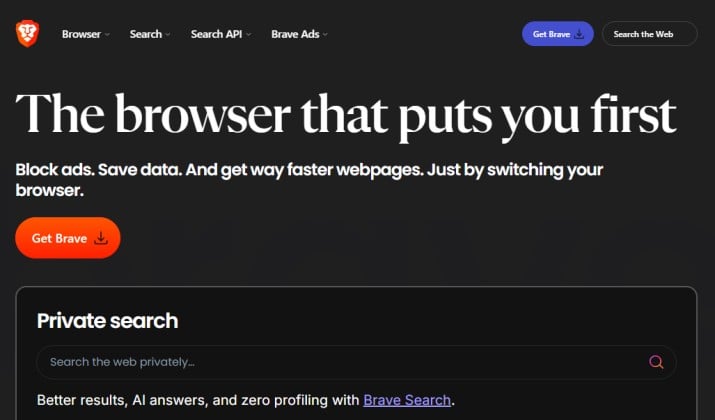
Brave is the pick if you want pages to load fast with less setup.
It blocks ads and trackers by default. You do not need to hunt for settings or add an extension to feel the difference. News, sports, and recipe sites often feel lighter right away.
Brave also includes Brave Shields, a private mode with Tor, and optional Brave Rewards. Rewards lets you earn small amounts of BAT for viewing privacy respecting ads, but you can leave it off and still enjoy the core browser.
Sync works through a sync chain code, so you can link a Fire tablet to a phone or computer without a traditional account.
Pricing: Free. Optional Brave Rewards and Brave VPN are separate paid or opt in features.
3. DuckDuckGo
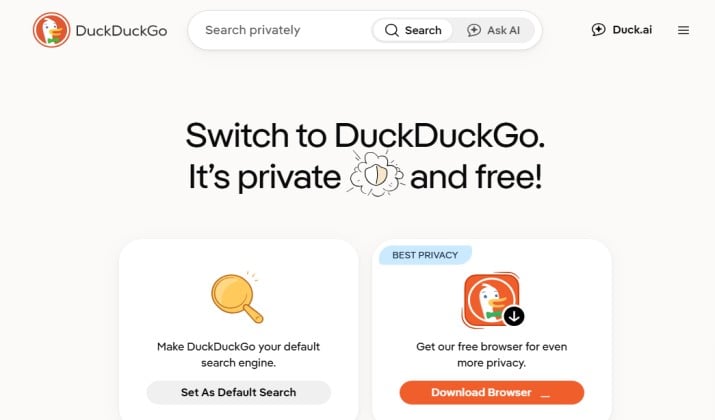
DuckDuckGo is the simplest browser on this list. It has one job: reduce tracking while you browse.
Open it, search, read, and tap the Fire Button to clear tabs and data in one tap. That one tap feeling is why so many people keep it as a second browser.
DuckDuckGo blocks many hidden trackers, forces encrypted connections when possible, and gives each site a privacy grade.
It does not try to be a full desktop replacement. You will not find deep extension support or rich tab sync here. What you get instead is a browser that stays out of your way.
Pricing: Free. DuckDuckGo Privacy Pro subscription is separate and not needed for the browser.
Explore: Best Browsers for Windows 10
4. Google Chrome
Chrome is the familiar choice.
If your passwords, bookmarks, and history already live in Google, Chrome makes a Fire tablet feel like an extension of your phone or laptop. Pages render well, video plays well, and most sites are tested against Chrome first.
The catch is Fire OS. Chrome is not in the Amazon Appstore, and Chrome expects Google services for full sync.
You can sideload Chrome, and on Fire OS 8 it runs current builds well. On Fire OS 7, you may hit a ceiling with older Chrome versions.
On Fire OS 5 and 6, current Chrome will not run at all. That is why checking your Fire OS version matters before you install.
Pricing: Free
5. Opera
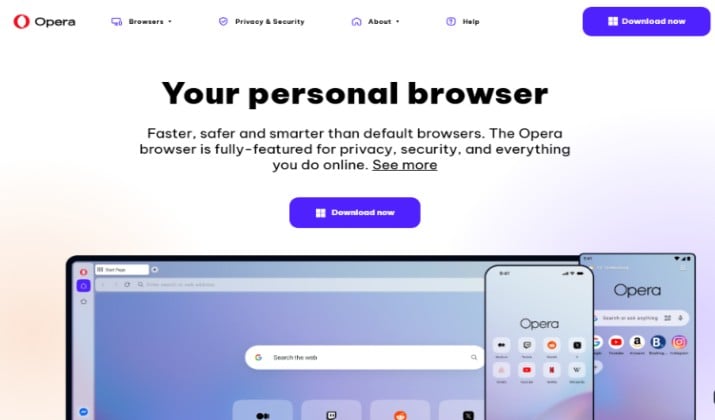
Opera is the only major browser on this list that often shows up directly in the Amazon Appstore. That one detail makes it the easiest install for many Fire tablet owners. No sideloading or extra steps. Search, tap Get, and browse.
Thisbrowser includes a built in ad blocker, a free VPN, and a data saving mode. The VPN is handy on public Wi Fi when you want a little extra privacy for casual browsing.
Opera is not a replacement for a full paid VPN if you need a specific country or streaming access, but for everyday use it is useful.
Price: Free. Opera VPN inside the browser is free.
6. Vivaldi
Vivaldi is for people who like to shape their browser.
You can change tab layout, move the address bar, group tabs, and add notes without leaving the page. It feels like a power tool, but it still stays friendly once you set it up.
On a Fire tablet, Vivaldi works well for research and long reading sessions. Tab stacks keep ten open articles tidy.
The built in ad blocker and tracker blocker cut clutter. Sync uses a Vivaldi account and encrypts your data end to end. You can sync bookmarks, notes, and passwords with Vivaldi on desktop.
Pricing: Free. No paid browser plan.
7. Firefox Focus
Firefox Focus is the lightest browser here. It opens fast, blocks trackers, and clears everything when you close it.
There is no history to manage or tabs piling up. It is perfect for quick lookups, gift shopping, or any moment when you do not want a trace left behind.
Focus uses the same Firefox ideas but with a much smaller footprint. That helps on older Fire 7 tablets and Fire HD 8 models with less memory.
Pages feel snappy because so much tracking content never loads.
Pricing: Free.
What About Opera Mini, Kiwi, Dolphin, and the Others?
Kiwi Browser shut down active development in January 2025 and left the Play Store. It no longer gets security updates. That makes it a poor choice for everyday browsing, even if you can still find an APK online.
UC Browser and Dolphin have not kept the same update pace or privacy standards as the browsers above.
Maxthon is niche and harder to verify for Fire OS. Opera Mini is light and saves data, but the full Opera browser gives you a better tablet experience with a full page view and stronger features.
Stick with browsers that are still updated, still signed by their developer, and still tested on modern Android.
How to Install a Browser on Kindle Fire Without the Headache?
Ready to replace Silk browser on Kindle Fire for daily use? Follow this safe routine.
- Check your Fire OS version in Settings first. Note if you are on Fire OS 7 or Fire OS 8 or newer.
- Start with the Amazon Appstore. Search for Opera or DuckDuckGo first.
- If your pick is missing, go to the official developer site on your tablet. Download only from that site.
- Allow install from unknown sources when asked, install the APK, then turn that permission back off.
- Open the new browser, sign in to sync if you want it, and turn on ad blocking and tracker blocking.
- Open a link from another app and set your new browser as Always when prompted.
All browsers in this guide are free to download and use for core browsing. Paid features like VPN subscriptions or privacy bundles are optional.
Which Browser Should You Pick?
Firefox wins this round.
It is the best Kindle Fire Silk browser alternatives pick for most Fire tablet owners because it balances privacy, extensions, sync, and Fire OS compatibility without needing Google Play Services.
Brave comes close for speed and simplicity, and Opera wins for ease of install.
But if you want one browser that can grow with you from casual reading to serious research, Firefox gives you the most room to grow.
Open the Appstore or the official site, install one browser today, and see how different your Fire tablet feels after a day of real browsing.