Adobe’s subscription adds up. And if you edit on a Mac, you start to notice how little Lightroom feels like a Mac app.
You want fast RAW processing, clean organization, and edits that don’t destroy your originals. You also want an app that respects your storage, your shortcuts, and your workflow.
That is why more photographers look for the best Lightroom alternatives for Mac. The alternatives offer AI tools, batch editing, proper cataloguing, and native macOS design without locking you into a monthly bill.
In this guide, you will find 10 options with pricing, strengths, and who each one suits best.
What Should You Look for in a Lightroom Replacement?
Before we get into the list, think about how you shoot.
- Do you need a photo editor with cataloging and smart collections, or just a clean editor?
- Local storage, cloud sync, or both? What do you prefer?
- Do you rely on AI-powered editing, batch editing, presets, and masks to speed things up?
- Does native macOS design, Apple Silicon support, and Retina display support matter to you? On newer Macs, it should.
The best photo editing apps balance power with simplicity. Here are the ones that do it best.
1. Capture One Pro
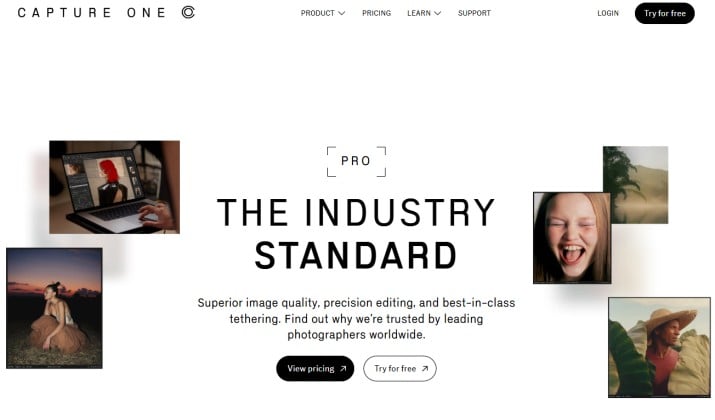
Capture One has been the studio standard for years, and for good reason. If color accuracy and tethering matter to you, this is hard to beat.
Why you will like it: You get exceptional RAW processing, live tethering, and color grading that feels precise. It handles layers, masks, and lens corrections without making you jump between apps. It also has some of the best skin tone tools available.
Mac specific strengths: It runs natively on Apple Silicon, supports full keyboard shortcuts, customizable interface, and version history. It comes with tethering and color grading, making it the perfect editor for Mac professionals.
Who is it best for? Mac photographers and Mac designers who shoot in studio or work with high volume client work.
App Link: Official Site
Pricing: Subscription starts from $18/month,. You can also get the Pro Perpetual License for $349.
Also read: Apps That Make Your Photos Look Like Real Film
2. Luminar Neo

If you want AI to handle the boring parts, Luminar Neo is the fun one. It is built around AI tools that make complex edits fast.
Why you will like it: You can replace skies, remove power lines, relight a portrait, and clean up noise in a couple of clicks. It also gives you AI tools, noise reduction, and presets and filters.
Mac specific strengths: Native Apple Silicon support, dark mode, and a clean interface that feels like a Mac app. It works as a standalone or as a plugin.
Who is it best for? Mac beginners and Mac enthusiasts who want creative results without a steep learning curve.
App Link: Official Site | Mac App Store
Pricing: From $119/year for Desktop.
3. ON1 Photo RAW
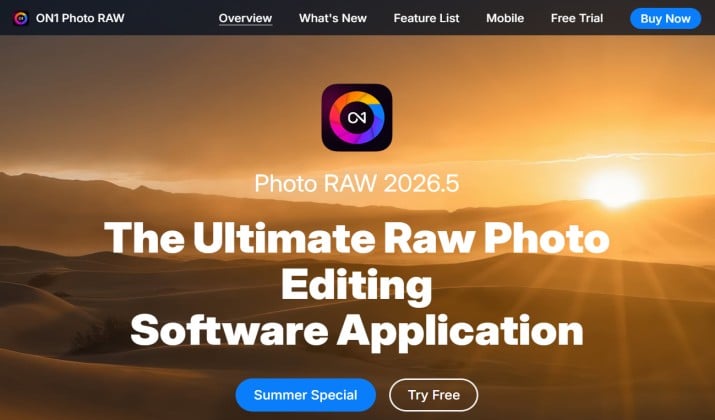
ON1 tries to give you everything in one place. Think of it as Lightroom + Photoshop in a single window.
Why you will like it: You get cataloging, RAW development, layers, retouching, HDR, panorama stitching, focus stacking, and keyword tagging. It is one of the few that offers panorama, HDR, and album management all together. It also includes local storage and cloud sync if you want it.
Mac specific strengths: Offline editing works great, plus it has Apple Silicon support and best photo editor for Mac with batch editing.
Who is it best for? This is an ideal Lightroom replacement for macOS if you want no subscription and you like to keep all your edits in one app.
App Link: Official Site
Pricing: Perpetual license for $49.99.
Read this too: AI Alternatives to Adobe Lightroom
4. Photomator
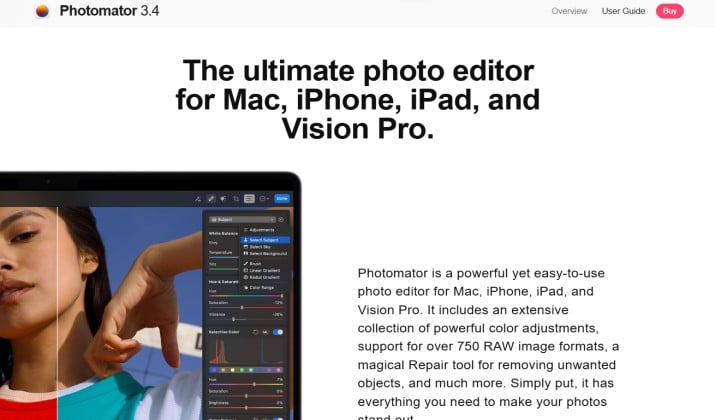
Made by the Pixelmator team, Photomator feels like Apple Photos if Apple Photos went pro. It is fast, beautiful, and fully native.
Why you will like it: You get non-destructive editing, RAW support, batch editing, and AI-powered auto adjustments. It handles color grading, perspective correction, watermarking, and export options really well. It is a true Mac photo editor with native macOS design.
Mac specific strengths: This is built for Mac. You get native macOS sharing, native macOS keychain, Shortcuts integration, Touch Bar support, and and iPhone app that syncs through Photos library.
Who is it best for? Mac students and Mac beginners who want pro results in a familiar Apple interface.
App Link: Mac App Store
Pricing: Photomator for Mac is available via the Mac App Store with a monthly subscription at $7.99, an annual subscription at $34.99, or a lifetime license for a one-time fee of $119.99.
5. DxO PhotoLab
DxO is obsessed with image quality. If you shoot at high ISO or you love sharp lenses, you will notice the difference.
Why you will like it: Its DeepPRIME noise reduction and lens corrections are class leading. It reads your camera and lens profile and fixes optics automatically. It offers excellent RAW processing too.
Mac specific strengths: Optimized for Apple Silicon, Retina display support, and strong offline editing.
Who is it best for? Mac professionals who prioritize image quality over catalog features.
App Link: Official Site
Pricing: A new license will cost you $239.99.
6. Affinity Photo
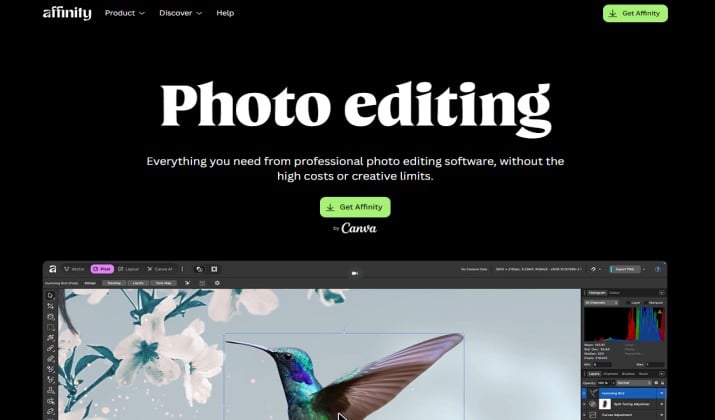
Not a Lightroom clone, but a Photoshop-style editor with strong RAW tools. If you already own it, you own it forever.
Why you will like it: You get layers, masks, retouching, perspective correction, focus stacking, panorama, and advanced export options.
Mac specific strengths: Apple Silicon support, customizable interface, and excellent Apple Pencil support if you also use iPad.
Who is it best for? Mac designers who hate subscriptions.
App Link: Official Site
Pricing: Affinity for Mac is completely free to download and use, combined into a single unified app merging vector, photo, and layout tools. While the core software requires no payment, advanced cloud-based AI tools are locked behind paid Canva Pro subscriptions starting at $15 per month.
Another interesting read: Best Free Photoshop Alternatives for Mac
7. Darktable
Free, open source, and surprisingly powerful. If you like Lightroom’s structure but want it free, start here.
Why you will like it: It gives you non-destructive editing, cataloging, color grading, masks, and keyword tagging with timeline. It also has RAW support that handles hundreds of cameras.
Mac specific strengths: Lightweight, community driven, and runs well on both Intel support and Apple Silicon support.
Who is it best for? Mac students keen on privacy and local storage.
App Link: Official Site
Pricing: Free
8. RawTherapee
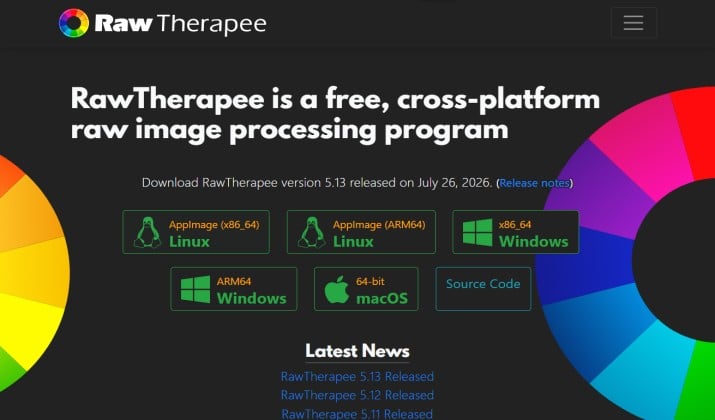
Another free open source favorite, focused purely on RAW development.
Why you will like it: You get deep control over demosaicing, color, exposure, and detail. It offers color grading, lens corrections, and batch editing for large sets.
Mac specific strengths: Fast export, offline editing, and no account needed.
Who is it best for? Mac enthusiasts who love to tweak every RAW detail themselves.
App Link: Official Site
Pricing: Free
9. ACDSee Photo Studio
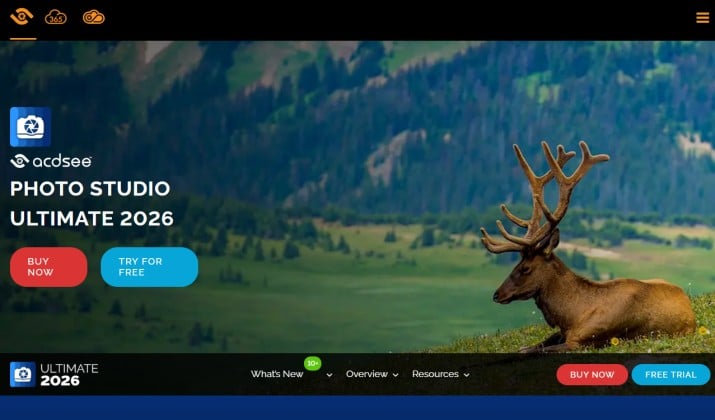
If you want Lightroom-style organization without renting software, ACDSee deserves a spot. It blends a fast file browser with real cataloging power.
Why you will like it: It helps you manage thousands of files without importing them first. You get non-destructive editing, RAW processing, layers, keyword tagging, smart collections, facial recognition, and batch editing in one window.
It also covers lens corrections, color grading, watermarking, and flexible export options. It is a solid pick for cataloging, keyword tagging, smart collections, and album management.
Mac specific strengths: Built for macOS with native macOS design, Retina display support, Apple Silicon support, and local storage. You keep your files local, control backup and organization, and searches stay fast even with large libraries.
Who is it best for? Mac professionals and Mac enthusiasts who want Lightroom-like DAM features but prefer a one-time license and full local control.
App Link: Official Site
Pricing: Subscription plans start from $8.90 per month. You can also purchase a lifetime license for $69.95.
10. Mylio Photos

Mylio is different. It is built around organizing and syncing your whole life library across devices, without forcing you into a cloud.
Why you will like it: You get strong album management, fast search, and flexible sync that keeps your originals local if you want them local. It also keeps version history, makes sharing simple, and works well offline with mobile apps when you need them.
Mac specific strengths: Local storage first, optional cloud, strong privacy and security controls, and good performance on Mac.
Who is it best for? Mac users who have photos scattered across phone, laptop, and drives.
App Link: Official Site | Mac App Store
Pricing: Mylio Photos offers a free tier alongside a paid subscription called Mylio Photos+, which is priced at $9.99 per month for individual personal use.
Which Alternative Should You Pick?
All ten options work, but they do not work the same.
For the best all around Lightroom replacement, Capture One Pro for Mac takes the lead. It gives you pro grade RAW processing, reliable cataloging, studio tethering, layers and precise masks in one place. Nothing else on this list matches its color control and studio workflow.
Photomator stands out when you want the best value and a truly Mac-native feel. You get smart AI tools, quick batch edits, and an interface that feels like Apple made it. The iPad and iPhone apps actually sync, so your edits move with you.
On a tight budget, Darktable makes the most sense to start with. You keep your files local, you get solid organizing and editing tools, and you pay nothing to try it.
Many photographers end up mixing two. Use Mylio Photos or ACDSee to keep your library tidy and backed up, then do serious color work in Capture One or Photomator.
Import the same RAW set into two of them and you will feel within an hour which workflow fits your hands.