You download Rufus, double-click, and macOS says nope. You search for a Mac version and find nothing. I get it. You just want to turn that ISO into a bootable USB and get on with your day.
You still can. You just need a different tool.
This guide rounds up the best Rufus alternatives for Mac on Intel and Apple Silicon. You will see which Mac USB bootable creator handles Windows 11, which one nails Linux, which one makes a clean macOS installer, and which one lets you put ten ISOs on one stick.
If you want something fast, safe, and that feels at home on your Mac, keep reading.
What Makes a Good Rufus Replacement on Mac?
Not every Mac USB bootable creator does the same job. A quick check saves you headaches later.
- Look for broad file support first. Your tool should handle both Mac ISO to USB tool jobs and Mac IMG to USB tool jobs without asking you to install extra drivers.
- Check chip support. A lot of older apps still stumble on Apple Silicon, so you want something that runs natively on M1, M2, M3, and M4 as well as Intel Mac.
- Keep the workflow simple too. You pick your image, you pick your drive, you hit flash. You should only touch Terminal if you want a CLI option.
- Make sure it verifies after flashing. That final check is what turns a random USB stick into a Mac bootable USB for Windows or Mac bootable USB for Linux that actually boots.
Here are the seven tools that meet that bar right now.
1. balenaEtcher
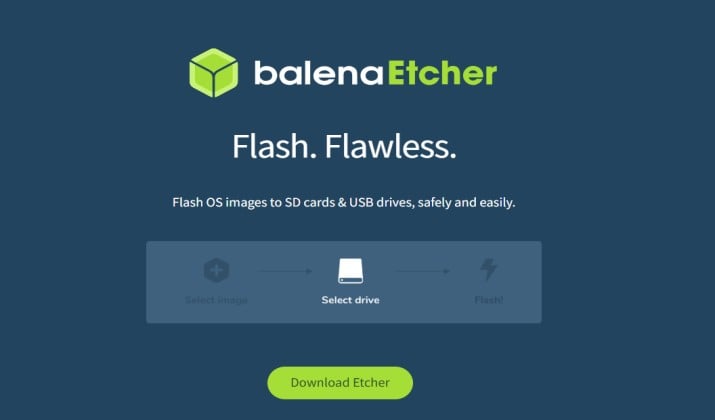
If you want something that feels as simple as Rufus but looks right at home on a Mac, start here.
You open Etcher and see three big steps. You choose your file, pick your USB, and click Flash. That is it. It handles ISO and IMG files, and you can use it to make installers for macOS, Windows, and Linux without any extra setup.
Why people stick with it:
- The interface is clean. You get a proper Mac design with dark mode, Retina clarity, and simple notifications when the flash finishes.
- After writing, it checks your drive so you know the USB will actually boot instead of failing later.
- You get native speed on both Apple Silicon and Intel, so you skip Rosetta and weird workarounds.
- It stays light and private with no bundled extras or strange permissions.
If you want a safe first try that just works, especially as a student or someone who flashes drives occasionally, this is the one to grab.
Download: Official site https://www.balena.io/etcher/
Pricing: Free and open source. Pro hardware for fleet flashing is paid.
Also read: Best Filezilla Alternatives for Mac
2. Ventoy
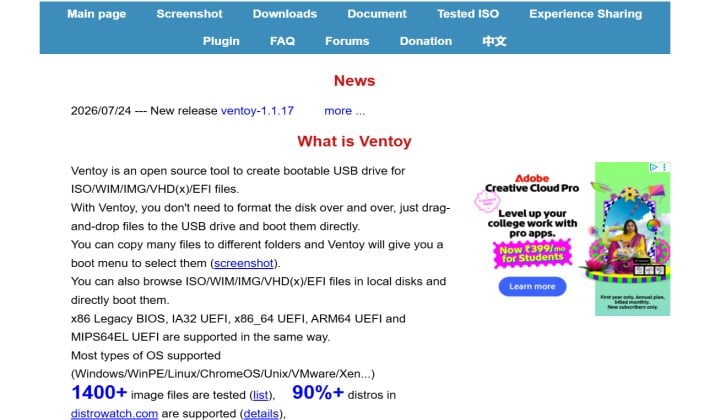
Want one USB that can boot ten different systems? This is the one.
You install Ventoy to your drive once. After that you just drag ISO files onto it. Put Windows 11, Ubuntu, Debian, and more on the same stick. When you plug it in to boot, Ventoy shows a menu and you pick what you want.
Officially Ventoy does not ship a Mac installer, but community builds fix that. Tools like ventoy-mac and MacToy give you a native Mac app, so you can set everything up without touching a Windows VM.
Why you will like it:
- You get real multi-boot. Add or remove ISOs any time with a simple copy.
- It handles Windows and Linux installers cleanly on a single drive.
- If you carry a toolkit for work or school, you save a lot of time and USB sticks.
One heads up: some newer PCs with Secure Boot enabled can be picky, so you might need to turn that off temporarily in BIOS.
Download: Official site
Pricing: Free and open source.
3. UNetbootin
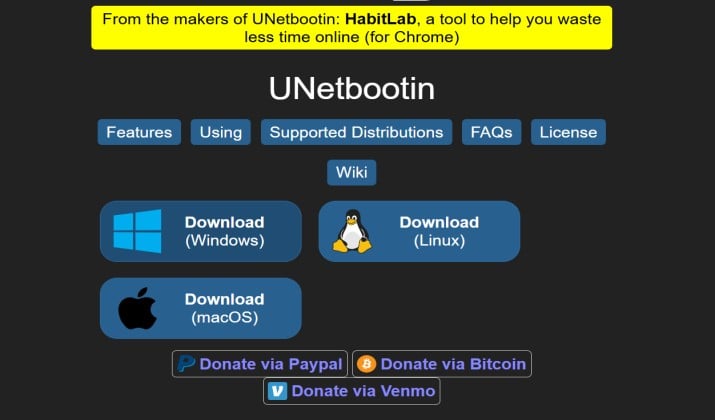
UNetbootin has been around for years and it still works. If your focus is Linux, this is your tool.
You can either let UNetbootin download a Linux distro for you, or you supply your own ISO. It is lightweight and straight to the point.
Why you will like it:
- Great for Mac bootable USB for Linux. Ubuntu, Fedora, Mint, and more.
- Very small app with no installer clutter.
- Works as a simple alternative to Rufus for Mac when you do not need Windows support.
Limitation: It is not the best for Windows 11 USB creation and the interface feels dated compared to native macOS design.
Download: Official site
Pricing: Free and open source.
Read this too: Best Lightroom Alternatives for Mac
4. Install Disk Creator
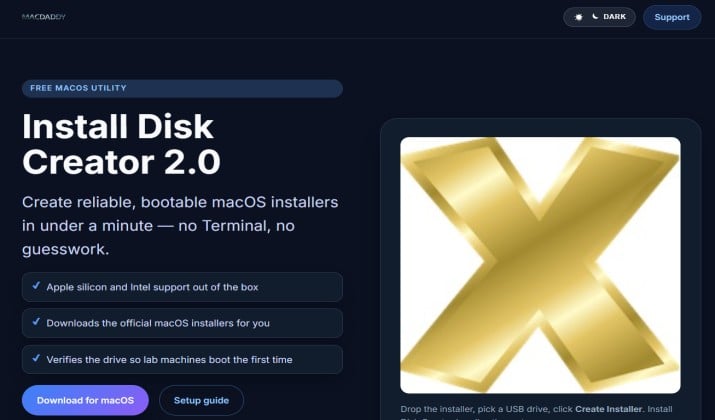
If you only need a Mac bootable USB for macOS, this is the most Mac-like option. Install Disk Creator is built by MacDaddy specifically for macOS installers.
You download the macOS installer from the App Store, plug in an 8GB+ USB, open the app, and it finds the installer automatically. One click and you have a bootable macOS installer.
Why you will like it:
- Thanks to native macOS design., it looks and feels like a real Mac app.
- It comes with native macOS accessibility and native macOS sharing support.
- Perfect for clean installs, downgrades, or fixing a friend’s Mac.
It does not do Windows or Linux. Use it for macOS only.
Download: Official site
Pricing: Free
5. Deepin Boot Maker
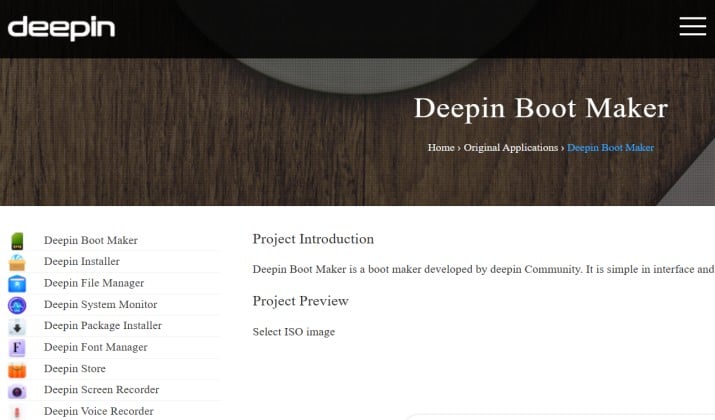
If Disk Utility feels too technical, Deepin Boot Maker gives you a friendly middle ground.
You get a simple window, a clear progress bar, and support for both ISO and IMG files. Now pick your image and your drive, and the app does the formatting and flashing for you. It started as part of Deepin Linux, but the Mac build works great as a lightweight bootable USB creator.
Why you will like it:
- The layout is minimal, so you never wonder what to click next.
- It handles Linux ISOs especially well, but you can flash Windows images too.
- The app is small and fast, with no login or extra setup.
Think of it as a cleaner option than UNetbootin when you want a quick Linux USB without learning Terminal commands.
Download: Official site
Pricing: Free and open source.
6. Raspberry Pi Imager
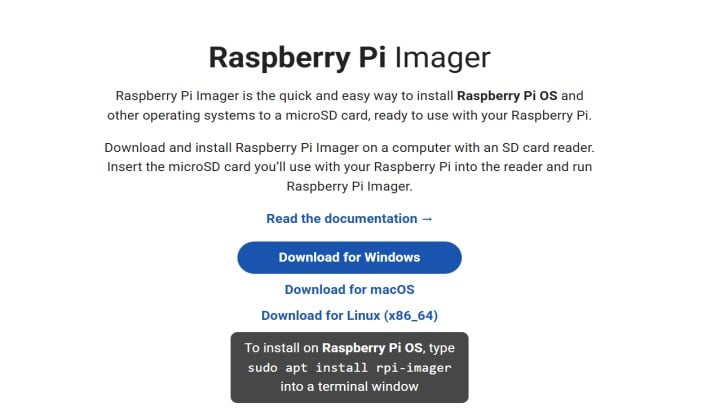
Do not let the name fool you. You do not need a Raspberry Pi to use this.
The home screen shows a curated list of popular systems alongside an option to flash a custom image. The flow stays simple: choose the system, choose the drive, hit write. The whole app feels polished and very Mac-like, with clear labels, full keyboard support, and a design that looks sharp on Retina screens.
Why you will like it:
- Super simple for IMG to USB and ISO to USB.
- Handles SD cards and USB drives.
- Customizable interface and keyboard shortcuts.
Best for Pi OS, Ubuntu, Home Assistant, and other ARM or lightweight Linux images.
Download: Official site
Pricing: Free and open source.
Another interesting read: Best Finder Alternatives for Mac
7. WinDiskWriter
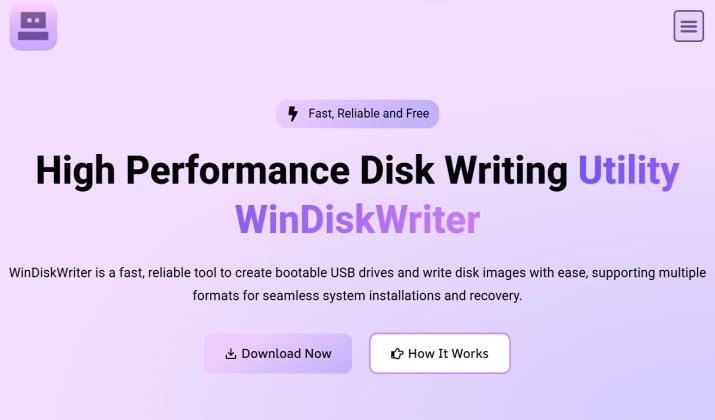
Need a tool focused on Windows? WinDiskWriter is a newer open source app built specifically to create a Mac bootable USB for Windows, including Windows 11.
It fixes the common problem where a Windows ISO is larger than FAT32 allows. It automatically splits or handles the large install.wim file so your USB still boots on UEFI systems.
Why you will like it:
- Built for Windows 10 and Windows 11 USB from Mac.
- Supports both Apple Silicon and Intel Mac.
- Offers both GUI and CLI, so it works as best USB creator for Mac with GUI and best USB creator for Mac with CLI if you like automation.
If your main job is to make a Windows installer from your MacBook, this saves you time.
Download: Official site
Pricing: Free and open source.
How Do You Pick the Right One?
Think about what you boot most:
- For macOS installers only, Install Disk Creator keeps it simple and native.
- If Linux is your main focus, UNetbootin or balenaEtcher will get you there fast.
- Building a Windows 11 USB from a Mac? WinDiskWriter and balenaEtcher handle the large files correctly.
- Prefer one stick with ten different ISOs? Ventoy is built for that job.
- Want zero installs and total control? The built-in Disk Utility approach covers you.
- Flash Pi and lightweight Linux images often? Raspberry Pi Imager feels made for it.
All of these solve a slightly different problem.
Which Is the Best Rufus Alternative for Mac Overall?
If you want one tool that covers 90% of needs, go with balenaEtcher for Mac.
Here is why it wins over the rest. It gives you the same simple flow as Rufus, but it adds native macOS touches like dark mode, native notifications, Retina support, Touch Bar support on older Macs, and a design that feels at home on macOS.
It also has customizable interface, keyboard shortcuts, and native macOS automation through validation and clean error handling.
Ventoy is more powerful for multi-boot, and WinDiskWriter is more targeted for Windows, but for everyday ISO to USB, IMG to USB, Windows 11 USB, Linux USB, and macOS installer creation, balenaEtcher gives you the best mix of safety, speed, and simplicity.
So, install balenaEtcher first. Keep Ventoy on a second USB if you like to carry many ISOs. That two stick combo covers almost everything a developer, IT pro, student, or enthusiast needs.