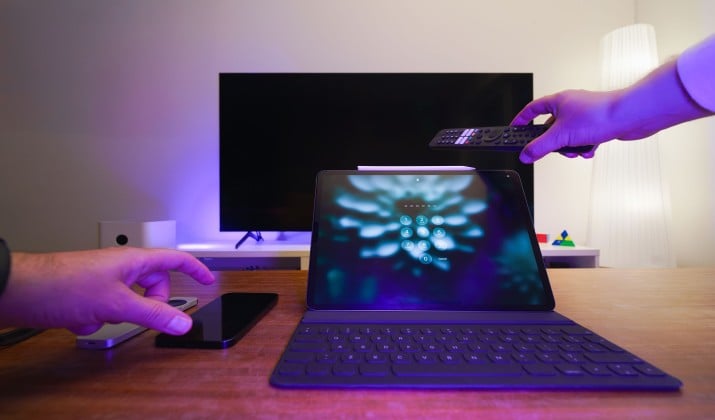
Lost your Samsung remote again? Your iPhone can replace it today.
This guide covers the best Samsung TV remote apps for iPhone, how to set them up in under a minute, and which one gives you the most control without the usual headaches.
You get both the official option and the strongest third-party alternatives, so you can pick a true replacement remote or a full smart-home controller.
Why Your iPhone Makes a Better Samsung Remote
Physical remotes disappear, batteries die, and tiny buttons are hard to press in a dark room.
A Samsung TV remote app on your iPhone lights up, stays in your pocket, and adds features a plastic remote cannot match. Think touchpad navigation, on-screen keyboard for fast text input, and instant app launcher access to Netflix, YouTube, and Disney+.
Most apps connect over Wi-Fi, so your iPhone and TV need to be on the same network to find each other. When you pair for the first time, your Samsung TV will show a prompt asking you to allow remote access. Once you accept, you are set.
Compatibility usually comes down to model year and software. Samsung TVs from 2016 onward running Tizen work best. That includes most QLED, Neo QLED, Crystal UHD, and The Frame models. Older sets can still work, but you may need extra steps and power-on may not be available.
Before you install anything, check three permissions on your iPhone:
- Local network permission to allow network discovery
- Nearby devices permission for automatic TV detection
- Microphone permission if you want voice search or voice control
Official vs Third-Party: What is the Difference?
Samsung gives you one official route, while the App Store offers plenty of alternatives. The difference matters.
SmartThings is the official app from Samsung. Think of it as a smart-home dashboard first, remote second.
It can control your lights, appliances, and your TV in one place. SmartThings connects quickly, gets the deepest access to your TV settings, and lets you switch inputs, change HDMI sources, and manage your smart-home dashboard.
It feels more like a hub than a classic clicker, and you do need a Samsung account to use it.
Third-party options take the opposite approach. A dedicated Samsung TV remote app focuses only on being a remote.
You get a familiar layout with a power button, mute button, volume control, channel control, and navigation buttons, plus quick access to the channel guide and media casting.
Many also add useful extras like screen mirroring, AirPlay, faster text input, and more customization. Some are ad-supported, others use in-app purchases, and a few offer a clean one-time paid experience.
If you want one app for the whole home, start with SmartThings. If you just want the fastest replacement for a lost remote, a third-party app usually wins.
Best Samsung TV Remote Apps for iPhone
1. SmartThings App
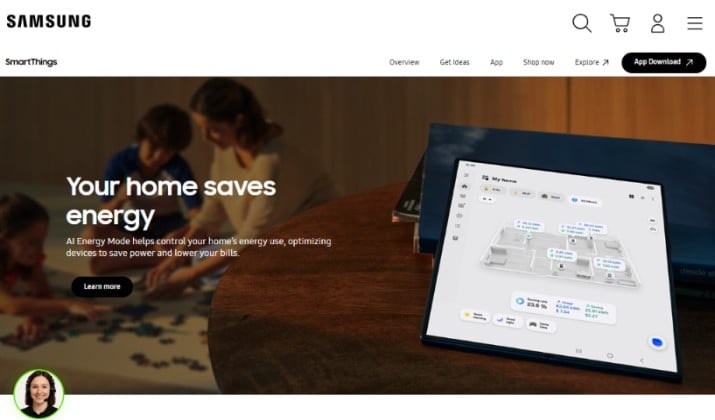
Best for: Official, free control for your whole home
This is the official Samsung SmartThings app. It is completely free and made by Samsung.
You get automatic TV detection when your iPhone and TV share the same Wi-Fi network, plus a full directional pad and app launcher for quick access to Netflix, YouTube, and other installed apps.
You can adjust volume, change channels, switch HDMI inputs, and check TV status. Beyond the TV, it also controls lights, appliances, and other Samsung devices from one dashboard.
It works with Samsung Tizen TV models from 2016 and newer, including most QLED, Neo QLED, Crystal UHD, and The Frame sets.
You need to sign in with the same Samsung account on both devices for pairing to complete.
Pricing: The app is free to download and use. There is no subscription for remote features and no ads inside the remote.
Link: App Store
Also read: Best Free Samsung TV Remote Apps
2. TVRem Universal Remote App
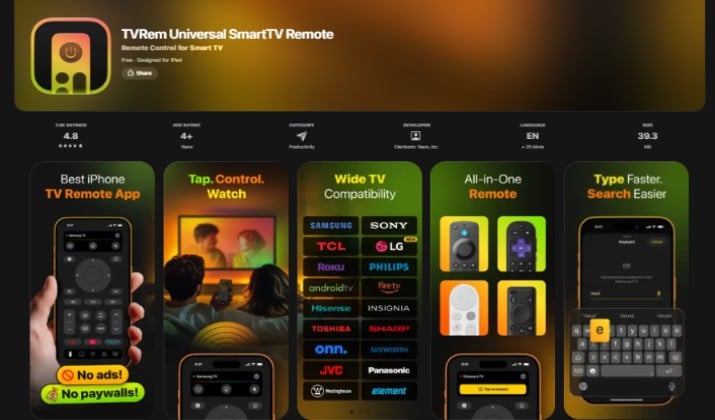
Best for: The best Samsung TV remote app for iPhone with no ads
If you want a free Samsung TV remote app for iPhone that just works, TVRem stands out. It keeps core controls free and does not lock power or volume behind a paywall.
The experience feels fast. There is no account to create. You open the app, it finds your TV, and you get touchpad navigation, a full QWERTY keyboard for fast text input, one-tap launching for streaming apps, and smooth playback controls.
Volume and channel work instantly, and it also supports other brands if you have more than one TV at home.
It supports Samsung Smart TVs from 2012 and newer. Both devices need to be on the same local network for automatic detection to work.
Pricing: Free to download with no subscription needed for the basic remote. Pro features are optional if you want more customization.
Link: App Store
3. ControlMeister Samsung TV Remote App
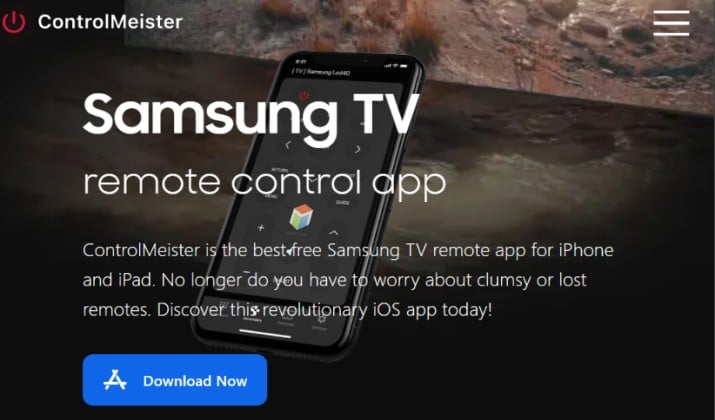
Best for: Keyboard and mouse pad lovers
ControlMeister has been around for years and calls itself the number 1 remote for Samsung. It earns that by focusing on typing and browsing.
You can control your TV with swipe gestures, use an advanced keyboard to log into apps or enter web addresses quickly, and move around with a mouse pad.
You also get customizable buttons to launch your favorite apps, plus input switching, HDMI selection, mute, power, and access to the channel guide.
It focuses on Samsung Tizen TV and works best with models from 2014 and newer. It feels especially smooth on Samsung QLED TV and Samsung The Frame, where text entry matters.
Pricing: Free to download, with a one-time Pro unlock between $3.99 and $4.99 to remove limits. There is no weekly subscription.
Link: App Store
Read this too: Best Universal Remotes for YouTube TV
4. Samsung Smart TV Remote Plus
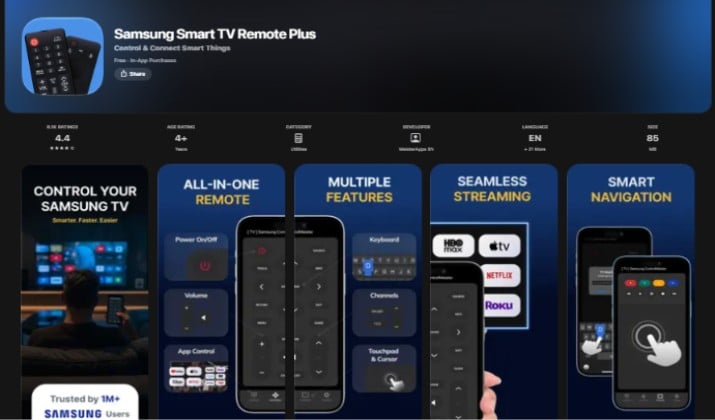
Best for: Classic button layout on iPhone and iPad
This one keeps things familiar. If you do not want to relearn a new layout, it mirrors the original Samsung clicker so you can use it right away on your iPhone and iPad.
You get a traditional directional pad, number pad, navigation buttons, volume and channel control, a quick app launcher, and input switching. The connection uses the same Wi-Fi network and feels stable for everyday use.
It works across Samsung Smart TV, Samsung Crystal UHD TV, and Samsung Neo QLED TV families. Both your iPhone and TV need to be on the same local network.
Pricing: Free to start with ads. You can remove ads and unlock extra features with a Pro version that usually costs around $4.99 one-time or $9.99 per year depending on the current promotion.
Link: App Store
5. Remote for Samsung TV
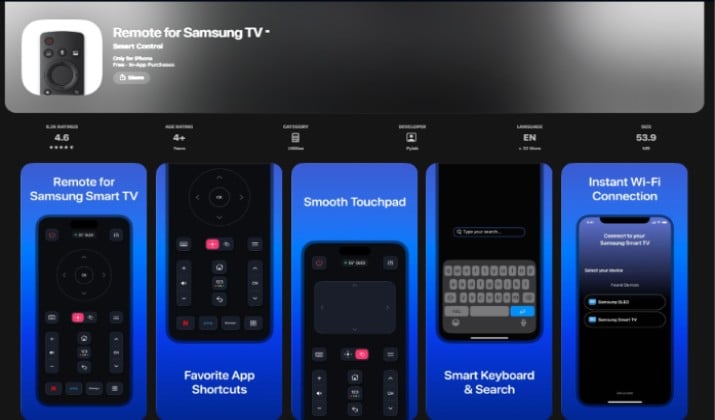
Best for: Simple, free remote with keyboard
Listed as Remote for Samsung TV by Pylab, this app wins on simplicity. The UI uses large buttons, so it is easy to use without looking.
Typing is where it helps most. You get a full keyboard for text input, a touchpad for precise navigation, power and mute buttons, volume control, channel buttons, and a source menu for switching inputs. If you type passwords or search often, this saves time.
It covers a wide range, from 2010 to 2024 Samsung Smart TV models. It also works as an iPhone remote for Samsung TV and as a Samsung TV remote app for iPad on the same network.
Pricing: Free with ads to start. You can remove ads for $2.99 one-time, and premium features cost around $4.99 one-time.
Link: App Store
Explore: Best Remotes for TCL TVs and TCL Roku TV
6. Smart TV Remote for Samsung
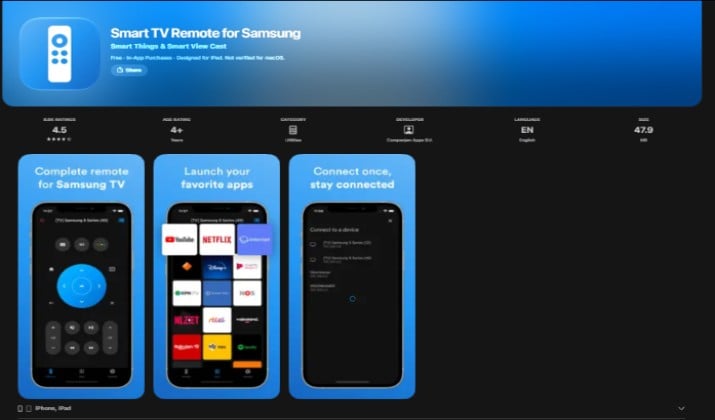
Best for: Fast automatic detection
When network discovery fails elsewhere, this app often finds your TV first. It is built for speed.
You open it and it starts scanning right away. Once it spots your Samsung TV on the same Wi-Fi network, you tap to connect and you get a clean set of controls.
Navigation buttons feel responsive, volume and channel respond instantly, and you can switch HDMI inputs or jump to app shortcuts without digging through menus.
It even includes simple connection troubleshooting tips inside, so you can fix pairing issues without searching online.
It works with Samsung Tizen TV and older Smart Hub models. You need to grant local network permission so automatic detection can run.
Pricing: Free to download and use. It is ad-supported, and you can remove ads with an optional purchase that usually runs between $1.99 and $3.99.
Link: App Store
7. Voice Remote for Samsung TV
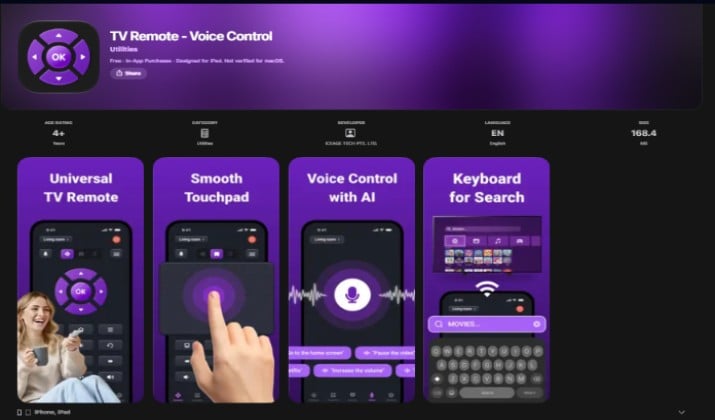
Best for: Voice search and Apple Watch
If you would rather speak than type, this one helps. It adds voice search and Apple Watch control so your remote lives on your wrist.
You can use voice control to search for shows, open apps, or enter text.
Once you grant microphone permission, commands work from your iPhone, and you can also control basic functions from your Apple Watch.
Alongside voice, you still get a touchpad and keyboard for when you need precise navigation or quick text input.
It works best with Samsung models that support voice assistant features, and it performs better when your TV firmware is fully updated.
Pricing: The free tier covers basic button presses. Premium voice and watch features are behind a subscription that typically costs $5.99 per week or $29.99 per year.
Link: App Store
8. Zapper Samsung TV Remote App
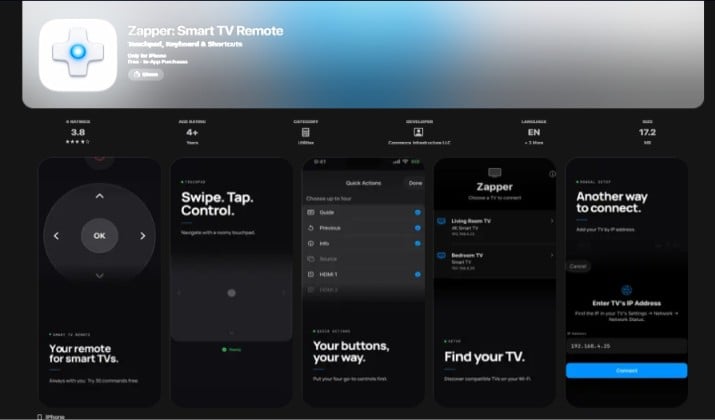
Best for: Minimal design and speed
Zapper strips away clutter. If other apps feel busy, this feels calm.
You get a clean D-pad, simple volume and channel controls, power and mute buttons, navigation buttons, and a quick source list to change inputs.
The layout is lightweight, so the app launches fast and stays easy to use in the dark.
It supports Samsung Smart TV models from 2012 and newer. It is a good match for older Samsung Crystal UHD TV sets where you just want reliable basics.
Pricing: Free with ads to start. Zapper Pro unlocks an ad-free experience with a one-time purchase around $3.99, which makes it a solid Samsung TV remote app with no ads.
Link: App Store
9. Remotie Samsung TV Remote App
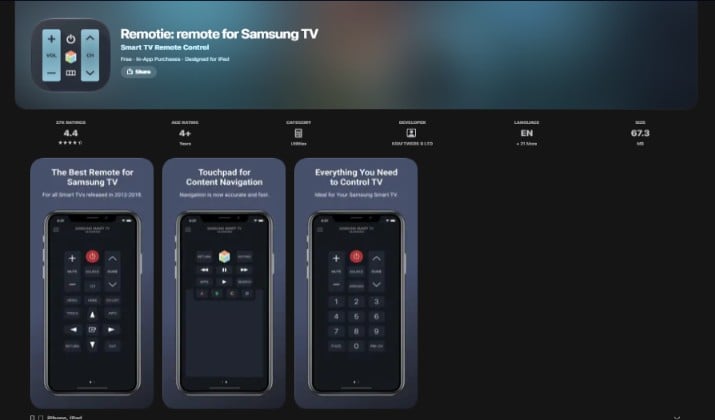
Best for: touchpad plus keyboard combo
Remotie focuses on browsing. If you use the TV web browser or sign into streaming apps often, it saves a lot of time.
You get a large touchpad for smooth cursor control and a full keyboard that syncs text input from your iPhone.
Customizable buttons let you launch your favorite TV apps quickly, and the app launcher keeps everything within reach. The Pro version also adds screen mirroring, which feels similar to Smart View style media sharing.
It requires iOS 14 and later and works with Samsung Tizen TV. Your iPhone and TV need to be on the same local network, and you need to accept remote-control permissions on the TV screen.
Pricing: Free to try with basic controls. Pro version is around $3.99 one-time, with an optional ad removal around $1.99. There are also monthly at $9.99 and yearly at $19.99 if you prefer subscription access.
Link: App Store
10. myTifi Samsung TV Remote App
Best for: Gestures and Apple Watch control
myTifi uses swipe gestures instead of tiny buttons. You swipe to change volume or channels, which feels natural on iPhone.
You can control your TV with gestures, launch TV apps instantly with customizable buttons, and use the touchpad and keyboard to navigate the web browser.
It also supports iPhone, iPad, and Apple Watch, so you can adjust volume from your wrist. That Apple Watch support makes it stand out if you want a Samsung TV remote app for Apple Watch.
It works across most Samsung Smart TVs.
Pricing: The free version covers basic control. Power control unlock is around $2.99 one-time, and full premium is around $4.99 one-time. There is no subscription needed for core features, which makes it a good Samsung TV remote app without subscription.
Link: App Store
How to Set up Any Samsung TV Remote App on iPhone?
The steps stay almost identical across apps:
- Put your iPhone and Samsung TV on the same Wi-Fi network. Avoid guest networks.
- Update TV firmware under Settings > Support > Software Update and update the app to latest software version.
- Open the app, grant local network permission and nearby devices permission.
- Allow automatic TV detection to scan, then select your TV name.
- Accept the pairing prompt on your TV screen to grant remote-control permissions.
- Test power button, volume control, and input switching. If power on fails, enable Power On with Mobile in TV settings > General > Network.
What if the App Cannot Find Your TV?
- Check that both devices share the main network, not a 5 GHz only vs 2.4 GHz split that blocks discovery.
- Disable AP isolation or client isolation in router settings.
- Restart TV and iPhone, then retry.
- Keep connected devices under ten during first pairing, as Samsung recommends.
- Reinstall app if privacy permissions were denied earlier.
Which App Should You Pick?
If you want one free official app that also controls your smart home, choose SmartThings iPhone app. It costs nothing, comes from Samsung, and integrates with your smart-home dashboard, AirPlay, and media casting.
If you want the fastest, most familiar remote that feels better than the original clicker, choose TVRem universal remote app or ControlMeister Samsung TV remote.
Between those two, TVRem wins for most people. It offers full touchpad navigation, keyboard, app launcher, and channel control without a subscription, without heavy ads, and with broad support for Samsung QLED TV, Samsung Neo QLED TV, Samsung Crystal UHD TV, and Samsung The Frame.
ControlMeister comes close, but its keyboard fails in Netflix and YouTube in some versions.
That makes TVRem the overall better Samsung TV remote control app for iPhone for daily use, while SmartThings remains the best companion if you already live in the Samsung ecosystem.
Start with TVRem, keep SmartThings for home automation, and add myTifi or Remotie only if you specifically want gestures or Apple Watch wrist control.