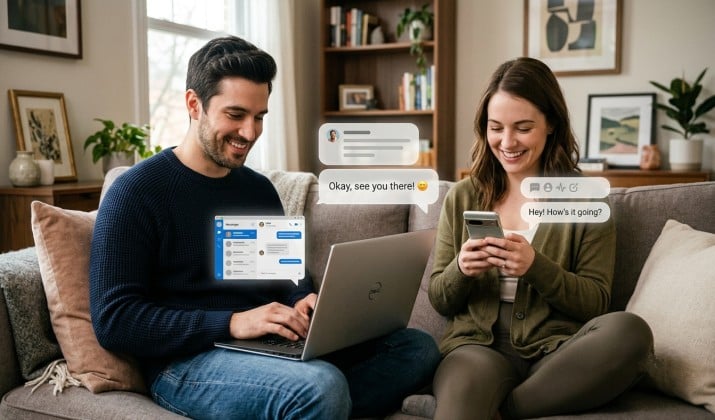
Tired of grabbing your phone every time a text comes in? You can send and receive texts on any device with Pulse SMS.
It doesn’t matter if you’re working on your laptop, browsing on your tablet, or sitting at your desktop. With Pulse SMS, your messages stay updated and ready to go. No more “sorry, didn’t see your text” because your phone was in the other room.
If you want one of the best apps to send SMS from PC, Pulse SMS ranks high on that list alongside MightyText and MySMS. It’s a premium Android texting app for cross-device messaging that actually feels like your phone’s messaging app just… expanded. Let’s talk about how it works and why you might want it.
What Is Pulse SMS and Why Should You Care?
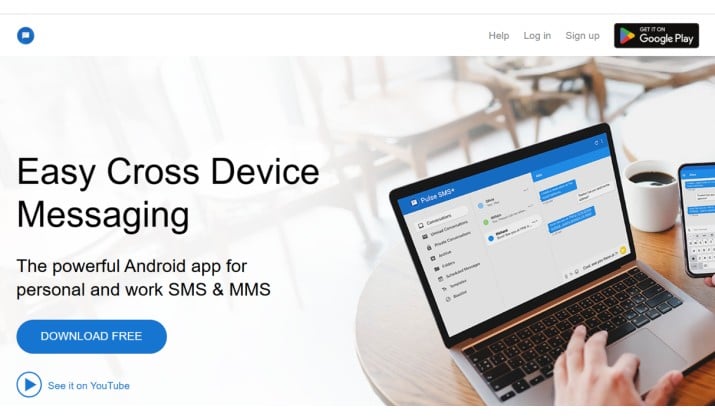
Pulse SMS is a cross-device SMS messenger for Android that lets you text from your laptop and tablet while keeping messages synced to your phone with Pulse SMS. Think of it as your phone’s texting app, but cloned onto every screen you use.
You install the app on your Android phone, set it as your default SMS app, and then you can send and receive texts on any device.
That means PC, Mac, Chromebook, tablet, or even a second phone. Everything stays in sync, so a photo you get on your phone shows up on your computer too.
The big win? You text from computer using your Android phone number with Pulse SMS. Your friends see your regular number. No weird virtual numbers or “sent from web” disclaimers.
Instant Sync Between Phone and Web / Desktop Apps
Here’s how the magic happens. When you send and receive texts on any device, Pulse SMS uses your phone as the hub. Your phone is the “primary device” that talks to your carrier. Then it instantly pushes every message to your other devices through your Pulse account.
Open the web app at or download the desktop apps for Windows, Mac, or Linux. Log in with the same account and boom, your full conversation history shows up. Delete a message on your laptop? It disappears from your phone too. Reply from your tablet? Your phone shows it as sent.
This setup makes Pulse SMS the best SMS app to text from any device if you live on multiple screens. Students love it for texting during lectures without pulling out a phone. Remote workers use it for remote SMS management for professionals using Pulse SMS. You stay responsive without the phone distraction.
How to Set Up Pulse SMS Account and Make Your Phone the Primary Device?
Setting up Pulse SMS takes about three minutes. Here’s what you do:
- Install Pulse SMS on your Android phone: Grab it from Google Play Store. Open it and set it as your default SMS app. This step is key. Pulse can’t send and receive texts on any device unless it handles your texts first.
- Create your Pulse SMS account: In the app, swipe open the left menu and tap “My Account”. Sign up with your email. This account links all your devices. Your Android phone automatically becomes the primary device because it has the SIM card.
- How to install and log In to Pulse SMS on phone, tablet, and desktop: On your other devices, you have options. Use the Pulse SMS Web App in any browser. Or download the desktop apps for Windows, Mac, and Linux. For tablets, install Pulse SMS from the Play Store and choose “tablet mode” at login.
Log in with the same account you made on your phone. Give it 30 seconds to sync. Now you can send and receive texts on any device.
Send SMS and MMS from Any Platform (PC, Mac, Tablet, Chromebook)
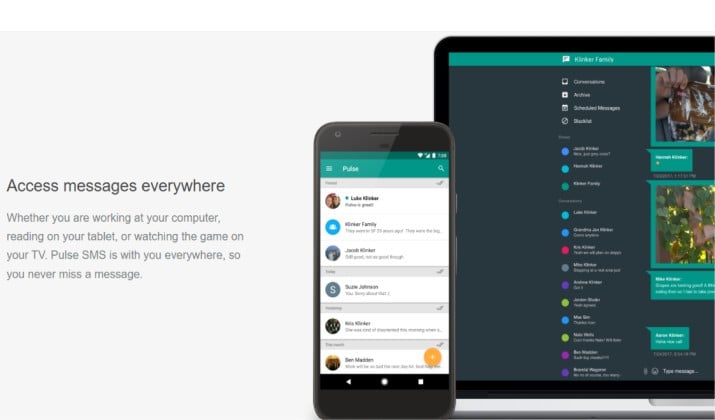
Once you’re set up, texting from your computer feels natural. You type on a real keyboard, drag and drop photos, and copy-paste links without fumbling.
Pulse handles more than plain text. You can send and receive texts on any device and still get group MMS, GIFs, photos, videos, and voice notes. Someone sends you a meme to your number? It pops up on your Chromebook instantly. You reply with a photo from your PC’s folder? It goes through your phone number via MMS.
That’s where Pulse SMS multi-device texting vs carrier-only SMS apps stands out. Carrier web apps like Verizon Messages often limit you to one browser and skip MMS features. Pulse gives you full functionality to send and receive texts on any device, with your actual number.
Notification Mirroring, Custom Colors, and Per-Conversation Settings
Pulse isn’t just about access. It’s also about making texting feel like yours.
You get notification mirroring, so if you dismiss a text alert on your desktop, it clears from your phone too. No double notifications. You can set custom colors and LED settings for each contact. Make work texts red, family blue, and your best friend purple.
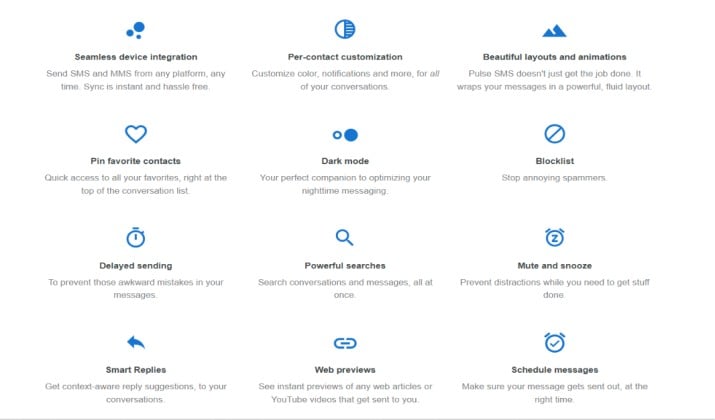
Per-conversation settings let you mute busy group chats on all devices at once. You can schedule messages, create auto-replies, and pin your favorite conversations to the top. These touches make you actually want to send and receive texts on any device instead of defaulting back to your phone.
Pulse SMS Account and Primary Device Concept for Multi-Device Texting
A question people ask a lot: do you need your phone on? Yes. Your Android phone is the primary device, so it has to stay powered and connected to cell or WiFi. It’s the bridge that lets you send and receive texts on any device.
This is different from iMessage, which can run without your phone. But it’s also why Pulse works with your real phone number on any carrier. The primary device handles the actual sending through your carrier’s network. Then Pulse syncs the results everywhere.
How to Use Pulse SMS with Two Phones (Personal and Work) on One Number?
Got a work phone and a personal phone? You can still send and receive texts on any device using one number. Set your personal Android phone with the SIM as the primary device.
Then install Pulse on your work phone, log in, and don’t set it as default. Your work phone acts like a tablet — it can view and send texts through your personal phone’s number.
Just remember, only the primary device needs to be on. If your personal phone dies, the second phone can’t text until you charge it.
Battery and Data Optimization Requirements for Reliable Sync
For reliable sync, Pulse needs to run in the background on your primary phone. That uses some battery and data.
To keep things smooth:
- Turn off battery optimization for Pulse on your phone. Android often kills background apps to save power. Go to Settings > Apps > Pulse SMS > Battery > Unrestricted.
- Keep data or WiFi on. Pulse uses a small amount of data to sync messages. If you’re offline, your other devices won’t get new texts until your phone reconnects.
- Check “Web Service” in Pulse settings. If sync stalls, open Pulse on your phone, go to Settings > Advanced > Web Service, and make sure it’s running.
Follow those steps and you can send and receive texts on any device without hiccups.
How to Fix Pulse SMS Messages Not Showing Up on the Web or Desktop Apps?
If messages aren’t showing up, try this quick checklist:
- Is your primary phone on and online? No phone connection means no sync.
- Restart the Web Service. On your phone, open Pulse > Settings > Advanced > Restart Web Service.
- Check battery optimization. If Android put Pulse to sleep, it stops syncing.
- Log out and back in on your web or desktop app.
Most issues come down to the phone connection. Fix that and you’re back to being able to send and receive texts on any device.
Pulse SMS Pricing for Cross-Device Features
Using Pulse SMS on your Android phone is completely free and ad-supported. To sync messages across multiple devices (computers, tablets, or web browsers), you will need a Premium subscription.
Cross-device syncing is a premium feature. You can pay monthly, yearly, or buy a lifetime unlock. Premium pricing plans are as follows:
- Monthly: $0.99
- Yearly: $39.99
- Lifetime: $109.99 to $149.99
Pricing is subject to change. Check the official Pulse SMS pricing page for current plans.
Is Pulse SMS Worth Paying For Compared to Other Free SMS-From-PC Apps?
So here’s the real question: should you pay?
Free apps like Google Messages for Web exist. They let you text from your PC too. But they’re limited. You need to scan a QR code, stay on one browser tab, and you don’t get features like scheduling, pinning, or custom themes. Some carrier apps are clunky or don’t support MMS well.
Pulse SMS charges because it does more. You get true multi-device support, not just a mirrored tab. Plus, there are power-user features. Users also get apps for desktop, not just a website. If you send and receive texts on any device daily for work or school, the time you save typing on a keyboard pays for itself.
If you only text from your PC once a month, the free options might be enough. But if you want your messages everywhere, all the time, Pulse SMS is the best SMS app to text from any device. It’s built for people who live on more than one screen.
Read this too: Best Google Messages Alternatives
Which App Should You Choose?
When you compare Pulse SMS multi-device texting vs carrier-only SMS apps, Pulse wins for flexibility and features. Carrier apps tie you to one ecosystem. Google Messages for Web is good but basic. MightyText and MySMS are solid alternatives, but Pulse tends to be faster and more polished, especially for MMS and customization.
If you want the most complete way to sync SMS and MMS across phone, tablet, web, and desktop with Pulse SMS, it’s the clear pick. The lifetime unlock means you pay once and you’re set.
You install it, you log in, and suddenly your phone number isn’t stuck on your phone anymore. You can send and receive texts on any device and get on with your day. And that’s the whole point — your texts should follow you, not the other way around.