You sit down at your laptop to get work done. Your Android phone buzzes in the other room. You walk over, unlock it, reply to a text, and head back. Ten minutes later it happens again. Sound familiar?
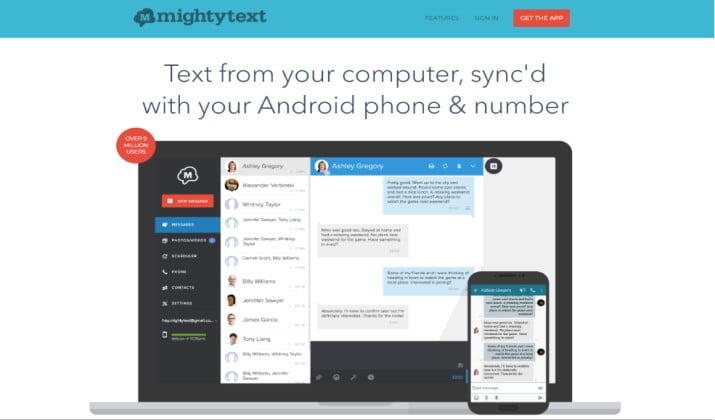
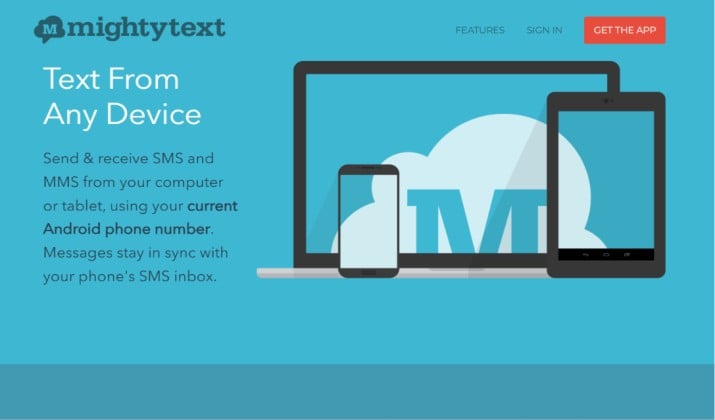
MightyText fixes that loop. You text from computer using your Android phone number, so you keep your phone in your pocket and stay focused on your screen. You send and receive SMS from PC, Mac, or tablet with MightyText, and everything stays synced with the Messages app on your phone.
This guide shows you how MightyText works, how to set it up, and why it’s one of the best apps to sync SMS between Android phone and PC.
Why Text From Computer Makes Your Day Easier?
You type faster on a full keyboard. Plus, you copy and paste links, addresses, or files without juggling devices. You can reply while your phone charges across the room.
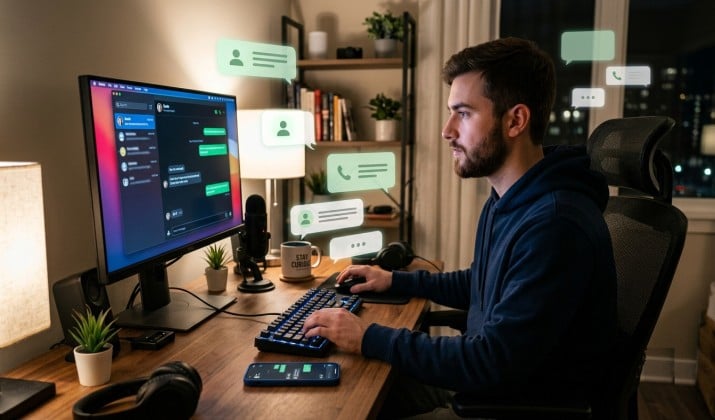
When you text from computer, you stop the phone-pickup habit that breaks your focus. Your conversations live in one place, and you never miss a message because your phone was on silent.
MightyText handles the connection so you send and receive SMS from PC, Mac, or tablet with MightyText and keep your flow.
How To Set Up MightyText Android App and Desktop Extension?
Getting started takes about three minutes. You install the app, link your Google account, and you can text from computer right away.
- Grab the MightyText app on your Android phone from the Google Play Store.
- Open the app and sign in with your Google account. This keeps everything secure.
- On your computer, install the MightyText desktop app for Windows and Mac, or add the Chrome extension.
- Sign in with the same Google account on your computer.
- Give the app permission to access SMS, contacts, and notifications on your phone.
Once you finish, MightyText syncs SMS messages between Android phone and computer. Your recent texts show up on your desktop. You can reply, start new threads, and attach photos.
Because you text from computer using your Android phone number, people see messages from you, not from a random new number.
How To Install MightyText on Android and Connect It to Your PC, Mac, or Tablet?
You already saw the quick setup, but here’s the full path so you don’t miss a step.
Android phone:
- Open Google Play Store and search “MightyText”.
- Tap Install. Open the app after it downloads.
- Sign in with Google and approve SMS, Contacts, and Phone permissions.
Computer:
- Go to mightytext.net and download the MightyText desktop app for Windows and Mac. Or search “MightyText” in the Chrome Web Store for the extension.
- Install and open it.
- Sign in with the same Google account you used on your phone.
Tablet:
- Install the MightyText Tablet App from Google Play.
- Sign in with the same Google account.
Once all devices use the same account, you text from computer immediately. Your messages, photos, and alerts sync across everything.
How To Text From Your Computer Using MightyText?
You’re set up. Now you actually want to text from computer. Here’s the quick workflow you use every day.
- Open MightyText on your desktop or in Chrome.
- Click “New Message” or select an existing thread.
- Type your message in the box. Attach a photo or GIF if you want.
- Press Enter or click Send.
Your Android phone relays the SMS through your carrier. The person gets a normal text from your number. Their reply shows up on both your phone and computer instantly. That’s texting from computer with your existing phone number, so your contacts don’t get confused.
Read this too: Best Private Messaging Apps Without Phone Number
Sync SMS, MMS, Calls, Notifications, Photos, and Battery Status
MightyText does more than plain text. It mirrors what’s happening on your phone so you stay in the loop without checking it.
Here’s what you get on your laptop or tablet:
- SMS and MMS: Send regular texts and picture messages. You keep full threads so context never gets lost.
- Calls: See incoming call alerts. You know who called even if your phone is in another room.
- Notifications: Mirror phone notifications on your computer, including WhatsApp, missed calls, and SMS. You choose which apps can ping your desktop.
- Photos and videos: Open your phone’s gallery from your browser. You drag a photo into a text or download it to your PC.
- Battery status: Check your phone’s battery level from your computer. You know when you need to plug it in.
With all of this, you text from computer without leaving your phone behind. You stay productive and your phone stays where you left it.
How To Schedule Text Messages From Computer Using MightyText?
You want to send a reminder tomorrow morning. Or you need to wish a client happy birthday at 9 AM but you’ll be in meetings. MightyText lets you schedule text messages from computer with MightyText so you set it and forget it.
Open a conversation on your desktop. Write your message. Click the clock icon next to the send button. Pick a date and time. MightyText sends it from your Android phone at that exact time, even if your computer is off. Your phone does need to be on and connected to data or Wi-Fi.
You use this for client follow-ups, appointment reminders, or team check-ins. It’s one of the best MightyText features for productivity because it removes the mental load of remembering to text later.
Send Group SMS and MMS From Desktop
Group chats are easy on your phone. They’re faster on your computer. You start a group text, add multiple contacts, and send group SMS and MMS from desktop using MightyText just like you would on Android.
Type names into the “To” field. MightyText pulls from your phone’s contacts. Add a photo or GIF. Hit send. Everyone gets the message from your regular number. Replies come back to both your phone and computer because MightyText syncs SMS messages between Android phone and computer in real time.
For remote SMS management tools for professionals and remote workers, group texting from a keyboard saves serious time.
Call From Phone Using Click-To-Call
You see a phone number on a website. Instead of typing it into your phone, you click it. MightyText triggers a call on your Android. You pick up your phone and talk.
The call from phone using MightyText desktop app click‑to‑call feature turns your computer into a dial pad. You keep your call history and contacts in sync, and you avoid mistyped numbers. You still talk on your phone, but you start the call from your PC.
Sync Photos and Maps Between Android and PC
You took photos at a site visit. Now you need them in a report. With MightyText, you open the Photos tab on your computer, find the shots, and download them. No cable, no emailing them to yourself.
You can also share maps. Paste an address into MightyText and send it as an MMS. Or pull up your phone’s recent locations and send a pin to a friend. The sync photos and maps between Android and PC using MightyText feature keeps your visuals flowing between devices.
MightyText vs Other Text-From-Computer Apps
You have options for remote SMS management tools for professionals and remote workers. Here’s how MightyText stacks up against popular alternatives like Pushbullet, MySMS, and MobiKin Assistant.
|
Feature |
MightyText |
Pushbullet |
MySMS |
MobiKin Assistant |
|---|---|---|---|---|
|
Text from computer |
Yes, using your Android number |
Yes, with limits on free plan |
Yes, Android number |
Yes, but requires USB for full SMS |
|
Schedule messages |
Yes |
No |
Yes on paid plan |
No |
|
Notification mirroring |
Yes, granular app control |
Yes, all apps |
Yes |
Limited |
|
Photo and video access |
Yes, from desktop |
Yes, with file limits |
Yes |
Yes, via USB |
|
Desktop app |
Windows, Mac, Web, Tablet |
Web and desktop |
Web and tablet |
Windows and Mac |
|
Price |
Free tier + Pro |
Free tier + Pro |
Free tier + Premium |
Paid license only |
Which tool comes out on top?
MightyText wins for most Android users who want to text from computer daily. You get message scheduling, strong notification controls, and easy photo access without a cable.
Pushbullet is great for file sharing but caps your SMS count on the free plan. MySMS works well but locks scheduling behind payment. MobiKin needs a USB connection for many features, which defeats the point of keeping your phone in your pocket.
If you want a dedicated text from computer workflow with your real number, MightyText gives you the most complete package. That makes it the better pick for productivity compared to other cross‑device messaging apps for productivity.
Texting From Computer With Your Existing Phone Number
Some apps give you a separate number. Your clients don’t recognize it. Your friends ask “who’s this?” MightyText avoids that problem.
Because you text from computer using your Android phone number, every message looks like it came from your phone. Your carrier handles the SMS. MightyText just bridges your computer to your phone. You keep one inbox, one number, and zero confusion.
Best MightyText Features for Productivity
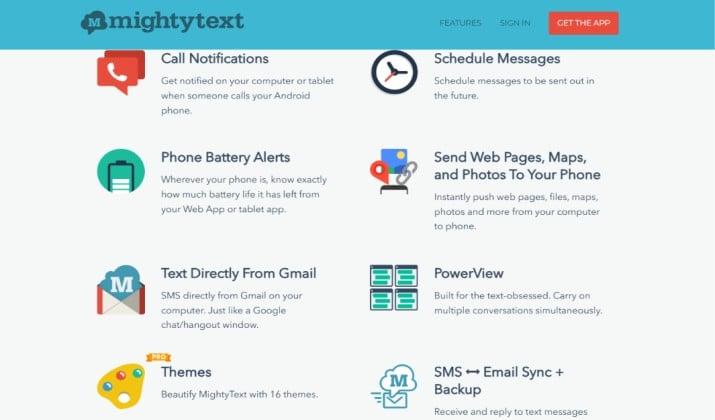
You want tools that save time, not add steps. These MightyText features do exactly that:
- Templates: Save replies you send often. You insert them with two clicks instead of retyping.
- Signatures: Add a line like “Sent from my PC via MightyText” or your name and title for client texts.
- PowerView: Pop out multiple conversations into small windows. You manage team and client chats side by side.
- Batch delete: Clean up old threads from your computer faster than swiping on your phone.
- Low battery alerts: Get a desktop notice when your phone hits 15%. You plug it in before it dies.
When you combine these, you keep phone in pocket and text from laptop with MightyText while you knock out real work.
Pricing
- Free Version: Caps you at 15 messages sent from your computer per month.
- MightyText Pro: Removes message limits and adds features like message scheduling and templates.
Check MightyText Pricing Page for latest.
Get MightyText Today
Ready to stop running to your phone every five minutes?
Install MightyText once. You’ll text from computer using your Android phone number within minutes. You can sync SMS messages between Android phone and computer, schedule texts, handle group chats, and mirror notifications without touching your phone.
You get more done. Your phone stays put. And your thumbs thank you.