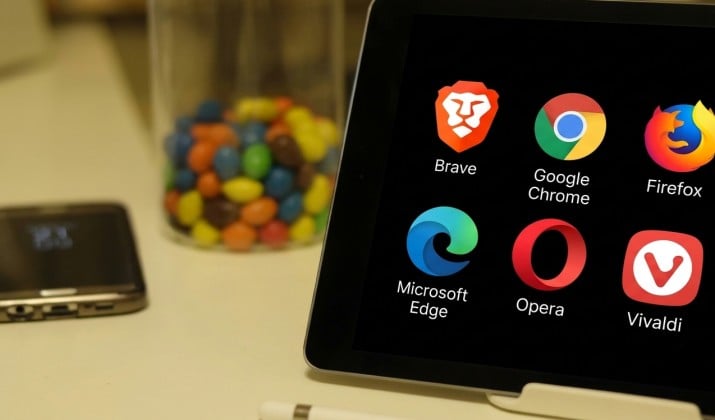
Your iPad is no longer just a big iPhone. With a keyboard, an Apple Pencil, split-screen multitasking, and desktop-class websites, it can replace a laptop for browsing, studying, shopping, research, and work.
The browser you choose decides how fast pages load, how much battery you burn, how well your tabs sync, and how much of your activity gets tracked.
One important fact shapes every choice: outside the EU, every iPad browser still has to use Apple’s WebKit engine. That means the real differences are not raw rendering speed, but privacy, sync, tab management, extensions, AI tools, and ecosystem fit.
The right pick depends less on which browser is “best” overall and more on how you actually use your iPad.
Best Browsers For iPad
1. Safari
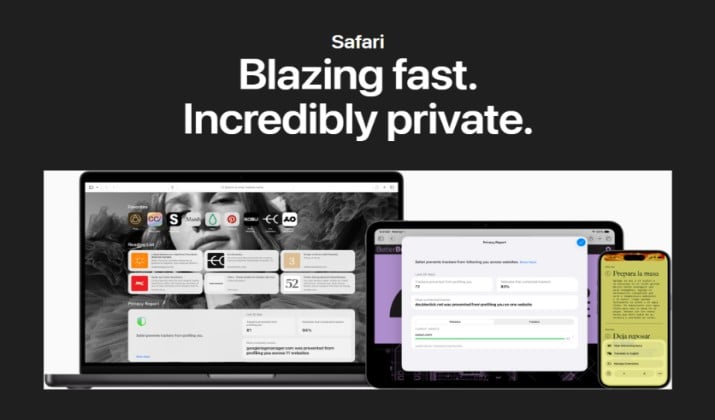
Safari remains the default for a reason.
It is deeply built into iPadOS, so iCloud Keychain, iCloud Tabs, Handoff, Apple Pay, passkeys, and Private Browsing all work without setup. It is also tuned for Apple silicon, which helps battery life and keeps scrolling smooth on older iPads.
Modern Safari is far more flexible than it used to be. Profiles separate work, school, and personal browsing with their own tab groups, history, cookies, and extensions.
Reader mode strips clutter from long articles. Tab Groups keep research organized, while Intelligent Tracking Prevention and advanced fingerprinting protection reduce cross-site tracking.
Safari Web Extensions now support a growing library of ad blockers, password managers, translators, and productivity tools.
Best for: People who live in the Apple ecosystem and want the simplest, most efficient everyday browser.
Pricing: Free. Safari comes preinstalled on every iPad with no subscription, no premium tier, and no in-app purchases for the browser itself. Paid Safari extensions from the App Store are optional.
Also read: Best Browsers for Chromebook
2. Google Chrome
Chrome is the best choice if your digital life runs on Google. Sign in once and bookmarks, history, passwords, payment methods, open tabs, and addresses sync across iPad, iPhone, Android, Windows, Mac, and Chromebook.
On iPad, Chrome supports tab groups, voice search, Google Lens, built-in translation, and Google Password Manager. Gemini integration can summarize pages, explain what is on screen, and answer questions about open tabs in supported regions.
Chrome also makes it easy to cast, share to Google apps, and continue a session started on another device.
The trade-off is privacy. Chrome offers strong security features such as Safe Browsing and site controls, but it is designed around a Google account.
If you want maximum tracking protection by default, Brave or Firefox will feel cleaner.
Best for: Google Workspace users, students, and anyone who switches between Google devices all day.
Pricing: Free to download and use. Core browsing, sync, and basic Gemini features are free. Advanced AI features such as agentic browsing generally require a paid Google AI Pro or Ultra subscription, priced separately from the browser.
3. Firefox
Firefox is the strongest mainstream option for people who want privacy without giving up everyday convenience.
It is built by Mozilla, blocks a wide range of trackers by default with Enhanced Tracking Protection, and offers clear controls for cookies, fingerprinting, and site permissions.
Sync works through a free Firefox account. Tabs, bookmarks, logins, and history move smoothly between iPad, iPhone, desktop, and Android.
Firefox also supports collections, tab management, Reader View, and a clean, customizable home screen. Its password manager is solid, and it works well with third-party managers such as 1Password and Bitwarden.
Firefox may not feel as tightly integrated with iPadOS as Safari, but it is fast, stable, and refreshingly free of ads and data-hungry defaults.
Pricing: Free. There is no paid Firefox browser tier. Mozilla offers optional paid services such as Mozilla VPN and Firefox Relay Premium, but they are not required to use the browser.
Best for: Privacy-minded users who still want full sync and a familiar browser experience.
Read this too: Best Browsers for Android Tablets
4. Microsoft Edge
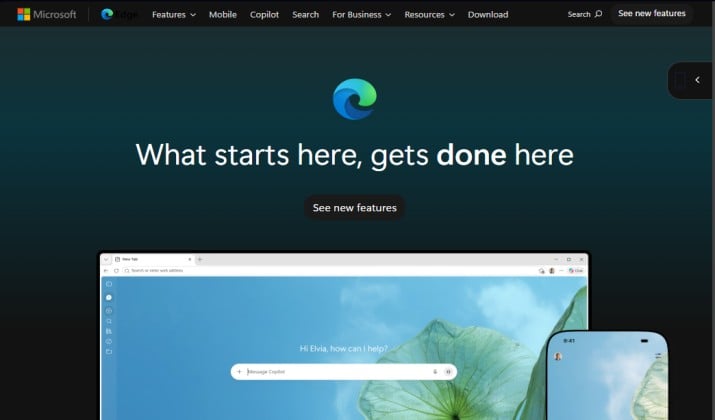
Edge makes the most sense if you use Windows, Microsoft 365, Outlook, OneDrive, or Teams. Sign in with a Microsoft account to sync tabs, favorites, passwords, history, and collections across iPad and PC.
Its standout features are Collections for saving and organizing research, vertical-style tab organization, Immersive Reader, Read Aloud, and built-in tracking prevention.
Copilot can summarize pages, explain content, compare information across tabs, and help draft text. Edge also includes shopping tools such as price tracking and coupon suggestions.
Edge is a capable all-rounder, but its home screen and news feed can feel busy. Turn off the feeds you do not want during setup and it becomes a much calmer browser.
Best for: Windows users, office workers, students, and researchers who live in Microsoft apps.
Pricing: Free. Browsing, sync, Collections, Immersive Reader, and basic Copilot are free. Microsoft 365 and Copilot Pro subscriptions are separate and mainly add productivity and AI benefits outside the browser.
5. Brave
Brave is the easiest way to get a faster, cleaner web without installing a stack of extensions.
It blocks ads, trackers, cookie banners, and fingerprinting by default, which often makes heavy news and shopping sites load noticeably faster and use less data.
Brave Sync keeps bookmarks, history, passwords, and tabs aligned across iPad, iPhone, desktop, and Android.
Its built-in Leo AI assistant can summarize pages and answer questions without requiring an account, and Brave emphasizes keeping chats private rather than using them for profiling.
Brave also includes a private browsing mode with Tor for extra anonymity, a built-in wallet for people who use crypto, and granular Shields controls for each site.
Some sites may ask you to disable Shields for video playback or login walls, but that takes one tap.
Best for: Users who want strong privacy, ad blocking, and speed with almost no setup.
Pricing: Free. The browser, Shields ad and tracker blocking, Sync, and basic Leo are free. Brave offers optional paid upgrades such as Brave VPN, Brave Search Premium, and Brave Leo Premium for heavier AI use, but none are needed for normal browsing.
Explore: Best Email Browsers for Speed & Security
6. DuckDuckGo
DuckDuckGo is built around one idea: browse without being followed. Its browser blocks trackers before they load, forces encrypted connections when possible, and shows a Privacy Grade for every site so you can see what is being blocked.
Its Fire Button is genuinely useful. One tap clears tabs and browsing data, which is ideal for shared iPads, public browsing, or quick research you do not want to keep.
DuckDuckGo also includes Email Protection, which gives you a private forwarding address that strips trackers from emails before they reach your inbox.
The downside is ecosystem depth. Sync is more limited than Chrome or Safari, and it does not offer the same extension library or tab-management tools. That is the point for many users: fewer features, fewer leaks.
Best for: Simple, private, distraction-free browsing.
Pricing: Free. The DuckDuckGo browser, tracker blocking, Fire Button, and Email Protection are free. DuckDuckGo offers an optional paid Privacy Pro subscription that adds a full-device VPN, personal information removal, and identity theft restoration, but the browser itself remains free.
7. Opera
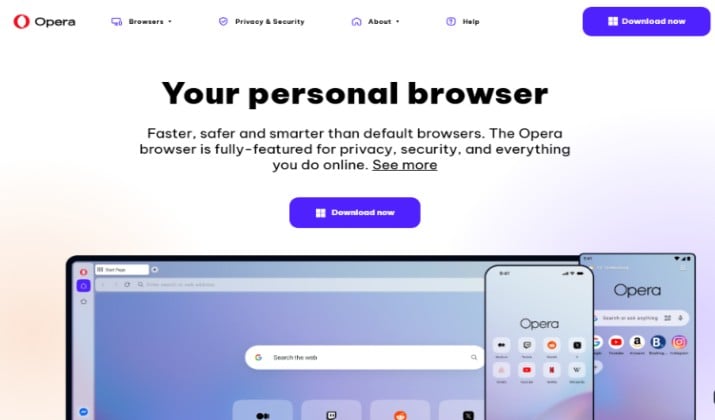
Opera has reinvented itself as an AI-first browser.
The current iPad version includes Opera’s built-in AI assistant, ad blocking, a free VPN, data saving, and Flow, which makes it easy to send links, notes, images, and files between your iPad and phone or desktop.
Its interface is colorful and modern, with quick access to messengers, music players, and workspaces.
Workspaces are especially useful on iPad: keep study tabs, shopping tabs, and work tabs in separate spaces instead of one endless tab bar.
Opera’s free VPN is convenient for public Wi-Fi, but it is not a replacement for a full VPN if you need a specific country, maximum speed, or strict no-logs auditing. Treat it as a useful privacy layer, not a complete VPN service.
Best for: Users who want AI, VPN, workspaces, and a more playful interface in one browser.
Pricing: Free. The browser, AI assistant, ad blocker, and basic VPN are free. Opera’s VPN is convenient for public Wi-Fi, but it is not a replacement for a full VPN if you need a specific country, maximum speed, or strict no-logs auditing.
8. Aloha Browser
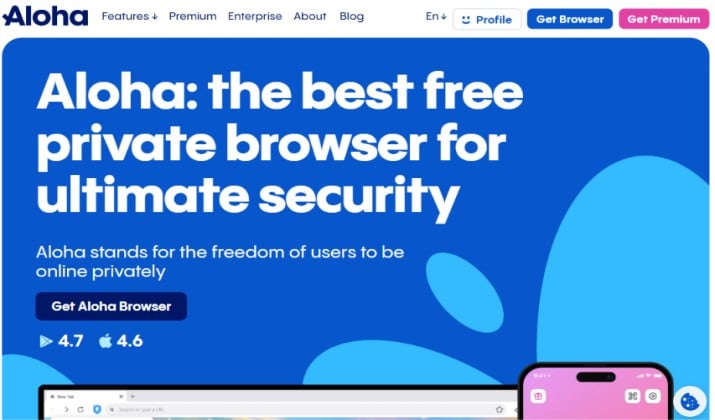
Aloha Browser focuses on media, downloads, and private browsing.
It includes a built-in VPN, ad blocking, a private mode, and a capable media player that makes it easy to download and play videos and audio for offline viewing. It remains actively maintained on iOS and iPadOS.
Aloha is also one of the better browsers for multitasking. It handles background playback, picture-in-picture, and file downloads more smoothly than many rivals, which matters if your iPad doubles as an entertainment device.
The free version covers the basics. Aloha Premium adds unlimited VPN speed, more VPN locations, extra storage, and additional privacy features. If you do not need the VPN or media tools, Safari or Brave will feel simpler.
Best for: Media-heavy users, travelers, and people who want a built-in VPN and downloader.
Pricing: Free to download, with an optional Aloha Premium subscription. The free version includes basic browsing, ad blocking, private mode, and limited VPN use.
9. Vivaldi
Vivaldi is for people who love customization. You can change tab placement, gestures, themes, toolbars, keyboard shortcuts, and start-page layout until the browser feels exactly the way you work.
Its strongest iPad features are tab stacking, tab tiling for viewing two pages side by side, Notes built directly into the browser, and a powerful Speed Dial. It also syncs encrypted data across iPad, iPhone, desktop, and Android.
Vivaldi has no account-based tracking by default and includes built-in tracker and ad blocking. The learning curve is higher than Safari or Chrome, but power users will find it worth the setup time.
Best for: Power users, researchers, writers, and tab hoarders.
Pricing: Free. Vivaldi has no premium browser tier and no subscription required for tab stacking, Notes, Sync, or ad blocking.
10. Orion Browser
Orion, from Kagi, is a fast, lightweight WebKit browser built specifically for Apple devices. It supports many Chrome and Firefox extensions, which is rare on iPad, while keeping telemetry to a minimum.
The browser focuses on speed, low memory use, and clean tab handling. It supports vertical tabs, tab groups, profiles, and sync through iCloud.
It does not try to push AI, news feeds, shopping tools, or crypto features, which makes it feel refreshingly calm.
The trade-off is ecosystem. It does not sync with Windows or Android, and some extensions may behave differently on iPad than on desktop. If you live entirely on Apple devices, that may not matter.
Best for: Apple-only users who want speed, extensions, and no bloat.
Pricing: Free to use, with optional Orion+. A separate Kagi Search subscription is not required and is not included.
11. Dia
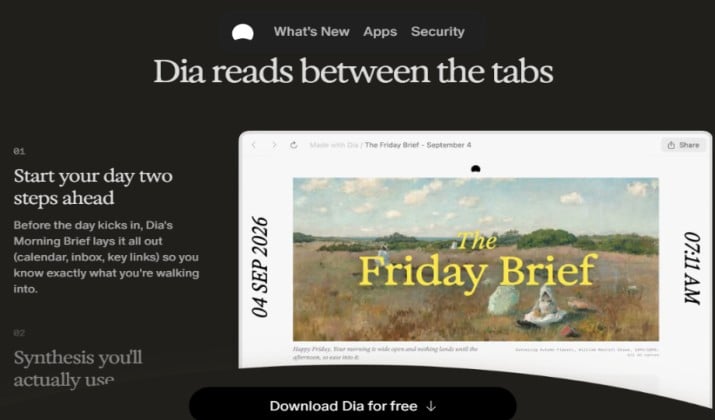
Dia is the successor to Arc from The Browser Company. Arc stopped working in December 2026, and Dia is now the company’s active browser.
Dia is built around AI-assisted browsing. It can summarize pages, answer questions about what you are reading, help compare products, organize research, and assist with writing and planning.
Its interface is designed around tasks and conversations rather than a traditional list of bookmarks.
Dia will appeal most to students, researchers, and professionals who do a lot of reading and writing in the browser.
If you prefer a quiet, traditional browser, Safari, Firefox, or Orion will feel less distracting.
Best for: AI-assisted research, writing, and multitasking.
Pricing: Free to download, with an optional Dia Pro plan. The free tier covers core browsing with limited AI use, while Dia Pro comes with higher AI limits, extended features, and longer history.
12. Comet
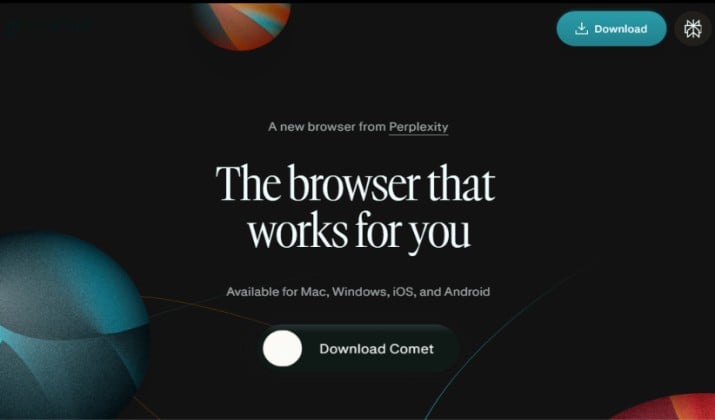
Comet, from Perplexity, is another AI-native browser designed for research.
Its assistant can search the web, summarize articles, compare sources, track topics, and help turn browsing into notes, outlines, and answers.
On iPad, Comet works best for deep research: reading long reports, comparing products, following a developing story, or gathering sources for an assignment.
It is less appealing if you only want a fast browser for social media, banking, or casual reading.
Like all AI browsers, it works best when you are comfortable letting an assistant read the page you are on. For banking, health, or highly sensitive work, use a private window or a separate browser.
Best for: Research-heavy users who want answers, not just links.
Pricing: Free to download and use for basic browsing and limited AI use.
13. Quiche Browser
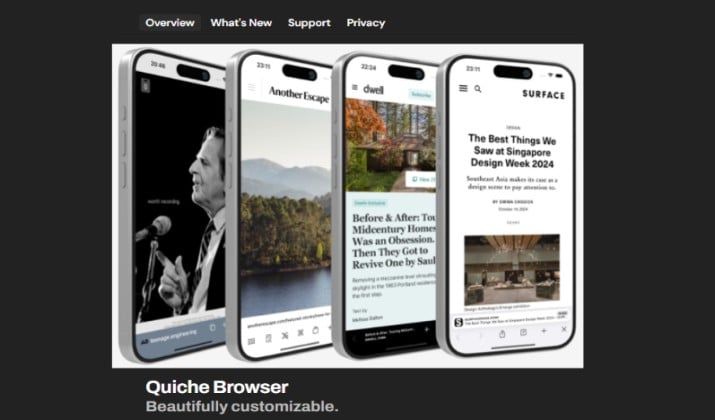
Quiche is an independent, highly customizable browser built specifically for Apple devices.
Instead of pushing AI, news feeds, shopping tools, or crypto features, it focuses on layout, gestures, and control.
You can rearrange the toolbar, choose where tabs and controls sit, adjust how pages behave, and make the browser feel comfortable for one-handed or split-screen use on iPad.
It is also a good privacy-first alternative to the big browsers. Quiche does not rely on an account-based ecosystem, and it works well as either a main browser or a clean second browser for reading, research, and everyday browsing.
One thing to know: iPad support is still in beta, so the iPad experience may change more quickly than the mature iPhone version.
Best for: iPad users who want a fast, customizable, independent browser without AI clutter or ecosystem lock-in.
Pricing: Free to download and use. The core browser and most customization features are free.
14. Firefox Focus
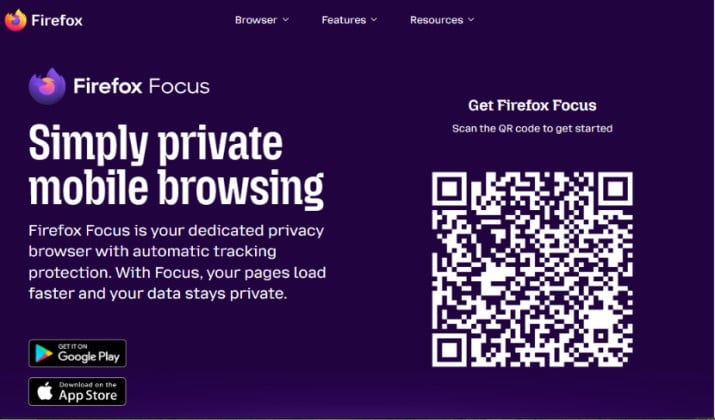
Firefox Focus is Firefox’s minimalist sibling. It is designed for one thing: quick, private browsing that leaves nothing behind. Every session can be erased with one tap, and trackers are blocked automatically.
Focus is perfect as a secondary browser. Use Safari or Chrome for your main accounts, then open Focus when you want to check a link from social media, read an article without being tracked, or search for something sensitive. It launches fast, uses little storage, and does not try to keep you inside an ecosystem.
The main limitation is intentional: no heavy sync, no complex tab system, and no extension library. That simplicity is the feature.
Best for: A fast, disposable, private second browser.
Pricing: Free. There is no premium version and no subscription. Focus is a completely free, lightweight companion to Firefox or any main browser.
15. Onion Browser
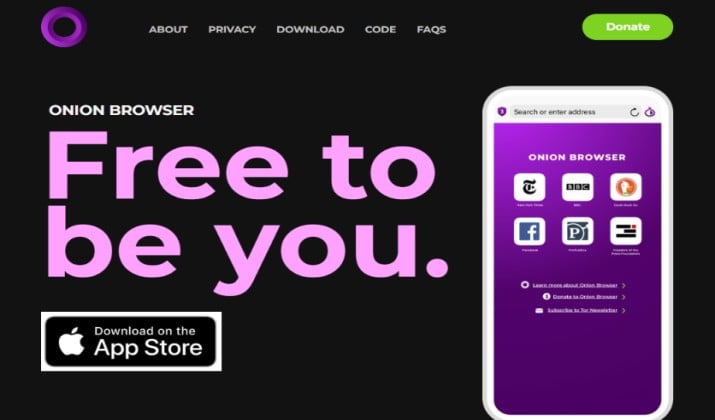
Onion Browser routes traffic through the Tor network, hiding your IP address and making it much harder for websites, advertisers, or local networks to track what you visit. It is free, open source, and designed for anonymity rather than speed.
Expect slower loading, occasional CAPTCHAs, and some sites that refuse Tor traffic. Video streaming, large downloads, and logging into personal accounts are not ideal through Onion Browser. Use it for sensitive research, journalism, activism, or browsing on untrusted networks.
Do not confuse privacy with security. Onion Browser hides your traffic, but it does not make every site safe. Always check for HTTPS and avoid entering sensitive credentials unless you trust the site.
Best for: Maximum anonymity and censorship-resistant browsing.
Pricing: Free. Onion Browser has no paid tier, no subscription, and no in-app purchases. Donations to Tor-related open-source projects are optional and handled outside the browser.
How To Choose The Right Browser For Your iPad
Start with your ecosystem. If you use iPhone, Mac, and iCloud, Safari or Orion will feel smooth. If you use Google or Microsoft everywhere else, Chrome or Edge will save time every day.
Decide how much privacy you want by default. Brave, Firefox, DuckDuckGo, and Ghostery block more trackers without setup. Safari is also strong, especially with a good content blocker installed.
Think about tabs and price. If you juggle dozens of tabs, Vivaldi, Opera, Safari Tab Groups, or Dia will help. If you only need basic browsing, the free tiers of Safari, Chrome, Firefox, Brave, Vivaldi, and Orion are more than enough. Pay for AI only if you actually use it every week, and pay for a VPN only if you regularly use public Wi-Fi or need specific locations.
Consider AI. Chrome, Edge, Brave, Dia, Comet, and Opera all include assistants, but they handle your data differently. Use AI for summaries and research, and keep banking, health, and private accounts in a separate browser or profile.
A practical setup works for most people: one main browser for accounts and daily use, plus one private browser for links, searches, and sensitive browsing.
So, Which is the Best Browser For iPad?
Safari is the best browser for iPad right now. It is fast, battery-efficient, deeply integrated with iPadOS, and requires no subscription or setup. For most people, it should be the default and only main browser.
Brave is the best second browser. Use it when you want stronger ad and tracker blocking, a cleaner web, or a separate space for research, shopping, and links you do not want tied to your main accounts.
Start with Safari. Add Brave alongside it. That combination covers nearly every iPad browsing need.