
MacOS has a huge range of capable suites that cost nothing and still handle Word docs, spreadsheets, and presentations without drama.
This guide looks at the best free Office alternatives for Mac that actually work. You get real strengths, real limits, and direct links to try each one. If you want to save money, stay productive, and keep full control of your files, this list gives you a clear place to start.
How To Pick the Right Free Office Suite for Mac?
You do not need ten apps. One that matches your workflow is enough. Here is a simple filter to make the decision faster:
- Living mostly inside Apple devices and want instant speed? A native Mac office suite makes sense.
- Trading files with Windows users every single day? Look for perfect DOCX and XLSX compatibility first.
- Working on shared docs with teammates? A cloud first suite with strong real time editing saves time.
Keep that filter in mind while you read. It turns a long list into a short choice.
1. Apple iWork
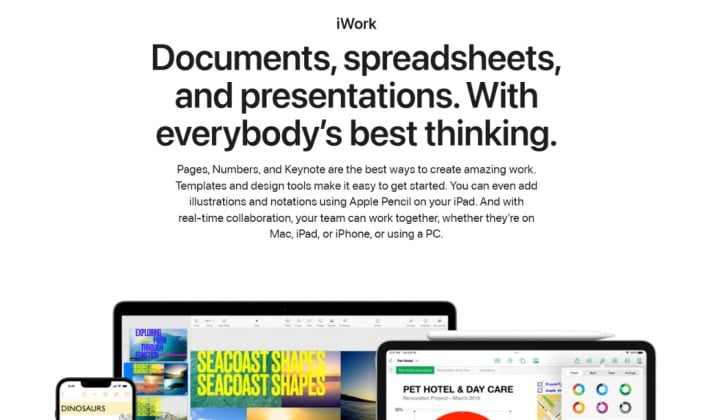
iWork comes with your Mac. Pages handles documents, Numbers handles spreadsheets, Keynote handles slides. Apple built all three for macOS, so performance feels light and fast.
You get beautiful templates, smooth animations in Keynote, and smart formatting that stays clean. Opening Microsoft files works, and exporting back to DOCX, XLSX, PPTX works too for most everyday files. Battery life stays excellent because the apps run native.
Limitations show up when your work depends on heavy Excel macros or advanced Word track changes. Complex corporate templates can shift a bit.
App links: Pages on Mac App Store | Numbers on Mac App Store | Keynote on Mac App Store
Pricing: Free for all Mac and iOS users with Apple ID.
Also read: Best Rufus Alternatives for Mac
2. LibreOffice
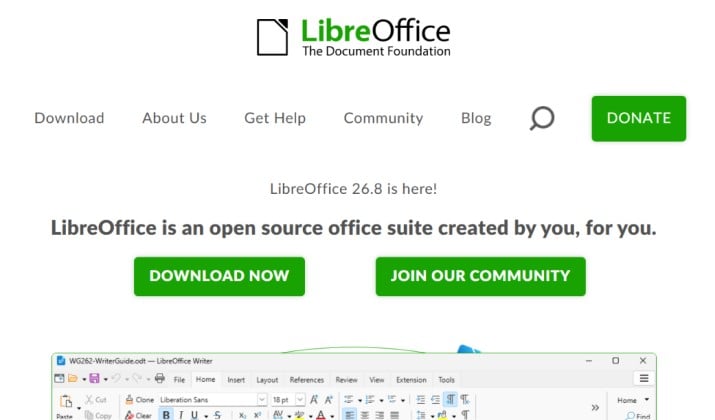
LibreOffice remains the most complete free office suite for Mac if you want total offline control. It includes Writer, Calc, Impress, Draw, Base, and Math. You install it once and it never asks for payment.
Compatibility stands out. For a free Microsoft Office alternative Mac users often trust, LibreOffice opens older DOC files and newer DOCX, XLSX, PPTX with strong fidelity. Calc handles large sheets better than most free options, and Writer gives you deep control over styles, footnotes, and references.
The interface looks more classic than modern. Some people love that. Others prefer a cleaner look. Function beats form here.
App links: Official download for Mac | LibreOffice on Mac App Store
Pricing: Desktop version is free, App Store version has a small support fee.
Read this too: Best Lightroom Alternatives for Mac
3. Google Docs / Workspace
 Google Docs, Sheets, and Slides live in your browser. You log in and start writing. No installation or update prompts required.
Collaboration feels effortless here. Several people can edit the same file, leave comments, assign tasks, and restore past versions in seconds. Drive stores everything, so your files follow you from Mac to iPhone to any other device.
Offline work needs setup and does not match desktop power. Very large spreadsheets or heavily designed decks also feel better in a desktop suite.
App links: Google Docs | Google Sheets | Google Slides
Pricing: Google Workspace offers a 14-day free trial, followed by flexible monthly or discounted annual pricing options. Paid tiers begin start at $3.50 per user per month. The Business Starter plan at $7 per user per month on an annual commitment.
4. ONLYOFFICE
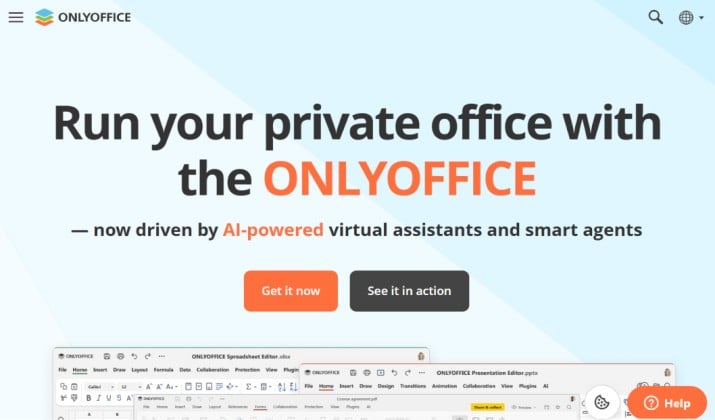
ONLYOFFICE looks familiar the moment you open it. The ribbon style layout mirrors Microsoft Office, so switching feels natural.
You get strong format fidelity with DOCX, XLSX, and PPTX. That matters when you exchange files with Office users all day. ONLYOFFICE also offers built in collaboration through its DocSpace, so teams can co edit with permissions.
Desktop editors for Mac stay free for personal use. Cloud and self hosted team editions use paid plans when you need admin controls.
App links: ONLYOFFICE Desktop for Mac | Mac App Store version
Pricing: ONLYOFFICE pricing starts with free community tiers. It also has paid business and enterprise plans ranging from $20 per admin per month to custom on-premises rates.
Another interesting read: Best Docker Desktop Alternatives for Mac
5. WPS Office
WPS Office bundles Writer, Spreadsheet, Presentation, and PDF tools in one small download. It has become a popular free office suite for Mac because it feels lightweight and familiar.
Opening Microsoft files feels quick, templates help you start resumes and budgets, and the PDF tools sit inside the same app. Cloud sync lets you start on Mac and continue on mobile.
The free tier shows ads and locks some advanced PDF and AI features. Most everyday users never need those extras, but power users notice the limit.
App links: WPS Office for Mac official | WPS on Mac App Store
Pricing: WPS Office has a free tier and paid subscriptions starting around $29.99 per user per year.
6. FreeOffice
FreeOffice is the free edition from SoftMaker. You get TextMaker, PlanMaker, and Presentations, and they focus on exact Microsoft compatibility.
Many people searching for free office alternatives for Mac pick FreeOffice because it handles formatting better than most free options. It runs fast on older Macs too, which helps if your MacBook is a few years old.
Advanced features like macros, deeper reference tools, and scripting stay in the paid SoftMaker Office. Everyday writing and sheets stay fully covered in the free version.
App link: FreeOffice for Mac download
Pricing: FreeOffice is entirely free to use for both personal and commercial purposes.
7. Zoho Workplace

Zoho Workplace is fully browser based, so you do not install anything. The Zoho Writer, Sheet, and Show cover documents, spreadsheets, and presentations.
What makes Zoho interesting is the collaboration control. You can lock a paragraph while someone else edits, comment in context, and keep detailed version history. Teams that want free productivity software for Mac without desktop clutter often enjoy this.
Free plan fits personal use and small groups. More storage and admin features move to paid tiers.
App link: Zoho Workplace official
Pricing: Zoho Workplace pricing starts at $1 per user per month for mail-only plans and ranges from $3 to $7 per user per month for full collaboration suites depending on annual or monthly billing.
8. Polaris Office

Polaris Office offers docs, sheets, slides, and PDF in one account. The Mac app syncs with phone and tablet, so the same file stays current everywhere.
Microsoft format support feels solid for daily work, and the interface stays simple. You do not hunt through complex menus to do basic tasks.
Free accounts limit the number of devices and gate PDF editing. If PDF work matters a lot, check the paid plan details before you commit.
App links: Polaris Office for Mac official | Polaris Office on Mac App Store
Pricing: Polaris Office pricing starts at $3.99 per month for basic plans, with business and AI tiers scaling higher.
9. Apache OpenOffice
Apache OpenOffice is one of the original free office programs. It includes Writer, Calc, Impress, Draw, Base, and Math. The suite stays offline, lightweight, and fully free.
For users who want a simple office productivity software package with no upsells, it still works. It opens Microsoft files decently, though LibreOffice now leads on compatibility.
Development moves slowly, so you see fewer updates than with newer suites. Stability remains good for basic tasks.
App link: Apache OpenOffice for Mac
Pricing: Apache OpenOffice is completely free to download and use.
10. Calligra Suite
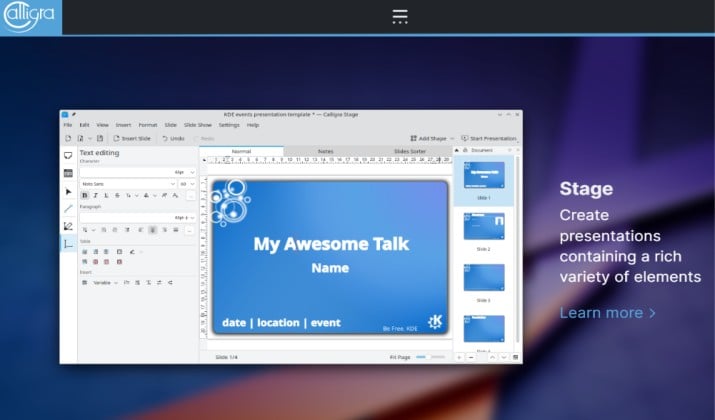
Calligra is an open source project from KDE with Words, Sheets, Stage, and extra creative tools. It focuses on open formats and modular design.
On Mac, it requires a bit more setup than mainstream options, so it suits users who enjoy tinkering. The apps feel different from Office clones, which some people prefer.
If you want a lightweight productivity suite for Mac for personal projects and experiments, Calligra adds variety.
App link: Calligra official site
Pricing: Open source and free.
Side-by-side Snapshot
Choosing becomes easier when you match tools to habits.
- iWork feels fastest on Apple hardware and wins on battery and design.
- LibreOffice and FreeOffice win on offline power and file fidelity.
- Google Docs and Zoho win on real time teamwork.
- WPS and Polaris balance familiarity with built in PDF tools.
For productivity apps for Mac, start with how you share files. When sharing stays inside Apple, iWork shines. When sharing crosses to Windows daily, prioritize suites that keep Microsoft formatting intact.
So Which Free Office Suite Should You Install First?
Apple iWork is the clear winner for most Mac users.
It comes preinstalled, launches instantly, respects battery life, syncs with iCloud, and covers documents, spreadsheets, and presentations without extra cost. You avoid ads, you avoid subscriptions, and you get performance Apple tuned for its own hardware.
LibreOffice is your ideal second install. Keep it as the offline backup for heavy files, older formats, and precise control over styles. Pair those two with Google Docs for team editing and you cover almost everything Microsoft Office does.
That combination gives you a complete free Mac office suite setup without compromise.
Install iWork today, add LibreOffice for heavy lifting, and keep Google Docs in the browser for collaboration. Your Mac stays fast, your files stay compatible, and your budget stays untouched.