If you still text the old-school way, you want an app that feels fast, looks exactly how you like, and gives you tools your stock messenger never will. Meet the Textra SMS app for Android.
It replaces your default SMS/MMS app and turns everyday texting into something you actually control. From chat bubble colors to send delays, Textra packs in features power users ask for without slowing you down.
This guide shows you what makes Textra different, how to set it up, and how it stacks up against Google Messages and Samsung Messages.
Why Is Textra SMS the Most Customizable Texting App for Android?
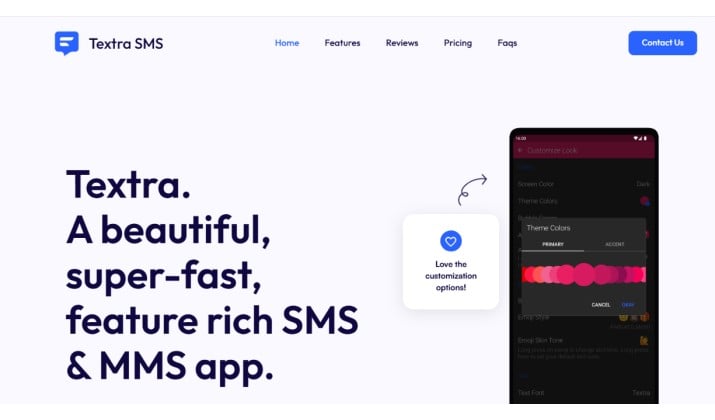
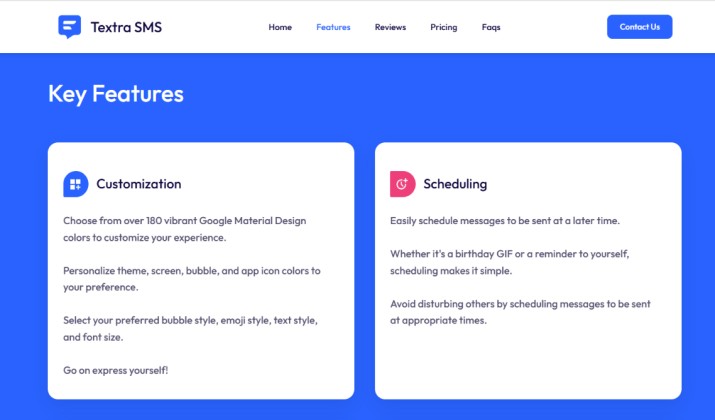
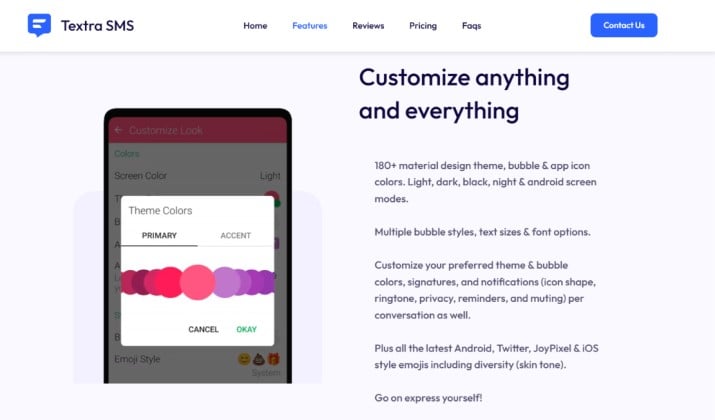
Textra built its name on customization. You get 180+ material design theme colors for the app, chat bubbles, and app icon. Switch between light, dark, black, night, and Android screen modes. Pick multiple bubble styles, 21 text sizes, and several font options.
But it isn’t just about looks. The Textra SMS app for Android also adds tools you use every day:
- Scheduled SMS & MMS: Send a text in the future
- Send delay: Pause a message for a few seconds in case you spot a typo
- Quick reply popup: Reply from any screen without opening the full app
- Slide gestures: Swipe to delete or swipe to call
- Group MMS controls: Better handling for group chats
- Message blocker / blocklist: Stop spam
- Pin-to-top: Keep important chats at the top
- iOS reactions + emojis: See and send Tapbacks like on iPhone
- Copy Partial Text: Copy just part of a message bubble
You also get automatic video & picture compression, GIF support, voice memos, and compatibility with Pushbullet, MightyText, and Android Auto.
How To Customize Textra SMS Themes, Chat Bubbles, and Dark Mode on Android?
Want your texts to match your style? Here’s how you make Textra yours:
- Change overall theme: Go to
Settings > Customize Look. Pick Light, Dark, Black, or Night mode. Black mode is perfect for AMOLED screens because true black pixels use less power. - Adjust chat bubble colors: Still in
Customize Look, set separate colors for incoming and outgoing bubbles. You’ve got 180+ material design colors to choose from. - Pick bubble styles: Choose from several bubble shapes to change the vibe of your conversations.
- Change the app icon color: Yes, you can color the Textra icon on your home screen too.
- Font and text size: Tap
Font StyleandFont Sizeto pick one of 21 text sizes and multiple fonts.
You do this once and every chat updates. Or, set them per contact.
How To Personalize Textra Notifications and Colors for Each Contact?
This is where the Textra SMS app for Android really shines for power users. You can customize theme & bubble colors, signatures, and notifications per conversation.
How to set custom notifications and ringtones per contact in Textra:
- Open a conversation and tap the three-dot menu.
- Tap
Customize this Conversation. - Change bubble colors, icon shape, sound, privacy, reminders, and muting just for that person.
- Add a signature that only sends to that contact.
Use this to know who’s texting without looking. Set a red bubble + loud ringtone for your boss, blue + silent for your family group, and green + vibration for friends.
How To Enable Send Delay and Message Scheduling in Textra To Avoid Mistakes?
Ever hit send and instantly regret it? Textra helps.
Send delay. In Settings > Sending, turn on Delay Sending. Choose 1-9 seconds. When you send a text, you’ll see a small countdown. Tap it to cancel.
How to schedule texts and use send delay in Textra SMS:
- Write your message.
- Tap the
+icon next to the text field. - Select the clock icon for
Schedule Message. - Pick a date and time. Textra handles scheduled SMS & MMS.
Great for birthday texts, reminders, or sending messages during work hours without staying up late.
How To Make Textra Use Pure Black Theme on AMOLED Displays?
AMOLED screens turn off black pixels completely. That saves battery and looks crisp.
- Open
Settings > Customize Look. - Tap
Screen Modeand selectBlack. - For best results, set both the
ThemeandBackgroundto black.
Many users choose Textra specifically for its pure black AMOLED theme and dark mode options because Google Messages uses a gray background instead of true black.
How To Set Up Textra SMS Like a Pro?
Get these settings right on day one:
- Delivery reports:
Settings > SMS & MMS > Request Delivery Reports. You’ll see when your text actually lands. - Quick reply popup:
Settings > Customize Notifications > Enable Popup Reply. Reply from your lock screen or over other apps. - Signatures:
Settings > Sending > Signature. Add one globally, or set per-contact signatures for work vs personal. - Swipe gestures:
Settings > Customize Look > Swipe Actions. Set left swipe to delete, right swipe to call.
How To Make Textra the Default Messaging App on Android?
After you install the Textra SMS app for Android, your phone will prompt you to set a default.
- Open Textra.
- Tap
Set as Defaulton the banner. - Or go to
Phone Settings > Apps > Default Apps > SMS appand pick Textra.
Textra works as a full replacement for your stock SMS/MMS app.
Is Textra SMS Safe and Private for Text Messaging?
Textra uses standard SMS/MMS, which means your carrier handles delivery. It doesn’t use end-to-end encryption like Signal or WhatsApp because SMS itself isn’t encrypted.
However, Textra doesn’t add tracking beyond what your phone already does. You can set privacy for notifications per conversation, hide message content on lock screen, and block numbers.
If you need encrypted chats, use a different app. For regular texting, Textra is as safe as your stock SMS app.
Textra Pricing
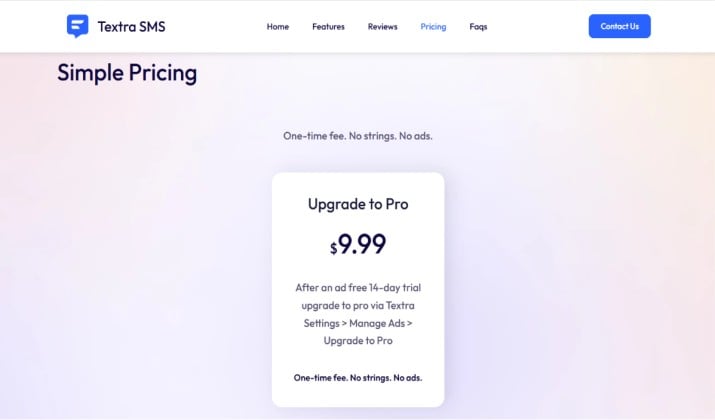
The Textra SMS app for Android is free to use forever.
You’ll see occasional ads. Want them gone? Make a one-time in-app purchase to upgrade to Pro and remove ads forever.
Current starting price is listed as $9.99 per month on some third-party sites, but the official model is a single Pro unlock after a 14-day ad-free trial.
Note: Pricing is subject to change. Please refer to the official pricing page for the latest.
Textra vs Google Messages vs Samsung Messages: Which SMS App Should You Use?
You have three big options on Android. Here’s how they compare for power users:
|
Feature |
Textra SMS |
Google Messages |
Samsung Messages |
|---|---|---|---|
|
Customization |
180+ themes, per-contact colors, bubble styles, app icon colors, 21 text sizes |
Material You colors, limited themes |
One UI design, custom categories, pure black theme |
|
RCS Support |
No RCS. SMS/MMS only. Other apps haven’t been given RCS API access |
Full RCS with typing indicators, read receipts, reactions |
RCS only on S25 series + select US carriers |
|
Scheduling / Send Delay |
Yes, built-in |
No native scheduling in 2026 |
Yes, scheduling available |
|
Per-Contact Settings |
Colors, signatures, notifications per chat |
Limited |
Custom categories |
|
Spam / Blocklist |
Message blocker included |
Strong spam protection |
Basic blocking |
|
Image Quality |
Lets you send Original, High, Medium, Low |
Compresses to 2,048px or 1,600px by default |
Multiple size options |
|
Trash / Recycle Bin |
No |
No, deletes permanently |
30-day Trash folder |
The better tool: If you want the most customizable texting app for Android and care about themes, per-contact setups, scheduling, and uncompressed media, pick Textra.
If you need RCS features like read receipts, high-res group chats with iPhone users, and cross-device web access, Google Messages wins.
Samsung Messages is best if you’re deep in One UI and want categories + a recycle bin, but RCS is limited.
For power users who text a lot but don’t need RCS, the Textra SMS app for Android is still king this year.
Why Power Users Still Choose Textra?
Google Messages pushed RCS hard and became the default on Samsung phones. But RCS access is locked down.
Third-party apps like Textra can’t add it because Google hasn’t released the APIs. So if you live in SMS/MMS world or just want total control, Textra gives you features Google and Samsung won’t.
You get Textra SMS themes and customization with 180+ colors, change chat bubble colors, background, and app icon in Textra, a pure black AMOLED theme and dark mode options, per-contact customization, and SMS scheduling, send delay, and auto-resend features.
Add the quick reply popup, swipe gestures, and group MMS controls, and you see why it’s the best SMS app for Android power users.
Try the Textra SMS app for Android for two weeks. Set your colors, pick your bubbles, schedule a text, and see if you can go back to stock. Most people can’t.